Skip to content

Manage IPTV Playlist on Web: Stop Typing URLs With a Remote
The fix for remote-typing pain is simple: manage IPTV playlist on web dashboards and phone browsers, not on the TV. The playlist link goes in once, on a device with a real keyboard, and the player on the TV picks it up. Every serious player now offers some version of this — a QR pairing screen, a signed-in web dashboard, or a sync that pushes the list to the next screen automatically.
That is the short answer. The rest of this page is the part the setup guides skip: which of the six no-typing methods actually removes the typing, which ones just move it to a smaller keyboard, what a proper web manager should let you do once the list is in there, and what you should think about before pasting a login into a browser form.
Why typing a playlist URL with a remote goes wrong
A playlist link is not a friendly string. A typical one runs 60 to 120 characters, mixes upper and lower case, and ends in a query string full of ampersands, equals signs and a token that looks like someone sat on a keyboard. On an on-screen grid you move one square at a time, and the shift and symbol layers are usually on a second or third page.
Two things then go wrong, and they are hard to tell apart. The first is the obvious typo — one wrong character in a token and the player reports that it cannot reach the list. The second is sneakier: the on-screen keyboard quietly capitalises the first letter, or an autocomplete offers a “helpful” completion, and you end up with a link that looks right on screen and is not. People spend an evening re-checking their subscription over a capital H.
There is a third failure that only shows up later. If you typed the link by hand on the living-room TV, you will type it by hand again on the bedroom box, and again on the tablet. Each copy is an independent chance to get it wrong, and each copy drifts on its own once you start hiding channels and building favorites. The typing is annoying once; the duplication is annoying forever.
The six ways to add a playlist without typing
Not every “no typing” method is equal. Some genuinely remove the keyboard from the equation; others hand you a smaller keyboard and call it a win. Here is the honest ranking.
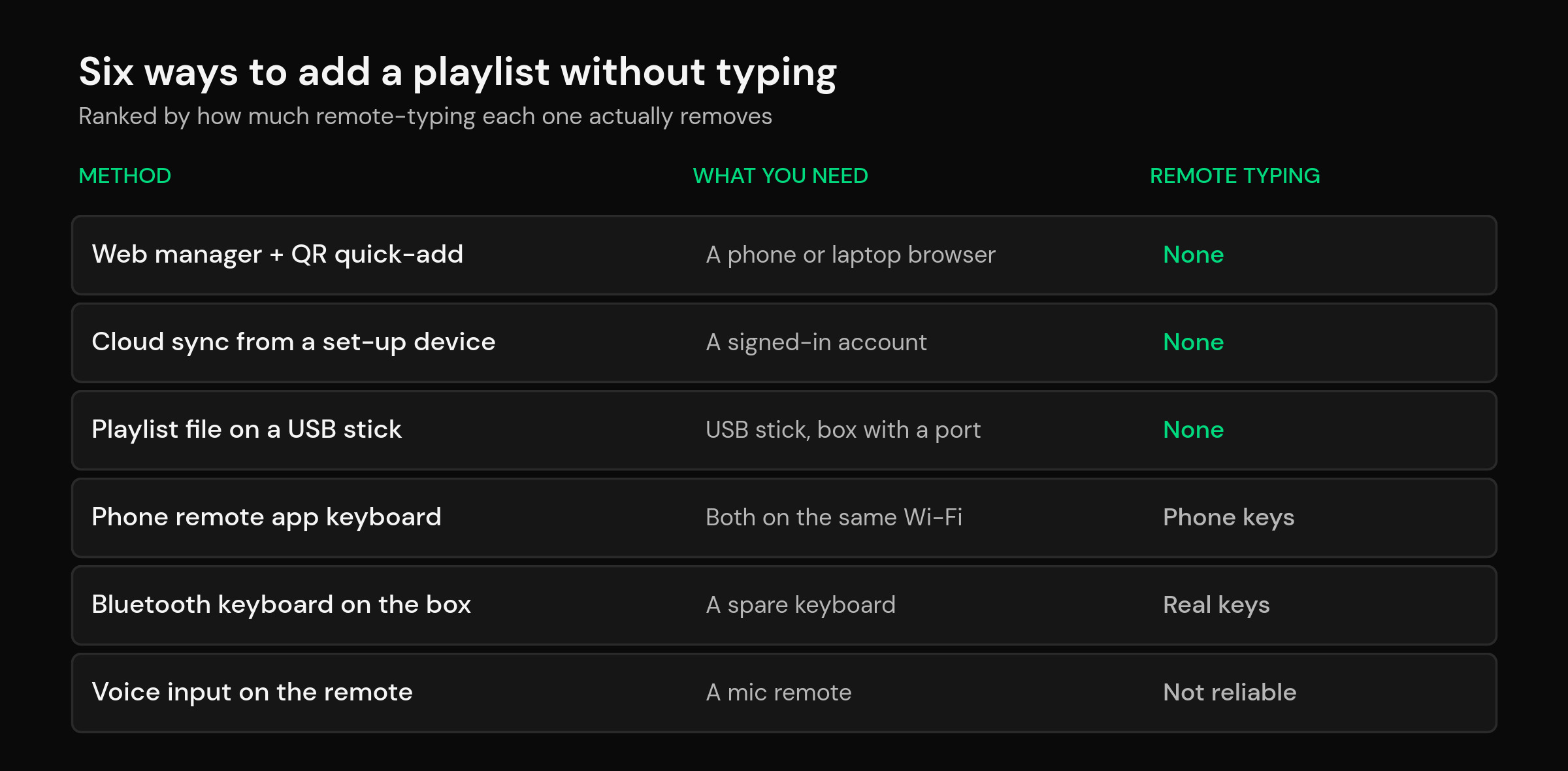
| Method | What it needs | Typing left on the remote | Best for |
|---|---|---|---|
| Web manager + QR quick-add | A phone or laptop browser | None | First setup and every edit after |
| Cloud sync from a device you already set up | A signed-in account | None | The second, third and fourth screen |
| Playlist file on a USB stick | A stick and a spare USB port | None | Boxes with no reliable network yet |
| Phone remote app keyboard | Phone and TV on the same Wi-Fi | Moved to the phone | One-off text you cannot avoid |
| Bluetooth keyboard paired to the box | A spare keyboard | Real keys, still manual | People who tinker often |
| Voice input on the remote | A microphone remote | Unreliable for URLs | Channel names, not links |
The top three are the only ones that remove the transcription step entirely. The others are worth knowing about because they rescue you when the first three are not available — and the phone-keyboard one is genuinely useful for short things like a channel search.
Phone remote apps: better keys, same job
If your box runs Android TV or Google TV, the official phone app pairs over the network and gives you a keyboard that types into whatever field is focused on the TV. You connect the phone to the TV and enter the code shown on screen, then the phone’s keyboard drives the TV — Google documents the pairing flow in its own Google TV app help pages and covers using a phone as a virtual remote in the Chromecast and Google TV Streamer help.
It is a real improvement over the D-pad. It is still transcription, though: you are reading a link from somewhere and re-typing it, just with better keys. If your phone can copy the link to its clipboard, a remote app usually cannot paste it into the TV for you, which is exactly the gap a web manager closes.
Bluetooth keyboards and USB files
A cheap Bluetooth keyboard pairs with almost any streaming box and turns URL entry into ten seconds of normal typing. Worth keeping in a drawer if you rebuild setups often. A playlist saved as a file on a USB stick is the other offline route — the file is just text in the M3U format, a de facto standard old enough that its extended version became the basis for Apple’s HLS specification. A player that can open a local file will read it straight off the stick. The catch is that a file is a snapshot: when the provider updates the list, your stick does not.
What a real web IPTV playlist manager should do
Adding the link is the easy half. The reason a web manager beats every other method is what it lets you do after the list is in there, on a device where scrolling and typing are effortless.
A web IPTV playlist manager earns its place if it covers these:
- Multiple playlists, named properly. Not “Playlist 1” and “Playlist 2” — actual names you will recognize in six months.
- Editing a link without deleting the playlist. When a provider rotates your credentials, you should be able to swap the URL and keep your favorites, groups and channel order. Losing all of that because a token changed is the single most common complaint about players that treat a playlist as disposable.
- Group and category tidying. Deciding which groups you actually want, on a screen where you can see thirty at a time instead of six.
- An honest error message. If the link is dead, you want to know that in a browser, before you walk to the TV.
- Nothing that needs the TV to be on. Editing at work on a laptop and having the change waiting at home is the whole point.
If you are still deciding which credential format to use, that choice affects how much of this matters — a static file and a login-based connection behave differently on refresh. Our breakdown of M3U vs Xtream Codes covers which one to hand your player. And if you are new to the category entirely, start with what an IPTV player actually is.
QR quick-add, start to finish
The QR route is the fastest first setup there is, and it is the same shape in every app that offers it. QR codes exist precisely to move a string from a screen into a device without anyone typing it, which is why pairing screens adopted them.
- Open the player on the TV and go to the add-playlist screen. A code appears.
- Point your phone camera at it. Your phone opens the manager page in its browser.
- Paste the playlist link on the phone — from your email, your notes app, wherever the provider sent it. This is the step that never involves a remote.
- Give it a name and save.
- The TV picks it up. On a good implementation you do not press anything on the TV at all.
Two practical notes. Keep the phone and TV on the same network for the smoothest handoff, and paste the link rather than retyping it — the entire benefit disappears if you type it into the phone from a screenshot.
Add it once, have it on every screen
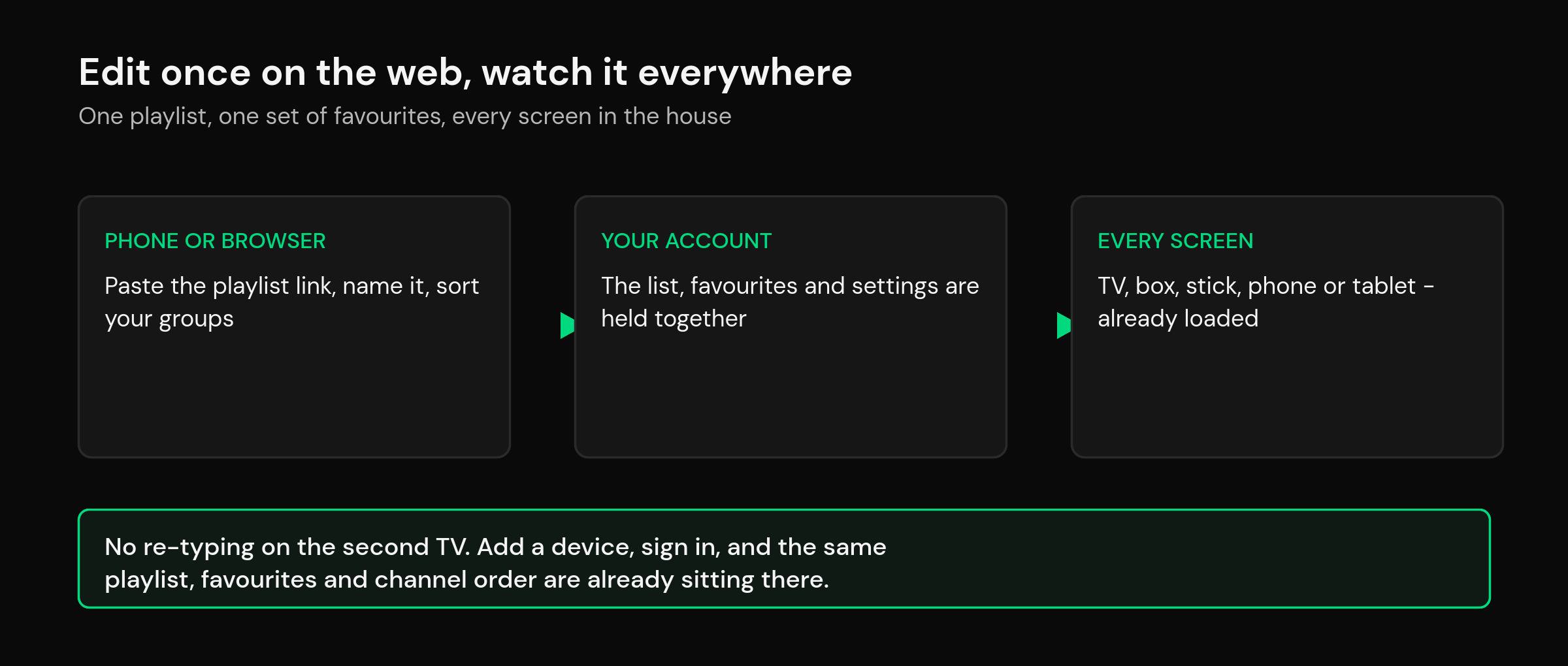
Here is where the web-manager approach stops being a convenience and starts being the reason to pick one player over another. Once the playlist lives with your account rather than inside one installation, the second TV is not a setup job. You install the app, sign in, and the list, the favorites, the hidden groups and the channel order are already there.
mtivi is built around that assumption. Playlists are managed on the web and quick-added by QR, and cloud sync carries your playlist, favorites, settings and playback position to every signed-in device, so the bedroom box inherits the work you did in the living room. It is also why moving to a new box is a sign-in rather than an evening.
The same logic applies to big lists. Tidying an 80,000-channel playlist is miserable on a TV and perfectly reasonable in a browser, and once you have done it, you have done it everywhere.
Which method fits your device
On Android TV and Google TV boxes you have every option: QR, web, phone keyboard, Bluetooth keyboard and USB. On a Fire TV stick the USB route is usually out because there is no free port, so QR or the web manager is the practical answer; Amazon’s own on-screen keyboard on recent builds can hand typing to a phone browser, but availability varies by device and software version, so treat it as a bonus rather than a plan.
On a smart TV running the manufacturer’s own system, your options depend entirely on what that TV’s app store allows. This is the usual reason people put a small streaming box on a smart TV: it turns a locked-down platform into one where a web manager, QR pairing and sync all work normally.
Before you paste a login into a browser
A playlist link often contains your username and password in the query string. That is worth two minutes of thought, not paranoia.
Check that the manager page is served over HTTPS — the padlock, no exceptions. Prefer a manager run by the player you are already trusting with those credentials over a random third-party “playlist converter” site, because you are handing over a working login either way. Do not paste your link into a public shared computer, and if you ever do, change the credentials afterwards. And if a site offers to “check” or “test” your playlist by keeping a copy, close the tab.
None of this is specific to web managers — it is the same judgement you would apply to any site asking for a login. It is just worth saying out loud, because a playlist URL does not look like a password even though it works like one.
Related guides
- M3U vs Xtream Codes: which format should you use?
- IPTV player cloud sync: the same playlist on every device
- Loading a large playlist without lag
- What is an IPTV player? A clear guide
- Best IPTV player for Android TV and Google TV
Frequently asked questions
Can I manage my IPTV playlist on the web without touching the TV?
Yes, if your player keeps the playlist with your account rather than inside the installation. You edit the list in a browser, and the app picks up the change the next time it refreshes. Players that store everything locally on the box cannot do this — the TV has to be on and you have to be in front of it.
Does a QR quick-add need the phone and TV on the same Wi-Fi?
Usually yes for the smoothest handoff, and it is the safe assumption. Some implementations pair through your account instead, which works across networks, but if the code will not connect the first thing to check is that both devices are on the same network and not split across a guest SSID or a 2.4GHz/5GHz pair that cannot see each other.
Why does my playlist link have my password in it?
Plain playlist links carry your credentials in the URL because that is how the provider’s server identifies you when the file is requested. It is normal, and it is exactly why the link should be treated as a password: do not post it in a forum thread, a screenshot or a support chat without blanking the username and password portions.
Can I change the playlist URL without losing my favorites?
In a well-built player, yes — you edit the link on the existing playlist entry and everything attached to it stays. In players that treat the playlist as disposable, deleting and re-adding is the only route, and that wipes favorites and channel order. It is worth checking before your provider rotates your credentials rather than after.
Is a web playlist manager safe?
It is as safe as the operator running it. Check for HTTPS, and prefer the manager belonging to the player you already trust with those credentials over an unknown third-party site. The risk is not the concept, it is handing a working login to someone with no reason to look after it.
What if my player has no web manager or QR option?
Use a Bluetooth keyboard for the initial entry — it is the cheapest fix and turns a five-minute ordeal into ten seconds. A phone remote app is the next best thing. If you find yourself doing this often across several devices, that is a sign the player is the wrong tool rather than the keyboard being the problem.
Can I add a playlist from a USB stick instead?
Yes, if your player can open a local file and your box has a spare USB port. Save the list as a .m3u or .m3u8 file, plug the stick in and browse to it. The trade-off is that the file is frozen at the moment you saved it, so anything the provider adds or removes later will not appear until you copy a fresh file across.
Will voice input work for typing a playlist URL?
Not usefully. Voice recognition is built for words, not for long strings of mixed-case characters and symbols, and it will mangle a token every time. Voice is genuinely good for finding a channel by name once the list is loaded — just not for getting the list in.
Does mtivi provide any channels or playlists?
No. mtivi is a media player. We don’t provide, sell, or include any channels, movies, series, or playlists — you add your own source. The web manager and QR quick-add are simply easier ways to hand the player the source you already have.
How many playlists can I manage at once?
That depends on the player, but a good one lets you keep several side by side and name them properly, then switch or merge as you like. If you are running more than one source, it is usually worth deciding early whether you want them kept separate or combined into a single tidy list.
Do I have to redo this on every device?
Only if your player stores the playlist locally. With account-based sync you set it up once and every later device inherits the playlist, favorites, hidden groups and channel order at sign-in. That is the difference between four setups and one.
My playlist loads on the phone but not on the TV. Why?
Nine times out of ten the two devices are not looking at the same list — the TV is still on an older locally-stored copy and needs a refresh or a sign-in. If both are genuinely on the same list, the next thing to check is the network: some boxes sit on a different Wi-Fi band or a guest network with restrictions the phone does not have.