Skip to content

No Sound on IPTV Channels? How to Fix Silent Audio in 2026
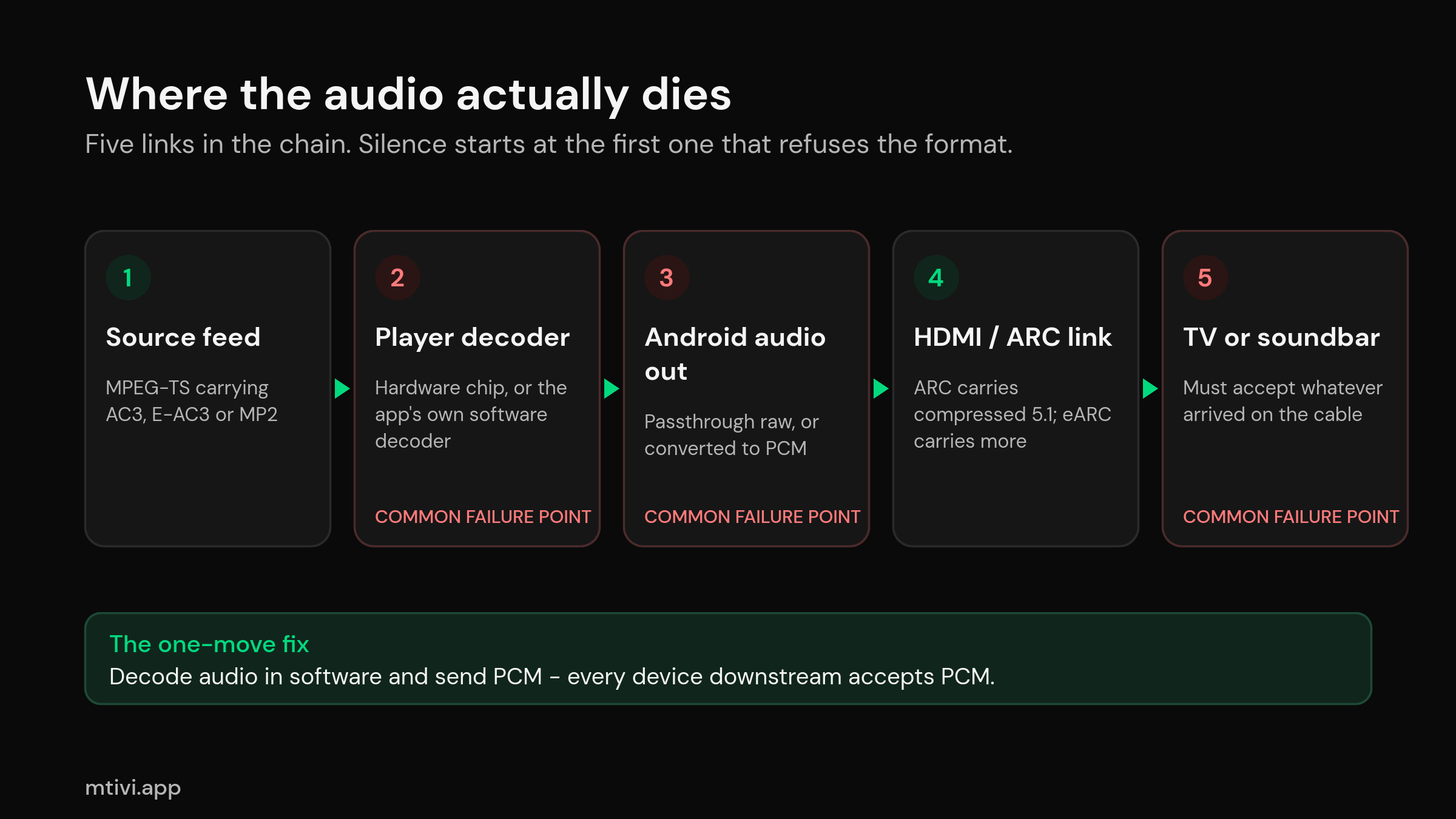
No sound on IPTV channels is almost never a broken app and almost never a dead playlist. In the overwhelming majority of cases the picture is fine because your device decoded the video, and the audio is silent because the audio track arrived in a format — usually AC3 or E-AC3 — that nothing in the chain between the player and your speakers is willing to decode. Switch your player’s audio decoder to software and the sound comes back on most devices within seconds.
That’s the short answer. The longer answer matters, because the fix is different depending on whether one channel is silent or all of them are, and because half the advice online tells you to reinstall the app — which fixes nothing and costs you your favorites.
Start here: is it one channel, one group, or everything?
Before you touch a single setting, note which channels are silent. This one observation eliminates about 80% of the possible causes, and it takes ten seconds.
| What you’re hearing | Most likely cause | Where to fix it |
|---|---|---|
| One channel silent, the rest fine | That channel’s audio codec, or a broken audio track on the source | Player decoder setting, then your provider |
| A whole group silent (often the HD or 4K group) | Those channels carry Dolby Digital or Dolby Digital Plus audio your device won’t decode | Player decoder + device sound settings |
| Live TV silent, movies and series fine | Live feeds are MPEG-TS with AC3; on-demand files are usually MP4 with AAC | Player decoder setting |
| Everything silent, including menus | Device output format, HDMI/ARC chain, or a muted app volume | Device sound settings and cables |
| Sound cuts out a few seconds in | Passthrough negotiation failing mid-stream | Turn passthrough off, force PCM |
The “live TV silent, movies fine” pattern is the one that trips people up most, and it’s the clearest possible fingerprint of a codec problem. Nothing is wrong with your subscription. Your device simply handles one container fine and the other badly.
Why AC3 and E-AC3 go silent on Android devices
Here is the part almost nobody explains properly, and it’s worth two minutes because it makes every fix below obvious.
Android’s own supported media formats documentation lists the audio codecs the platform guarantees: AAC LC, HE-AAC, xHE-AAC, AAC ELD, AMR, FLAC, MIDI, MP3, Opus, PCM and Vorbis. Read that list again and notice what is not on it. There is no row for AC3. No row for E-AC3. No row for DTS, and no row for MPEG-1 Audio Layer II. Google’s page adds the warning that matters for TV boxes: “On form factors other than handsets and tablets, media format support may vary.”
Dolby decoding on Android is a licensed, per-device extra. Your phone might have it. Your £30 box almost certainly doesn’t. Two boxes on the same shelf running the same Android version can behave completely differently, which is exactly why the forum answer that worked for someone else did nothing for you.
It gets more specific for live TV. Android’s platform MPEG-TS extractor — MPEG-TS being the container nearly every live channel arrives in — is documented as AAC audio only. So when a live feed carries AC3 inside an MPEG-TS stream, the platform’s own pipeline has no route to sound at all unless the app brings its own decoder to the party.
Which brings us to the players. Google’s ExoPlayer documentation states it plainly: “By default ExoPlayer uses Android’s platform decoders. Hence the supported sample formats depend on the underlying platform rather than on ExoPlayer.” Most IPTV apps on Android are built on ExoPlayer. If the app ships only the default configuration, it inherits every gap in your device’s codec list. Apps that also bundle software decoders can decode ac3, eac3, DTS and MP2 themselves and hand your device plain PCM, which every device on earth can play.
Then there’s passthrough, the second silence factory. Amazon’s own Fire TV Dolby integration guidelines spell out the failure mode: “the creation of AudioTrack fails if the encoding format is not supported by the connected endpoint.” That is the whole mystery in one sentence. When your box is set to pass raw Dolby straight through to a TV or soundbar that can’t take it, the audio track never opens. You don’t get an error. You don’t get a warning. You get silence, with a perfect picture.
One more trap, and it catches people with newer gear: Dolby Digital Plus is not backward compatible with existing AC3 hardware. A 2015 soundbar that happily decodes Dolby Digital can be stone deaf to Dolby Digital Plus arriving on the same cable.
Fix 1: switch the player’s audio decoder to software
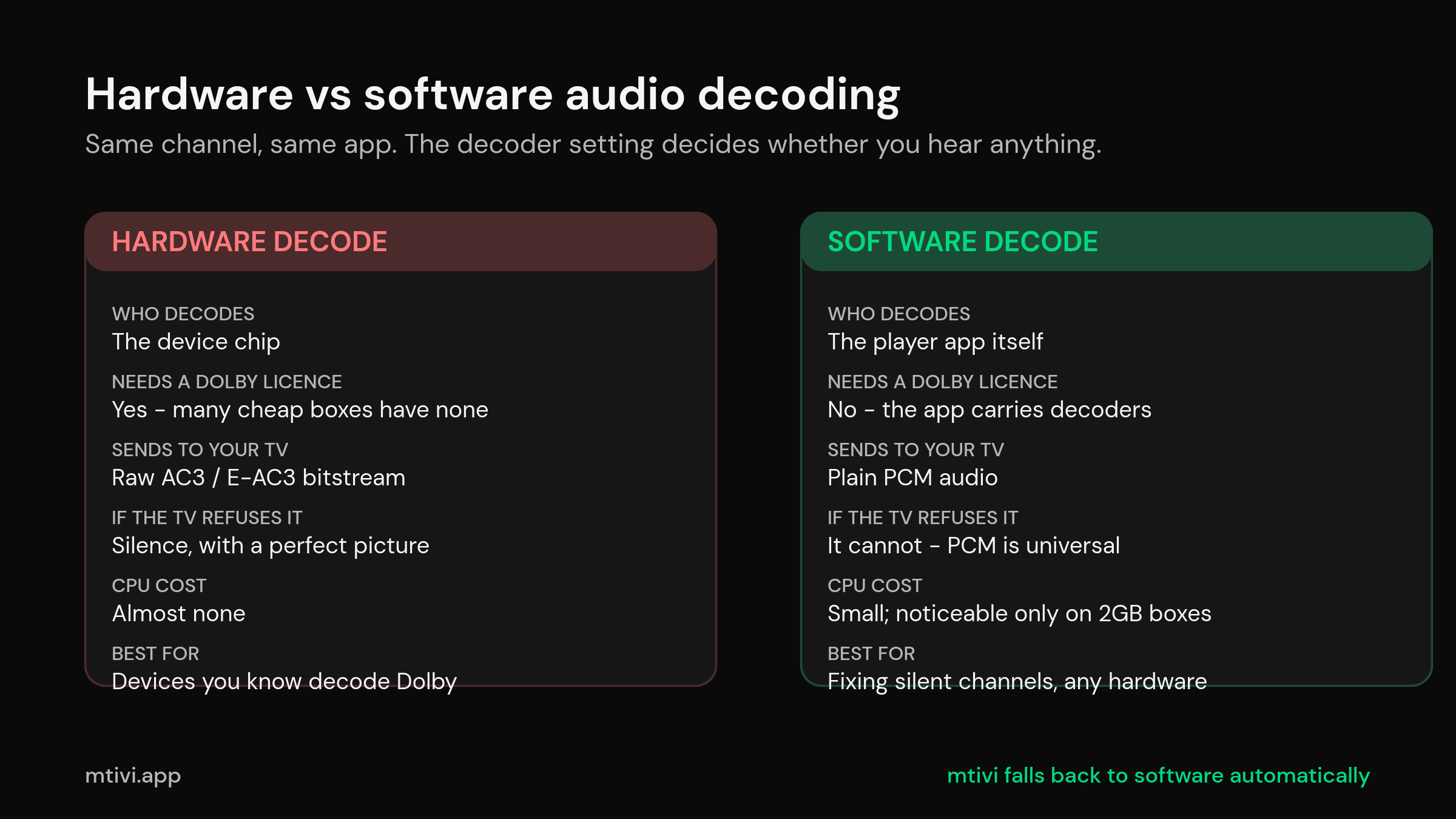
This is the single highest-yield fix and it should always be your first move. You are telling the app: stop asking the device to decode this, decode it yourself and send simple stereo PCM out.
- TiviMate: Settings → Playback (or Player) → Decoder → set to Software. Some builds expose HW+, which decodes video in hardware and audio in software — usually the best of both.
- IPTV Smarters / XCIPTV: Settings → Player → Audio Decoder → Software. On some builds the toggle lives inside the playback screen’s three-dot menu instead.
- mtivi: nothing to do. It carries its own decoders and falls back to software automatically when a track won’t decode in hardware, so AC3, E-AC3, DTS and TrueHD play on boxes that have no Dolby license of their own.
The trade-off is real and worth knowing: software decoding costs CPU. On a modern box you will never notice. On a 2GB stick playing a 4K feed you might see the picture stutter, in which case use HW+ if your app offers it, or software audio only. If your player has no decoder setting at all, that is itself the answer — you need a different player, and the differences between native, ExoPlayer and VLC engines explain why some apps have this option and others don’t.
Fix 2: turn passthrough off and force a format your gear accepts
If software decoding didn’t do it, or the silence covers everything including your device’s own menus, the problem is downstream. Stop your box sending raw Dolby and make it send something universal.
Chromecast with Google TV: All Settings → Display & Sound → Advanced sound settings → Surround sound format selection → Manual, then under Supported formats pick the format you want. Google’s sound settings guide carries the relevant caution: “If Dolby Digital Plus, Dolby Digital, or PCM stereo is selected, your media equipment (TV, A/V receiver, or soundbar) should also support this format to avoid audio or visual issues.”
Google TV Streamer: All Settings → Display & Sound → Audio options → Output format, then choose Automatic (Recommended), Dolby Digital Plus, Dolby Digital or PCM stereo. When you’re hunting silence, PCM stereo is the diagnostic setting — if sound returns, you’ve proved the problem is a format your TV or soundbar can’t take.
Fire TV and Firestick: Settings → Display & Sounds → Audio → Dolby Digital Output. Turn the Dolby output off so the stick decodes internally and sends stereo. Amazon’s documentation notes that the Dolby decoder on these platforms down-mixes multichannel to stereo anyway when the endpoint can’t take Dolby, so you are usually giving up less than you think. Our Firestick player guide covers the rest of the Fire TV sound menu.
Other Android TV boxes: the path varies by manufacturer — look under Settings for Sound, Audio output, or Advanced sound settings. Set it to Auto or PCM and test again. Some Android 12 boxes moved this menu, so if you can’t find it, check the manufacturer’s support page rather than a generic guide. There’s more on getting picture and sound right together in our notes on 4K HDR playback settings.
Fix 3: you’re on the wrong audio track
Plenty of live channels carry two or three audio tracks — an original language, a dub, sometimes an audio-description track. If a channel opens on a track that’s empty, encoded oddly, or simply not the one you want, you hear nothing while the stream itself is perfectly healthy.
During playback, open the audio track menu (usually the same overlay as subtitles) and step through the tracks one at a time. In mtivi it’s on the playback overlay next to the subtitle picker; in TiviMate it’s under the playback menu’s Audio entry. If track 2 has sound and track 1 doesn’t, you’ve found it — and most players will remember your choice for that channel.
This one is worth checking early because it costs nothing and it explains the maddening case where one specific channel is silent for you and works for everyone else in the same group. While you’re in that overlay, it’s also where you’d fix missing closed captions, which often go wrong for the same reason.
Fix 4: audit the HDMI and soundbar chain
If your box sends sound to a TV and the TV sends it onward to a soundbar over ARC, you have three devices that all have to agree on one format. They frequently don’t.
ARC arrived with HDMI 1.4 and carries stereo PCM plus compressed Dolby Digital, Dolby Digital Plus and DTS up to 5.1 channels. eARC, with roughly 37 Mbit/s of bandwidth, is what you need for uncompressed multichannel and the high-bitrate formats. If your TV is ARC-only and your box is pushing something ARC can’t carry, the soundbar goes quiet.
| Check | What to do |
|---|---|
| Cable in the right port | The soundbar must sit in the TV’s HDMI port labeled ARC or eARC — not any other port |
| TV audio output | Set the TV’s digital audio out to PCM while testing, then step up if you want surround back |
| Cable age | eARC needs a High Speed / Ultra High Speed cable; an old one can carry picture but drop the audio return |
| Bypass test | Plug the box straight into the soundbar, or straight into the TV with the bar off — whichever restores sound names the culprit |
| CEC confusion | Turn HDMI-CEC off temporarily; handshake loops between three devices are a real cause of intermittent silence |
The bypass test is the one to run if you’re short on patience. It takes a minute and it tells you which of the three boxes to blame.
Fix 5: when the stream itself has no usable audio
Sometimes there is genuinely nothing to hear. Two versions of this show up regularly.
The first is MP2 audio. MPEG-1 Audio Layer II is used alongside Dolby Digital in the audio streams for some DVB broadcasts, and feeds that originate from DVB sources often carry it. It’s not in Android’s platform codec list either, so it lands in exactly the same trap as AC3 — and it’s fixed the same way, with a player that decodes it in software.
The second is a genuinely broken feed: the audio PID has dropped on the source side and every viewer on that channel hears nothing. You can identify this in about thirty seconds. Open the same channel on a phone with a completely different player. If it’s silent there too, on different hardware and a different app, stop changing settings — the stream is the problem and only your provider can fix it. Message them with the channel name and the time; a dead audio PID is a five-minute fix on their end.
The 60-second checklist
- Note the pattern: one channel, one group, all live TV, or everything.
- Set the player’s decoder to Software (or HW+).
- Cycle the audio tracks on the silent channel.
- Set the device’s sound output to PCM stereo and retest.
- Turn Dolby output / passthrough off at the box.
- Bypass the soundbar — box straight to TV.
- Test the same channel on a phone with a different app. Still silent? It’s the source.
Work them in that order. Steps 2 and 4 between them account for the vast majority of silent-channel reports, and neither one requires reinstalling anything or re-entering your playlist. If you find yourself repeatedly rebuilding a setup to chase problems like this, that’s a separate issue worth solving — and a good reason to use a player that keeps your playlists and favorites synced so a reset never costs you anything.
How mtivi handles this differently
Most of this article exists because the average Android player hands decoding to the device and hopes for the best. mtivi ships its own decoders and falls back to software automatically the moment a track won’t decode in hardware — so Dolby Digital, Dolby Digital Plus, DTS, TrueHD and the older MPEG audio formats play on boxes that were never licensed for them, without you opening a settings menu.
You still get a manual decoder control if you want it, because on some hardware forcing software audio while keeping hardware video is the smoothest combination. But the default is designed so that “some channels have no sound” isn’t a thing you have to research. The full player is free, no account needed, so it costs nothing to test a silent channel in a second app before you go arguing with your provider.
If your audio plays but drifts away from the picture, that’s a different fault with a different fix — see fixing lip-sync delay. And if channels are failing to open at all rather than playing silently, start with connection and login errors instead.
Related guides
- IPTV Native vs ExoPlayer vs VLC: Which Player Engine Should You Use?
- IPTV Audio Out of Sync? How to Fix Lip-Sync Delay
- IPTV Player 4K HDR: 7 Settings for a True 4K Picture
- Best IPTV Player for Android TV and Google TV
- IPTV Closed Captions: How to Get Readable Subtitles on Any Channel
Frequently asked questions
Why do some IPTV channels have no sound while others are fine?
Because the silent ones carry a different audio codec. Working channels are usually AAC, which every Android device decodes. Silent ones are usually AC3 or E-AC3 (Dolby Digital and Dolby Digital Plus), which Android does not guarantee at platform level — it’s a licensed per-device extra. Switching your player’s decoder to software makes the app decode them itself.
What does switching the audio decoder to software actually do?
It stops the app asking your device’s hardware chip to decode the audio and decodes it in the app instead, then sends plain PCM out. PCM is universally supported, so it sidesteps both a missing Dolby license and a soundbar that can’t take the format. It costs a little CPU, which only matters on very low-powered boxes.
Should I use Software or HW+ decoding?
HW+ if your player offers it. It decodes video in hardware (cheap, smooth, keeps 4K playback fluid) and audio in software (which is where the problem is). Full Software decoding fixes the same audio issue but also moves video decoding onto the CPU, which can cause stutter on 2GB boxes and sticks.
Why is my live TV silent but movies and series play fine?
Live channels arrive as MPEG-TS, and Android’s platform MPEG-TS handling is documented as AAC audio only — so an AC3 track inside a live feed has no route to your speakers unless the app brings its own decoder. On-demand files are usually MP4 with AAC audio, which the platform handles natively. Same app, same playlist, completely different pipeline.
Does turning off passthrough mean I lose surround sound?
Sometimes, but less than you’d expect. If your TV or soundbar couldn’t decode the format in the first place, you were getting silence rather than surround. And on Fire TV devices Amazon documents that the Dolby decoder down-mixes multichannel to stereo anyway when the endpoint doesn’t support Dolby. If you own genuine 5.1 gear that does support the format, leave passthrough on and fix the mismatch instead.
My soundbar works with everything except my IPTV app. Why?
Your other apps are almost certainly sending AAC or stereo PCM, which the bar takes happily, while the live feed is sending Dolby your bar can’t decode — or is sending Dolby Digital Plus to a bar that only handles plain Dolby Digital. The two are not backward compatible. Force PCM at the box and the bar will speak again.
Will reinstalling the app fix no sound on IPTV channels?
Almost never, and it usually costs you your playlists, favorites and groups. Reinstalling doesn’t change your device’s codec licenses, your HDMI chain or the stream’s audio format — the three things that actually cause silence. Work through the decoder and output settings first.
How do I tell whether the problem is my setup or my provider?
Open the same channel on a phone, using a different app, on mobile data rather than your home Wi-Fi. If sound plays there, the fault is in your TV device or its settings. If it’s silent on completely different hardware, the source feed has no usable audio and only your provider can fix it — send them the channel name and the time you tested.
What is MP2 audio and why does it break?
MPEG-1 Audio Layer II is an older format used alongside Dolby Digital in the audio streams of some DVB broadcasts, so feeds sourced from broadcast often carry it. It isn’t in Android’s guaranteed platform codec list, so it fails in exactly the same way AC3 does — and the same software-decoder fix cures it.
Why does the sound work for a few seconds then cut out?
That’s passthrough negotiation failing mid-stream. The first moments play from a buffer, then the device tries to open a raw Dolby output path, the receiving device refuses it, and the audio track closes. Force PCM stereo at the box and it will stop happening.
Does the ARC or eARC port on my TV matter?
Yes. The soundbar must be plugged into the TV port labeled ARC or eARC, not a plain HDMI port. ARC (from HDMI 1.4) carries stereo PCM plus compressed Dolby Digital, Dolby Digital Plus and DTS up to 5.1. eARC’s higher bandwidth is what’s needed for uncompressed multichannel and high-bitrate formats. Wrong port, or an old cable, and audio silently drops while the picture stays perfect.
Does mtivi provide the channels I’m trying to fix?
No. mtivi is a media player. We don’t provide, sell, or include any channels, movies, series, or playlists — you add your own source. What mtivi does is play whatever that source sends it, including the Dolby and MPEG audio formats that leave other players silent.
Is there a way to stop this happening on every new device I set up?
Use a player that decodes in software automatically rather than one that depends on the box’s licenses, and keep your setup in cloud sync so a new device inherits your playlists and preferences instead of being rebuilt from scratch. That combination means a cheap replacement box behaves the same as the one it replaced.