Skip to content
How to Hide Dead IPTV Channels and Reorder Groups
To hide dead IPTV channels, open your player’s channel or group manager, mark the offline entries and the categories you never watch as hidden, then drag your favorite groups to the top so they load first. The channels themselves live in your playlist, so hiding is non-destructive: you are tidying what the player shows, not deleting anything from your source.
A fresh playlist can arrive with thousands of entries, and a good share of them are noise. Some point at streams that no longer work. Others are whole categories in languages or regions you will never open. Scroll far enough and the list you actually care about is buried under groups you would happily never see again. The fix is not to hunt through the raw file line by line. Every capable player lets you hide what you do not want and reorder what you do, and once you have done it the difference is night and day. This guide walks through why lists get messy, how to hide dead channels quickly, how to reorder your groups, and how to make the tidy layout stick across every screen.
Why your channel list fills up with dead channels and clutter
Your channel list is built from a playlist, usually an M3U file or a login that hands the player one. That playlist is a plain list of entries, each with a name, a group label, and a link to a stream. Nothing in it guarantees every link still works or that the groups are ordered the way you would choose. A “dead” channel is simply an entry whose stream is offline, retired, or misrouted, so it shows in the list but fails when you open it. Large lists tend to carry more of them, which is one reason loading a big playlist can feel cluttered even when the player itself is fast. If you are wrestling with sheer size, our guide to loading a large playlist without lag pairs neatly with the cleanup steps here.
Clutter has a second source: groups. Playlists often ship with dozens of categories, sorted in whatever order the source decided, with your handful of favorites scattered somewhere in the middle. None of this is a fault in the player. It is just raw data that has never been organized for you. Hiding and reordering is how you turn that raw data into a list that feels like your own television, which is part of what a good IPTV player is for in the first place.
How to hide dead IPTV channels: the quick way and the thorough way
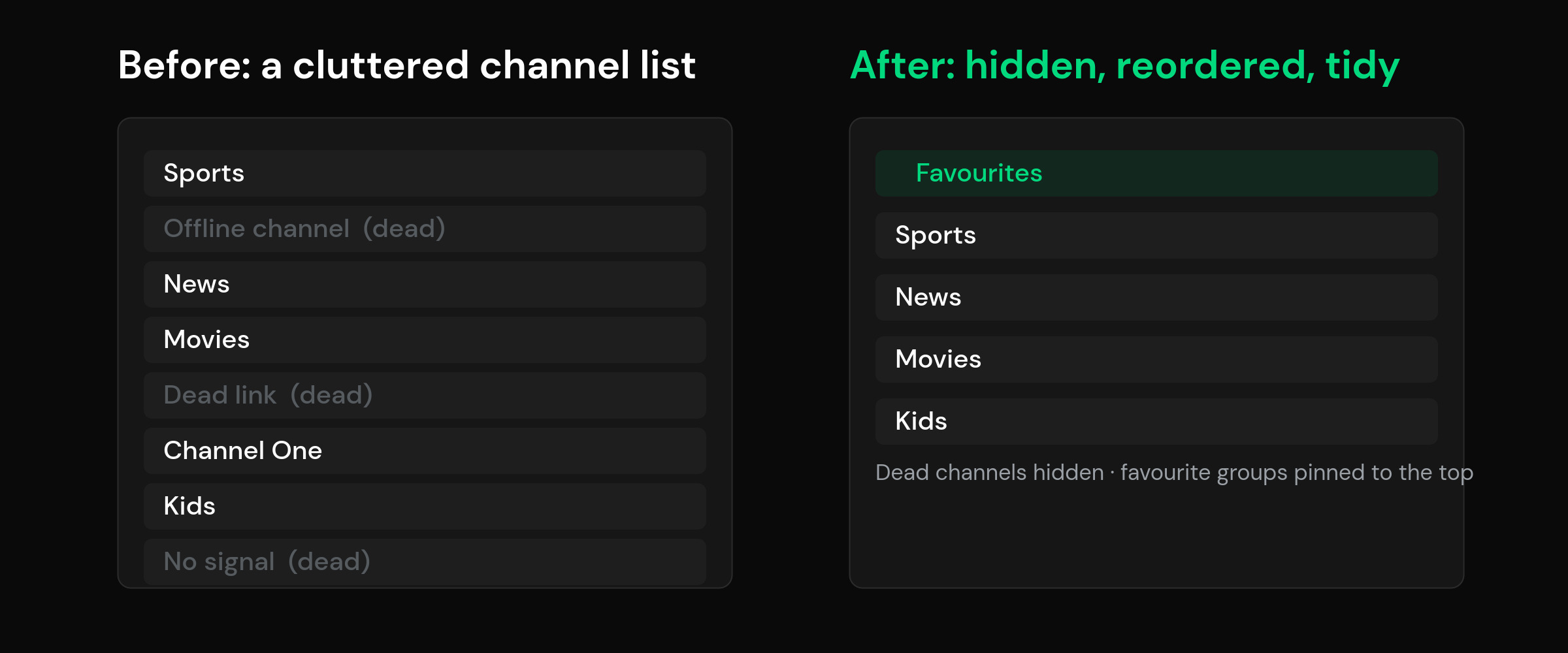
There are two honest approaches, and most people use both. The quick way is in-player: when you land on a channel that will not play, open its context menu and choose to hide it, or select several at once and hide them in a batch. The channel disappears from your list immediately, and because you are only toggling visibility, you can bring it back later if the stream comes alive again. This is the right tool for the handful of dead entries you bump into while watching.
The thorough way is to hide by group. If an entire category is dead weight, whether that is a region you do not follow or a block of channels that never load, hide the group rather than picking off entries one by one. In players such as TiviMate, for example, you open the channel settings, find the group, and toggle it hidden; other players bury the same option under an edit or manage-channels screen. The principle is identical everywhere: you are telling the player not to show that block, not removing anything from the underlying playlist. If you would rather prune at the source, you can also edit the M3U itself and remove the offline lines, but for most people in-player hiding is faster and fully reversible.
A quick word on testing. There is no reliable badge that marks a channel dead in advance, so the practical method is to open the ones you doubt, give each a few seconds, and hide the ones that fail. Do a single pass like this when you first load a playlist and the list stays clean for a long time afterwards.
Reorder groups so your favorite categories load first
Hiding removes the noise; reordering puts the signal where you can reach it. The goal is simple: the groups you open every night should sit at the very top, so the player lands on them the moment you press guide. Most players expose a drag handle beside each group. Grab it, drag the category up, and drop it into place. Do that for your top few and the daily scroll all but disappears.
Within a group you usually get a choice of sort order too, typically provider order, A to Z, Z to A, or a fully custom drag order that you set yourself. Custom order is the one worth the effort for the channels you watch most, because it lets you put, say, your main news and sports options side by side regardless of how the source listed them. Reordering does not touch the streams; it only changes the sequence the player displays, so you can rearrange as often as your habits change.
Pin favorites and use profiles to keep it clean
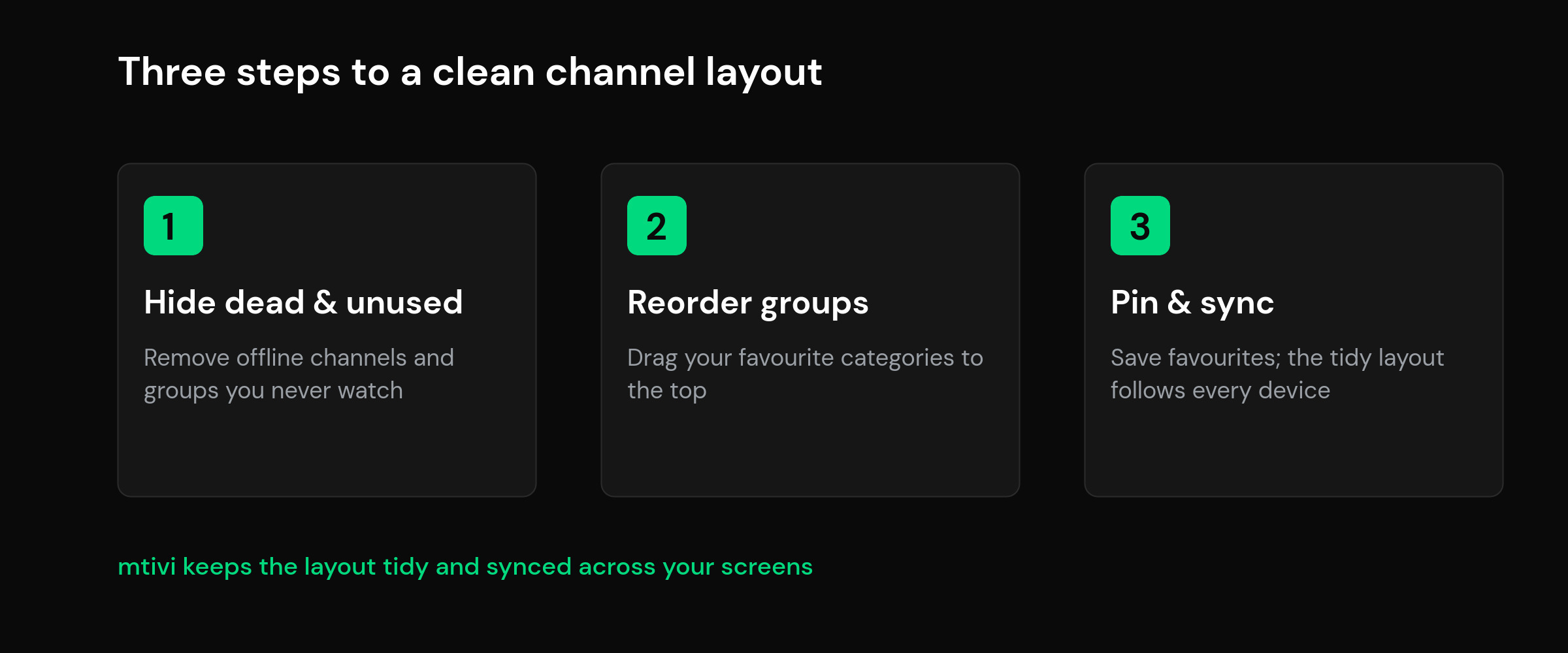
Favorites are the fastest declutter of all. Rather than reorganising the whole list, you mark the channels you actually watch and gather them into a favorites list that sits above everything else. Now the twenty channels you care about are one click away, and the thousands you do not simply wait quietly in the background. You can reorder inside your favorites too, so the running order matches the way you watch.
Profiles take this a step further for a shared screen. A separate profile can carry its own hidden groups, its own order, and its own favorites, which means the living-room setup does not have to match a child’s or a guest’s. A kids profile, for instance, can hide every adult category and surface only a short, safe list. If a tidy, safe layout for younger viewers matters to you, our walkthrough on kids-safe profiles and a PIN lock goes deeper. It is worth remembering that IPTV is simply television delivered over the internet, so organizing it is much like arranging channels on any TV, only with far more control.
Keep your tidy layout with cloud sync
Here is the part people miss: a layout you perfect on one device is worthless if you have to rebuild it on the next. Set up your phone, then reach for the living-room screen, and without sync you are back to the raw, cluttered list. This is where cloud sync that carries your playlist and favorites across devices earns its keep. Hide a dead group on one screen and it stays hidden on the others. Reorder your favorites once and the new order shows up everywhere you sign in. The cleanup becomes a one-time job instead of a chore you repeat on every box, stick, and phone in the house.
Hiding and reordering in mtivi
mtivi is built so this tidying takes minutes and then looks after itself. Load your own source and you can hide dead channels and unwanted groups, drag categories into the order you want, and pin favorites that sit above the noise, all from inside the app rather than by hand-editing a file. Separate profiles let a shared television keep one clean layout for the family and another for the kids, and because the whole arrangement rides on cloud sync, the tidy list follows you from screen to screen. mtivi can even tidy up cluttered channel names so a group that arrived as a wall of tags reads cleanly. Because mtivi is a media player, it supplies none of the channels itself; you bring your own source and mtivi turns it into a list that finally feels organized. If you watch content in more than one language, the same clean setup pairs well with subtitles translated into 50+ languages.
Related guides
- IPTV Player Large Playlist: How to Load 10,000+ Channels Without Lag
- IPTV Player Cloud Sync: Watch the Same Playlist on Every Device
- What Is an IPTV Player? A Clear Guide for 2026
- IPTV Parental Controls: Kids-Safe Profiles and a PIN Lock
Frequently asked questions about hiding dead IPTV channels
What does it mean to hide dead IPTV channels?
It means telling your player not to display channels whose streams no longer work, along with any groups you never watch. Hiding is a visibility toggle, not a deletion: the entries stay in your underlying playlist, so you can unhide them later if a stream comes back online.
Does hiding a channel delete it from my playlist?
No. Hiding only affects what the player shows on screen. The original playlist, whether an M3U file or a login, is untouched. If you reload or resync the playlist, hidden items remain hidden in the player while still existing in the source.
How do I find which IPTV channels are dead?
There is no advance badge for a dead channel, so the practical method is to open the ones you doubt and give each a few seconds. Anything that fails to play is a candidate to hide. Doing one pass when you first load a playlist keeps the list clean for a long time.
How do I hide a whole IPTV group instead of single channels?
Open your player’s channel or group settings, find the category, and toggle it hidden. This removes the entire block from view in one step, which is far quicker than hiding channels individually when a whole region or category is dead weight.
How do I reorder IPTV channel groups so favorites are first?
Most players show a drag handle beside each group. Grab it, drag the category upward, and drop it where you want. Put the groups you open most at the very top so the player lands on them first when you open the guide.
Can I set a custom channel order inside a group?
Usually yes. Alongside provider order and A to Z, capable players offer a custom drag order you set yourself, so you can arrange the channels in a group exactly the way you watch rather than the way the source listed them.
What is the difference between hiding channels and using favorites?
Hiding removes clutter from the full list, while favorites gather the channels you watch most into a short list that sits above everything else. Many people use both: hide the dead weight, then pin the keepers so they are one click away.
Will my hidden channels and custom order sync to my other devices?
Only if your player supports cloud sync. With sync, a group you hide or a favorites order you set on one device carries over to the others automatically, so you organize once instead of repeating the job on every screen.
Can I keep a clean, kids-safe layout separate from mine?
Yes, with profiles. A separate profile can carry its own hidden groups, order and favorites, so a kids profile can surface only a short, safe list while your own profile keeps the full setup. Adding a PIN lock keeps the two apart.
Should I edit the M3U file instead of hiding in the player?
You can, and removing offline lines at the source is permanent. But for most people in-player hiding is faster and reversible, and it does not risk breaking the file. Edit the M3U only if you want a permanently pruned playlist.
Do dead channels slow down my IPTV player?
They mostly add clutter rather than lag, though a very large list can feel slower to scroll. Hiding dead entries and unused groups makes navigation faster and the guide easier to read, which is reason enough to do a cleanup pass.
Does mtivi provide the channels I am organizing?
No. mtivi is a media player. We don’t provide, sell, or include any channels, movies, series, or playlists, and you add your own source. mtivi only helps you hide, reorder and favorite the channels your own playlist already contains.