Skip to content
Best IPTV Player Cloud Sync: Watch the Same Setup on Every Device
The short answer: the best IPTV player cloud sync is the one that keeps your playlist, favorites, profiles and settings the same on every screen automatically — so switching from the TV to your phone doesn’t mean rebuilding your setup from scratch. Very few players actually do this. Most only offer a local backup file you have to move by hand, and one popular player even locks its activation to a single device. This guide compares what each major IPTV player really syncs, shows the free manual workaround when a player has no cloud sync at all, and explains why real sync matters most in a busy, multi-device household.
If you’ve ever set up favorites on a new box and thought “do I have to do all this again?”, this is the feature that fixes it. Let’s define what proper sync means first, because the word gets used loosely.
What cloud sync really means for an IPTV player
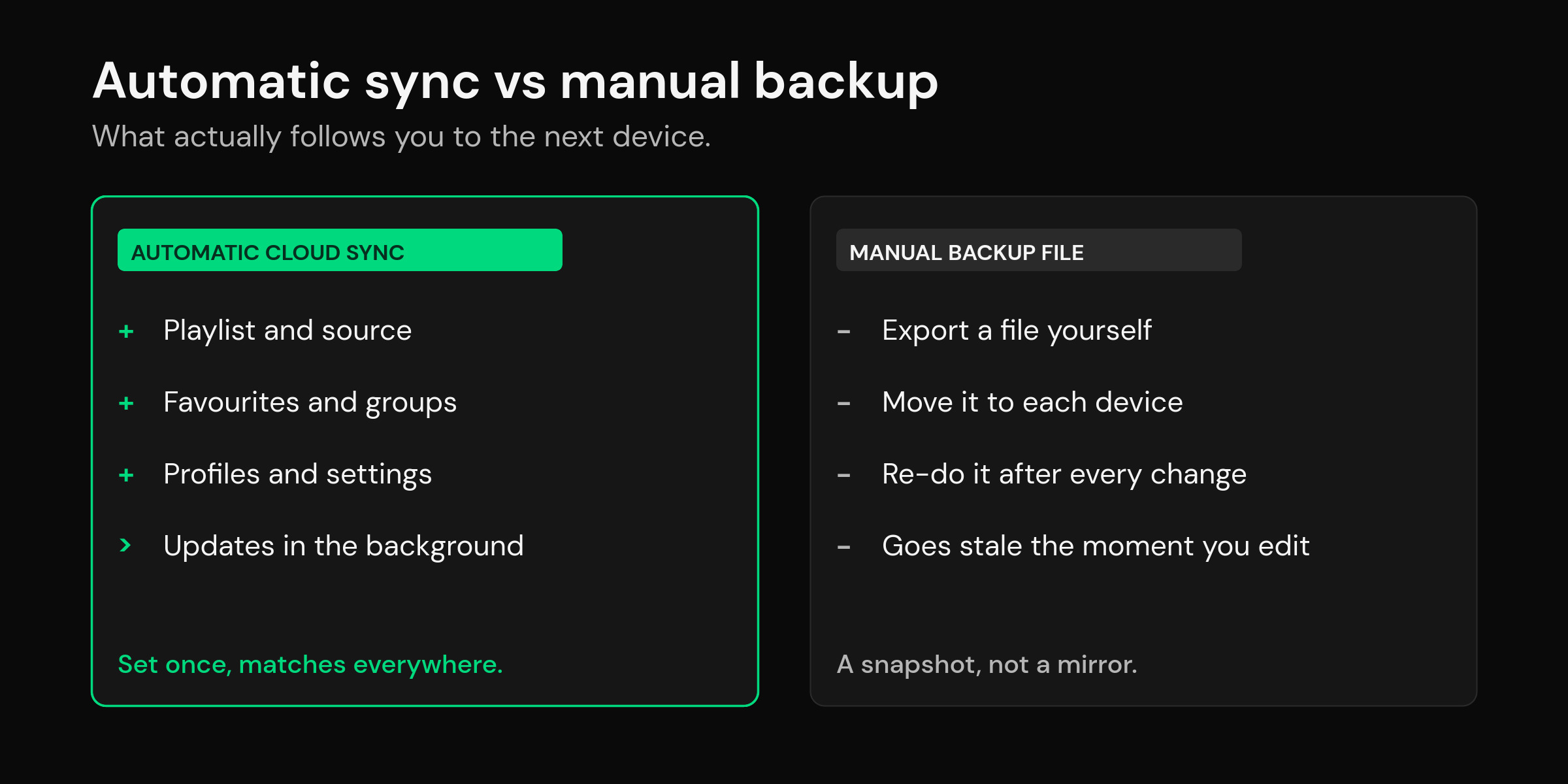
Cloud sync means your setup lives in your account, not just on one device. Add a channel to favorites on the living-room TV and it’s already there when you open the app on your phone; reorder your groups on a tablet and the box shows the same order next time you turn it on. Proper sync usually covers your loaded playlist, your favorites and groups, your profiles, and your app settings, and it happens in the background without you exporting or importing anything.
That’s very different from a backup file, which many players offer instead. A backup is a one-off snapshot you save and then manually restore on the other device — useful, but it doesn’t stay current, and if you forget to re-export after changing your favorites, the other device is stale. It’s also fragile: several users have reported that clearing an app’s data on Android wipes the local backup folder along with it, so the safety net vanishes exactly when you need it. True cloud sync keeps an off-device copy that updates itself, which is why it’s the feature people actually mean when they search for it.
What each IPTV player actually syncs
Here’s the honest part most listicles skip. Plenty of players are marketed as “multi-device,” but that often just means the app is installed on several devices — not that your personal setup follows you. The table below sorts the popular players by whether they offer genuine cross-device cloud sync, and what actually carries over when they do.
| IPTV player | Cross-device cloud sync | What carries over | Notes |
|---|---|---|---|
| mtivi | Yes, built in | Playlist, favorites, groups, profiles, settings | Automatic across every signed-in device |
| TiviMate | Manual backup / restore | A backup file you move yourself | A separate paid add-on exists purely to sync its settings via a cloud drive |
| IPTV Smarters Pro | Partial | Re-pulls the playlist from your provider login | Favorites and layout are set per device |
| OTT Navigator | Manual backup file | A settings file you restore by hand | No automatic cross-device layout sync |
| IBO Player Pro | No | — | Its own FAQ states activation can’t be transferred to another device |
| GSE Smart IPTV | Apple only | Syncs within the Apple ecosystem | No help if your devices aren’t all Apple |
| Kodi | Manual export | Profile / library export you copy across | Powerful but hands-on; no built-in cloud sync |
Two things stand out. First, the fact that a paid third-party product exists only to sync one popular player’s settings through a cloud drive tells you how real this gap is — people are willing to pay a separate fee just to stop rebuilding favorites. Second, a device-locked activation is the opposite of sync: buy a new TV and your setup doesn’t move, it’s simply gone. Apps update often, so confirm the current version before you rely on any single feature — but as of 2026 the pattern is clear: automatic, account-based sync is the exception, not the rule.
The free fallback: manual backup and restore
If your player has no cloud sync, you’re not stuck — you just have to do the work yourself. Most players include an export or backup option that writes your favorites, groups and settings to a file. Save that file somewhere off the device (a cloud drive or a USB stick), then use the import or restore option on the second device to load it. It works, and it costs nothing.
The catch is that a manual backup is a snapshot, not a mirror. It reflects your setup at the moment you exported it, so every time you add favorites or reorder channels you have to export again and re-import everywhere else, or the other devices drift out of date. Keep the backup file off the device itself — not in the app’s own folder — because clearing app data can erase an on-device backup. For one or two devices you touch rarely, manual backup is fine. For a household with several screens that change often, the constant re-exporting is exactly the chore automatic sync removes.
Why cloud sync matters most for families and multi-device homes
Sync stops being a nice-to-have the moment more than one person or screen is involved. In a household you might have a TV in the living room, a box in the bedroom, a tablet in the kitchen and a couple of phones. Without sync, each of those is its own island: favorites built on one don’t exist on the others, and every new device is a fresh setup. With sync, you arrange things once and every screen matches.
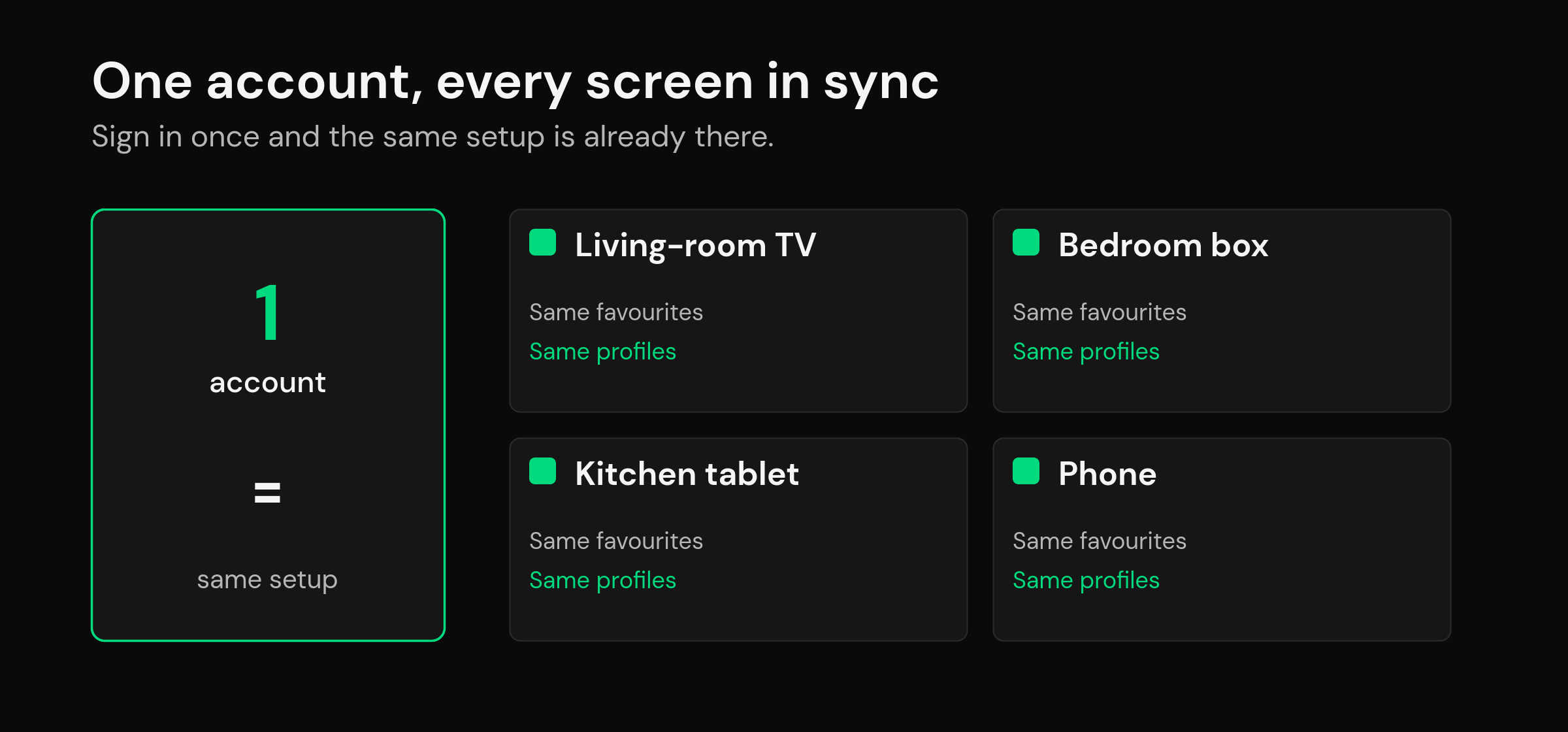
It matters even more when profiles are in play. A proper multi-device player lets you keep a kids profile, a private profile and a shared one, and when those kids-safe profiles and a PIN lock sync across devices, the child sees the same safe, filtered view on the tablet as on the TV — you don’t have to re-lock every device by hand. That’s the difference between a player that’s merely installed in several rooms and one that behaves like a single shared setup. It’s the same reason people want the same playlist and favorites on every device rather than a per-device patchwork.
How cloud sync works in mtivi
In mtivi, cloud sync is built in, not a paid add-on or a manual file. Sign in on any device and your playlist, favorites, groups, profiles and settings are simply there, kept the same in the background as you make changes. Set up favorites on the TV, pick up your phone on the bus, and the list already matches — no export, no import, no third-party tool. Because your setup lives in your account rather than on one box, replacing or adding a device is painless: install mtivi, sign in, and you’re home, instead of rebuilding everything from scratch.
It plays whatever source you bring — M3U or Xtream Codes — and the rest of the flagship set travels with your profile too, from subtitles translated into 50+ languages to the recording that works even on a single-connection plan. The honest limit is the same for every player: sync carries your setup, not your provider’s connection allowance. How many devices can actually stream at once still depends on the connections your source permits — that’s a plan question, not a sync one.
How to choose the best IPTV player for cloud sync
When you compare players for sync, look past the marketing word “multi-device” and ask four concrete questions. Does it sync automatically, or only through a backup file you move yourself? Does it carry your favorites and layout, or just re-pull a raw playlist from your provider? Does it work across your mix of devices, or only inside one company’s ecosystem? And is sync included, or does it need a separate paid tool to work at all? A player that answers “automatic, everything, any device, included” is doing real cloud sync; anything else is a partial version of it.
If you’re still weighing up players in general and want the wider picture of what the app does versus what your provider supplies, start with what an IPTV player actually is, and if you’re coming from one specific app, our notes on choosing a TiviMate alternative line the options up side by side. On a stick, the same sync logic applies — see the best IPTV player for Firestick in 2026. Android’s own auto backup only covers app data on that one device, so it’s no substitute for account-based sync across all of them.
Frequently asked questions
Which IPTV player has the best cloud sync?
The best IPTV player cloud sync is one that keeps your playlist, favorites, profiles and settings the same on every device automatically. mtivi does this in the background across every signed-in device, while most other players only offer a manual backup file you have to export and restore yourself.
What does cloud sync actually carry between devices?
Proper cloud sync carries your loaded playlist, your favorites and groups, your profiles, and your app settings. So the order you set on the TV, the channels you starred, and your kids profile all appear the same on your phone or tablet without any manual export or import.
Does TiviMate have cloud sync?
TiviMate’s store listing centers on manual backup and restore rather than automatic cloud sync, and a separate paid add-on exists purely to sync its settings through a cloud drive. That third-party tool existing at all is a good sign of how much people want proper built-in sync. Check the current version, as apps change.
Can I move my favorites to a new device without rebuilding them?
With a player that has cloud sync, yes — install the app, sign in, and your favorites are already there. With a player that only offers manual backup, you export a file on the old device, save it off-device, and import it on the new one. A device-locked player may not let you move your setup at all.
Is manual backup as good as cloud sync?
Not quite. A manual backup is a one-time snapshot, so every time you change favorites you have to export and re-import everywhere else or the other devices go stale. Cloud sync keeps an off-device copy that updates itself, which is why it suits households with several screens that change often.
What’s the best IPTV player for families?
For a family you want cloud sync plus profiles, so a kids profile, a private profile and a shared one all appear the same on every device. That way the child sees the same safe, filtered view on the tablet as on the TV, and you set it up once instead of re-locking each device by hand.
Does IPTV Smarters sync across devices?
IPTV Smarters typically re-pulls your playlist from your provider login on each device, which gets the channels onto a new device, but your personal favorites and layout are generally set per device rather than synced. Confirm the behavior in the current version, as it can change.
Why did clearing my app data delete my backup?
Because many players store the backup file inside the app’s own folder, so clearing app data erases the backup along with everything else. Keep backups off the device — a cloud drive or USB — or use a player with account-based cloud sync that keeps an off-device copy that can’t be wiped by clearing local data.
Does cloud sync let more devices stream at the same time?
No — those are two different things. Cloud sync carries your setup across devices, but how many devices can actually play at once depends on the simultaneous connections your provider plan allows. Sync is a player feature; connection limits come from your source.
Do I need the same brand of device for sync to work?
Not with an account-based player like mtivi, which syncs across a mixed set of phones, tablets, boxes and TVs. Some players only sync within a single company’s ecosystem, so if your devices are a mix of brands, an ecosystem-locked sync won’t help you.
Is cloud sync in mtivi free or paid?
Cloud sync is built into mtivi rather than sold as a separate add-on, and mtivi is free to start with no account needed to try it. You bring your own source and sign in to keep your setup the same across devices.
Does mtivi provide the channels that sync between my devices?
No. mtivi is a media player. We don’t provide, sell, or include any channels, movies, series, or playlists — you add your own source. Cloud sync simply keeps whatever playlist and favorites you set up the same on every device.