Skip to content
How to Record IPTV on a Single-Connection Plan (No Second Line Needed)
Yes – you can record IPTV on a single connection. Recording is a player feature, not something your provider switches on. The catch: many player apps open a second stream to record, and a one-connection plan refuses that second stream. Record the channel you’re already tuned to – or schedule a recording for a time you’re not watching – and one connection is all you need.
That paragraph settles half the forum threads on this subject. The other half come down to two words that sound related but live in different worlds: your plan’s connection and your player’s recording. Untangle them, and the rest of this guide is mostly detail.
How to record IPTV: the short version
Recording IPTV means telling your player to save the stream it is already receiving to storage while it plays. There is no switch your provider flips and nothing to install at the server end. If your player can record, you can record; if it cannot, no plan upgrade will change that. This is the single most useful thing to understand before you start troubleshooting, because it moves the problem from your subscription to your app.
Whatever you are watching on, the job comes down to four things, and a player either handles them or it does not.
- Capture the stream you are already tuned to instead of opening a second one. This is the whole difference between recording happily on a one-connection plan and being refused, and it is what the rest of this guide is about.
- Write to storage that can keep up. Live TV arrives continuously and does not wait. A slow memory card or a nearly full internal drive will drop frames or abandon the file part-way, and the recording looks corrupted rather than obviously failed.
- Schedule ahead from the guide. Without guide data a recorder can only capture what is on screen right now. Scheduling is the line between a recorder and a DVR, and it is why guide setup matters more to recording than most people expect.
- Survive the app going to sleep. A recording that stops when the screensaver starts or the launcher reclaims memory is not a recording. On TV devices this is the failure people notice only the next morning.
People searching for IPTV recorder software often expect a separate desktop program. You can point a general-purpose media tool on a computer at a stream address and capture it, and that genuinely works. What it will not do is read your guide, so every recording becomes a manual start and stop at exactly the right minute. Scheduling needs guide data, and guide data lives in the player, which is why recording has moved inside the player on every platform that matters. A phone, stick or box that is already on and already holds your playlist is also a far more practical recorder than a computer you would have to leave running.
So: can IPTV be recorded? Yes, on any plan size, including a single connection, as long as the player records the stream in front of it rather than demanding a second one. That is the part almost every forum answer gets wrong, and it is worth understanding properly before you go shopping for a bigger plan you do not need.
“Connection” and “recording” are different things
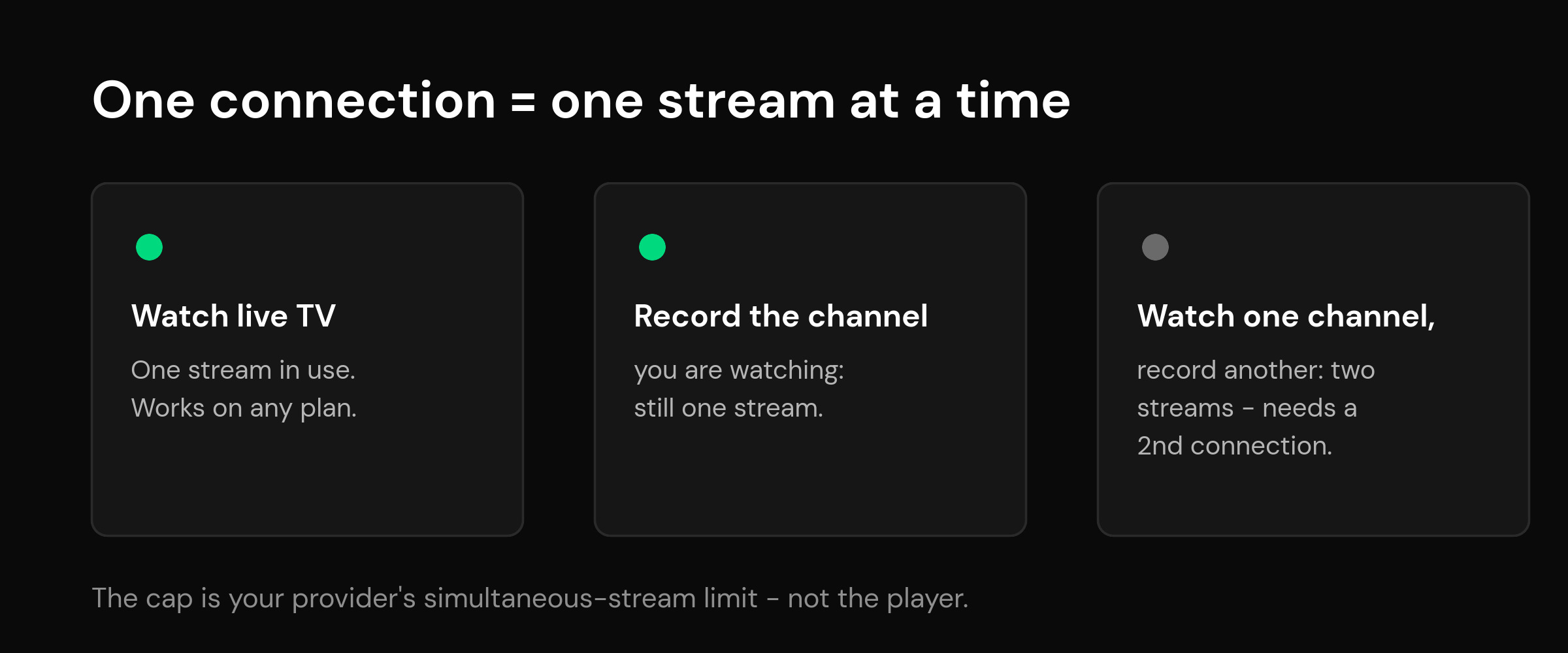
A connection – some providers call it a line, or a simultaneous stream – is a cap on how many streams your account can pull at the same moment. One connection means one live stream at a time. The cap doesn’t care whether a stream feeds your screen or a file on your storage; it only counts streams.
Recording lives entirely inside the app. A DVR saves incoming video to storage instead of just painting it on your screen. Your provider doesn’t sell recording, can’t enable it, and usually can’t even tell it’s happening. It’s the same split that confuses people about IPTV in general: the source supplies the streams, and the player decides what you can do with them.
So the real question was never “does my plan allow recording?” It’s “does my player need a second stream to record?” Some do. Some don’t.
Why recording “fails” on a one-connection plan
Most players treat a recording like a second viewer. Press record, and the app quietly opens the same channel again in the background – one stream for your screen, one for the file. On a plan with two or more connections, nobody notices. On a single connection, the provider sees two simultaneous requests from one account and drops or refuses one of them.
The symptoms are always the same: a recording that turns out to be a zero-byte file, a live picture that freezes the instant recording starts, or a blunt “max connections reached” error. People blame the app, then the provider, then their Wi-Fi. Nothing is actually broken – the two features simply collide.
One wrinkle worth knowing: some providers keep a connection marked busy for a minute or two after a stream closes. If a recording ends at 9:00 and you can’t open a channel until 9:02, that’s the same cap winding down, not a new problem.
Three ways to record without a second line
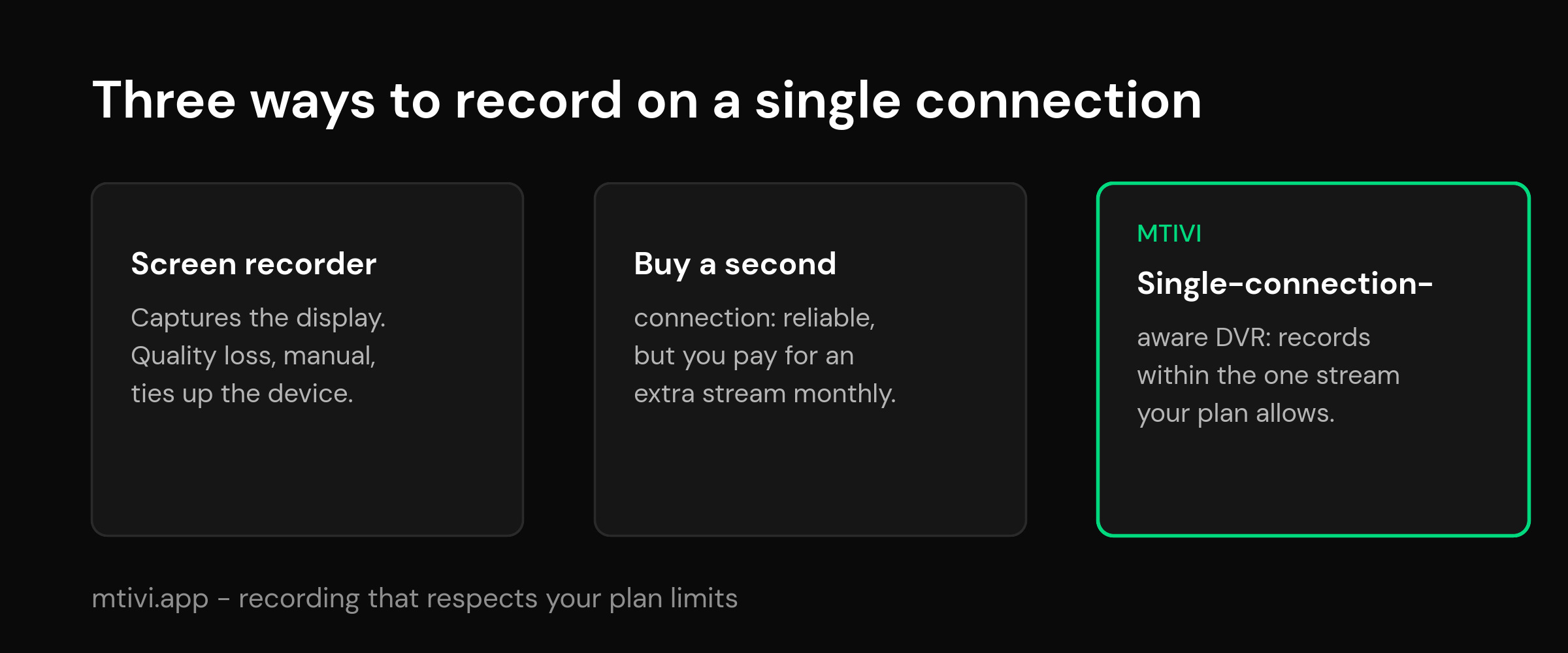
| Method | What it does | The catch |
|---|---|---|
| Screen recorder app | Captures whatever is on the display to a video file | Quality loss, manual start and stop, and it ties up the device while it runs |
| A second connection from your provider | Raises your cap to two simultaneous streams | Costs more every month – you’re paying to work around a player limitation |
| A single-connection-aware DVR | Records within the one stream your plan already allows | Watching a different live channel while it records still needs a second stream |
The third route is the one mtivi takes. Its recording is single-connection-aware: record the program you’re tuned to, or schedule a recording for a quiet hour, and the one stream your plan allows is enough. No second line, no juggling apps.
What recording on one connection looks like day to day
Three habits cover nearly every situation:
Record what you’re watching. This is the no-drama case. The stream is already open for your screen; saving it costs your plan nothing extra. Great for a match that runs past bedtime – hit record, watch until you fade, finish it tomorrow.
Schedule around your viewing. A program airs at 3 a.m.? Schedule it. The player pulls the plan’s single stream while you sleep, and the recording is waiting in your library at breakfast. On a one-connection plan, overnight and work hours are effectively free recording windows.
Let a running recording finish before channel-hopping. If a scheduled recording is in progress and you sit down to watch a different live channel, you’re now asking for two streams. Either watch the channel being recorded, play something from your library, or wait it out. This is the one discipline a single connection demands.
In mtivi, recordings are set from the program guide or the player screen – pick the program, choose record now or schedule it, and finished recordings land in your library ready to play. Storage is your device’s, so where supported you can point recordings at an SD card or USB drive instead of filling internal memory.
Bandwidth and storage: the honest numbers
Recording the channel you’re watching doesn’t double your internet usage – one stream comes in whether or not it’s being saved. Recording a different channel than the one on screen is two full streams, which roughly doubles usage and is exactly what a single-connection plan refuses.
Storage is the cost people forget. Rough figures for typical streams: standard definition runs about 1 GB per hour, 1080p about 2-4 GB per hour, and 4K anywhere from 7 to 15 GB per hour depending on the source bitrate. A 32 GB streaming stick fills up fast. If you record a lot, external storage is worth setting up on day one.
When you genuinely need a second connection
Player-side cleverness has limits, and it’s worth being straight about them. Watching one channel live while recording a different one is always two simultaneous streams. Multi-view is the same story – every pane on screen is its own stream, so a one-connection plan supports exactly one pane. And two people watching different things in different rooms will always need as many connections as there are screens.
If those describe your household, an extra connection from your provider is the honest fix. No player can conjure a second simultaneous stream out of a one-stream plan – and you should be suspicious of any app that claims it can.
Quick self-diagnosis when a recording fails
- Live picture froze the instant recording started? Classic two-streams-on-a-one-stream-plan collision. Record the channel you’re tuned to instead.
- Recorded file is tiny or zero bytes? The provider refused the second stream before any video arrived. Same cause, same fix.
- A scheduled recording failed while you were watching TV? Your viewing occupied the only connection at the start time. Schedule around viewing hours, or record what you watch.
- Recording works, but playback stutters? That’s storage speed, not connections – slow SD cards struggle with high-bitrate writes. Try internal storage or a faster card.
- Everything fails, even live viewing? The line itself is down or expired. No player setting fixes that – check with your provider.
Frequently asked questions
Can I record one channel while watching another on a single-connection plan?
No. That’s two simultaneous streams, and the cap belongs to your provider, not the player. Record the channel you’re watching, schedule the recording for a time you’re not viewing, or add a second connection to your plan.
Does recording IPTV use a second connection?
In many players, yes – they open the channel a second time to feed the file, which is why recording breaks on one-connection plans. A single-connection-aware DVR like mtivi’s records without demanding a stream your plan doesn’t have.
Does recording double my bandwidth usage?
Not if you’re recording the stream you’re watching – it’s one download. Recording a different channel than the one on screen is two downloads, roughly double the usage, and it needs two connections.
Can I watch a recording while another recording is running?
Yes. Playing a finished recording is local playback from your storage, not a provider stream, so it doesn’t count against your connection cap while a new recording pulls the live stream.
How much storage do IPTV recordings take?
Roughly 1 GB per hour for SD, 2-4 GB for 1080p, and 7-15 GB for 4K, depending on the source bitrate. Keep an eye on free space, or point recordings at an SD card or USB drive.
How do I schedule a recording in mtivi?
Open the TV guide, pick the program you want, and choose Record – set it to start now or at a future time. mtivi captures it in the background using the single stream your plan already allows, so there’s no second line to set up.
Will recording interrupt my live TV?
No. mtivi records the channel you’re already watching from the same stream, so playback keeps running while the file is saved. Only recording a different channel than the one on screen needs a second connection.
Can I record on a Firestick, Fire TV or Android box?
Yes. Recording works on Android phones and tablets, Android TV, Google TV, Amazon Fire TV and Firestick, and Nvidia Shield. Point recordings at internal storage, a USB drive or an SD card when you need more room.
What quality are mtivi recordings?
mtivi saves the stream as it arrives, so a recording matches the source – SD, 1080p or 4K. It isn’t re-encoded or downscaled, so the picture you record is the picture you watched.
Do I need a paid plan to record?
Instant recording of the channel you’re watching is on the free tier. Scheduled and recurring recordings are Pro and Max features. Either way, one connection is enough to record the channel on screen.
Can you record IPTV?
Yes. Recording is a player feature rather than something your provider enables, so if your app supports it you can record on any plan size, including a single-connection plan. The one requirement is that the player captures the stream it is already playing instead of opening a second one, because a second stream is what a one-connection plan refuses.
Is there IPTV recorder software for a PC?
You can point a general-purpose media tool on a computer at a stream address and capture it, and that works for a one-off. What a desktop tool cannot do is read your guide, so you have to start and stop every recording manually at the right minute. Scheduled recording needs guide data, and that lives in the player, which is why recording is handled inside the player rather than by separate software on every platform that matters.
Why does my recording stop part-way through?
Usually storage or sleep. Live TV writes continuously, so a slow card or a nearly full drive will abandon the file mid-recording and leave you with something that looks corrupted. The other common cause is the device sleeping or the launcher reclaiming memory while the app is in the background. Check free space first, then the device’s sleep and battery settings.
Related guides
Recording touches a few other parts of your setup. These go deeper on each:
- IPTV EPG setup and catch-up – scheduled recording depends on guide data, so this is the guide to read next if your recorder can only capture what is on screen now.
- What is an IPTV player? – where the player ends and your provider begins, which is the distinction behind most recording confusion.
- Do you need a VPN for IPTV? – worth reading if your recordings stall at peak hours and you suspect throttling rather than storage.
- Keeping a large playlist fast – if the app is already struggling to load channels, recording will struggle too.
- Best IPTV player for Firestick – storage and sleep behavior differ a lot between sticks and boxes, which decides whether long recordings survive.
- Download mtivi – free to try, no account needed, on Android phones, tablets, Android TV, Google TV, Fire TV and Nvidia Shield.