Skip to content
Best IPTV Player With DVR: Recording Compared for 2026
If you have ever tried to record a late-night match or a movie that airs while you are asleep, you already know the problem: not every player treats recording as a real feature. Some bury it behind a paid tier, some only let you hit record on whatever is playing right now, and a few forget your recordings the moment the playlist refreshes. Finding the best IPTV player with DVR is less about who has a “record” button and more about who does scheduling, storage, and connection handling properly.
This guide compares built-in recording across the players people actually use, in plain terms, so you can match a player to how you watch. We keep it honest — where a feature is paid, we say so; where it needs a second connection, we flag it — because a recorder that quietly fails at 9pm on a Saturday is worse than no recorder at all.
What “built-in DVR” really means in an IPTV player
DVR is short for digital video recorder — the same idea as the box your cable company used to rent you, only running as software inside the app. In an IPTV player, a built-in DVR captures a live channel to storage so you can watch it later, pause and rewind live TV, or set a recording for something that has not started yet.
The catch is that “records live TV” covers a huge range of quality. A basic recorder only captures whatever is on screen at the moment you press the button. A good one lets you open the guide, pick a program that airs tomorrow, and schedule it — then it starts and stops on its own, saves the file somewhere you can find it, and plays it back cleanly. That gap between “instant capture” and “scheduled, reliable, self-managing recording” is the whole story of choosing a player.
It also helps to separate DVR from time shifting and catch-up. Time-shift and pause-live buffer a short window so you can rewind the current program. Catch-up replays past programs your provider already stores on its side. A true DVR is different: it writes a file you own, on your device or drive, that survives even if the channel or the catch-up window is gone. If keeping the recording matters to you, that distinction is the one to watch.
The 5 things that separate a good IPTV DVR from a bad one
Before comparing apps, it helps to know what you are comparing. These five points decide whether a recorder is something you rely on or something you fight with.
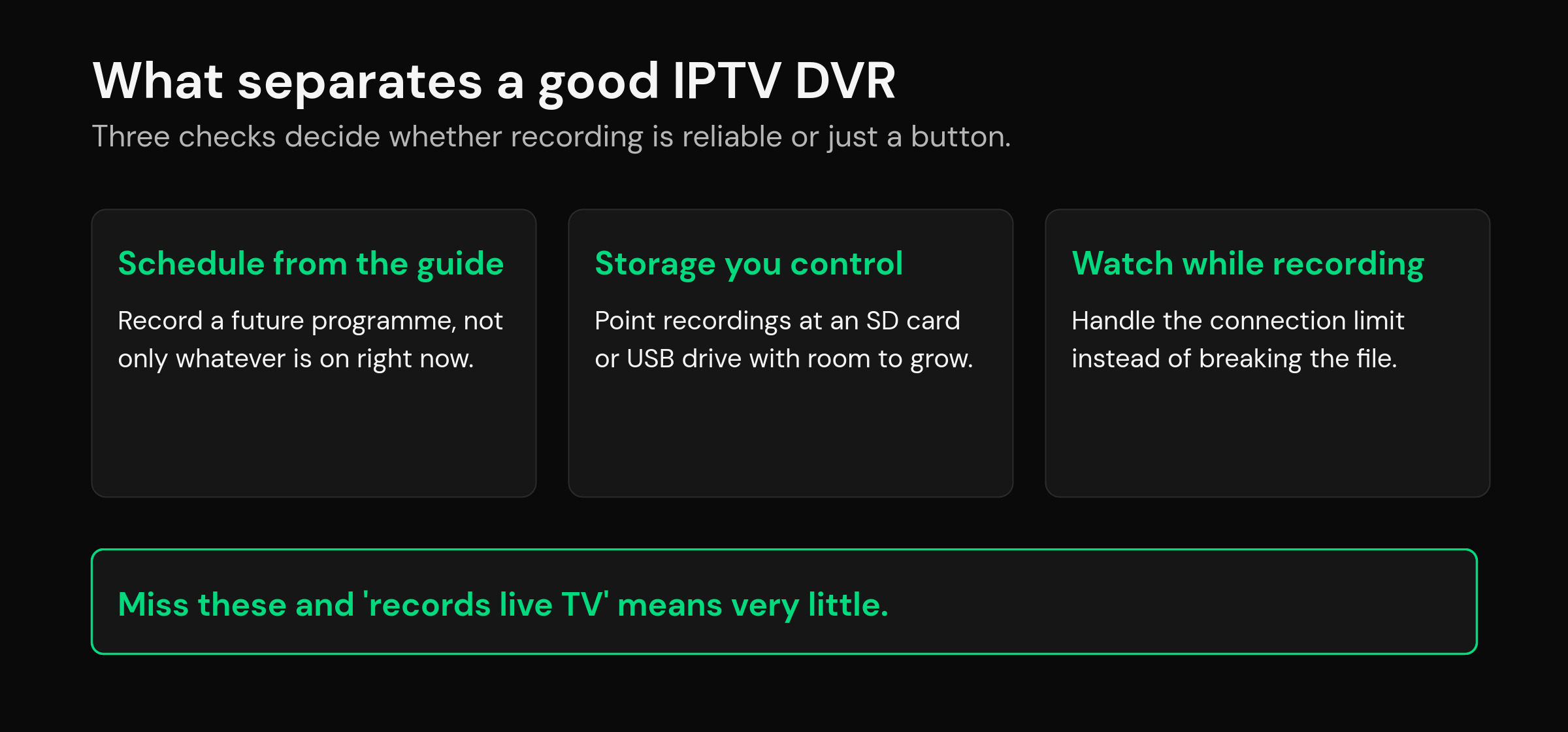
Scheduling from the guide. Can you record something that has not aired yet by picking it in the TV guide, or are you limited to hitting record on the live channel? Guide-based scheduling is the single biggest divider between a toy recorder and a real one.
Recurring rules. A nightly news bulletin or a weekly show should not need setting up every single day. The better players let you say “record this every day” or “every Sunday” and then forget about it.
Storage and location. Where does the file go — internal storage, an SD card, or a USB drive — and can you point it somewhere with room to spare? Long recordings eat space fast, and a player that only writes to a full internal drive will fail silently.
Watch while recording (the connection question). Recording one channel while you watch another usually asks your line for two streams at once. If your plan only allows one, many players simply cannot do both — and some do not warn you until the recording is already broken. This is the trap most comparison lists skip.
Format and instant playback. A good recorder saves in a format your player can open right away, lets you scrub through it, and does not leave you with a half-written file if the app closes. Bonus points if recordings sync or are easy to move to another screen.
How the popular players compare on recording
Here is an honest, feature-first look at how the widely used players handle DVR. Recording depth changes with updates, so treat this as a map of the landscape rather than a spec sheet frozen in time — always confirm the current behavior on your own setup.
| Player | Scheduled recording | Free or paid | Notes |
|---|---|---|---|
| TiviMate | Yes, from the guide | Premium (paid) | Strong scheduling, but recording sits behind the paid Premium tier. |
| OTT Navigator | Yes | Available without a separate recording paywall | Flexible recording and archive options for power users. |
| IPTV Smarters | Basic | Free | Records live, but scheduling and management are limited. |
| XCIPTV | Basic | Free | Simple capture rather than a full guide-driven DVR. |
| Kodi (with a PVR add-on) | Yes, but complex | Free | Powerful once configured; needs a PVR backend and real setup effort. |
| mtivi | Yes, from the guide | Included | Guide-based scheduling designed to record even on a single-connection plan. |
The pattern is clear. The free players will happily capture what is on now, but scheduling, recurring rules, and file management thin out quickly. TiviMate does scheduling well but gates it behind Premium. Kodi can do almost anything if you enjoy configuring a PVR backend. If you want scheduled recording that works out of the box without a separate purchase, the shortlist gets short fast — which is exactly the gap mtivi was built to close. If you are weighing a switch, our guide to TiviMate alternatives maps each reason people leave to the right replacement.
The connection-count trap almost every list ignores
Here is the detail that catches people out. Recording one channel while watching another normally needs your line to serve two streams at the same time — two “connections” in IPTV terms. If your plan only permits a single connection, most players force a choice: watch, or record, but not both. Worse, some start the recording anyway and hand you a stuttering, half-usable file because the single line was being pulled in two directions.
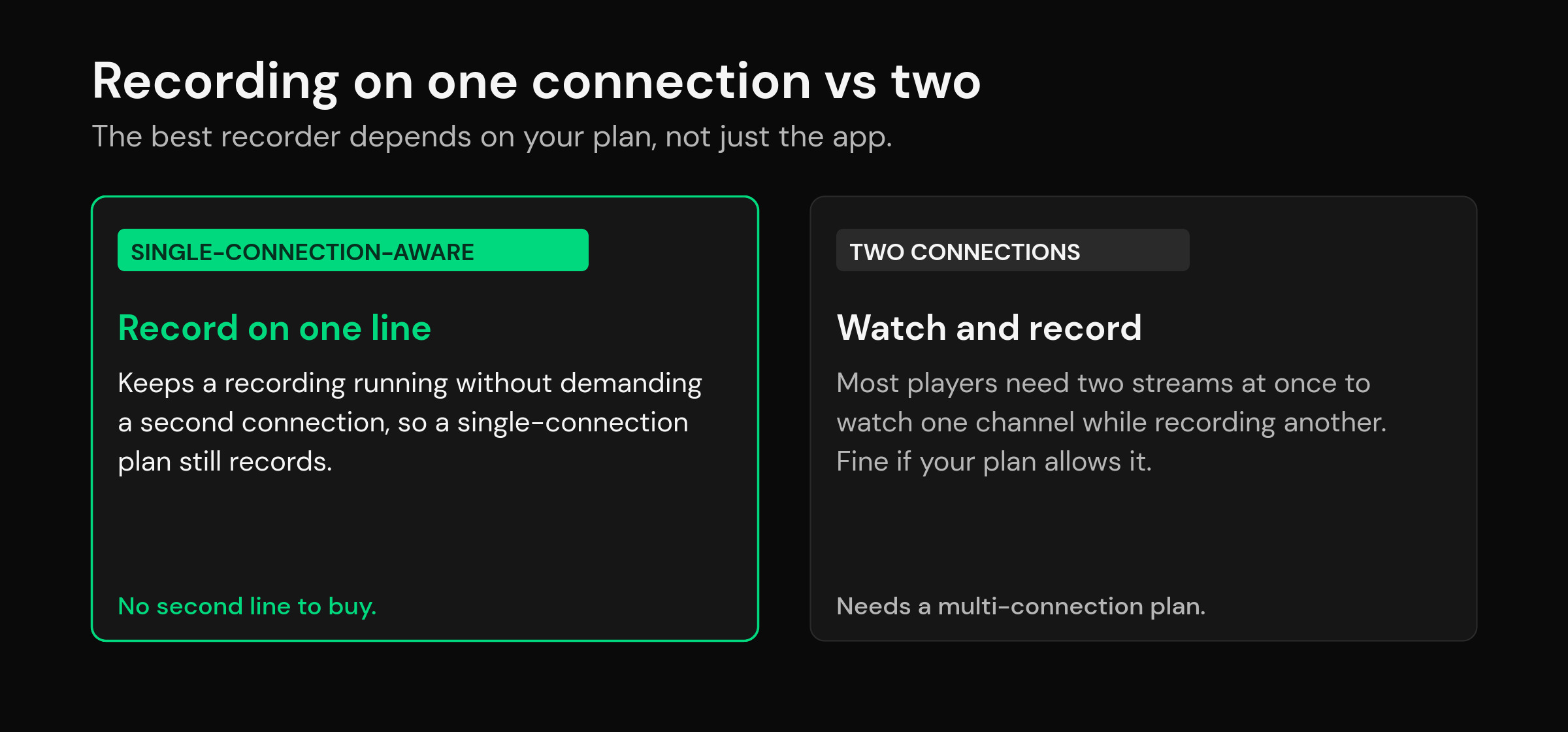
This is why the “best” recorder depends partly on your plan, not just the app. If you pay for multiple connections, almost any capable player can watch-while-recording. If you are on a single connection — which is common and often cheaper — you need a player that is aware of the limit and records without demanding a second line. That single-connection-aware approach is the heart of mtivi’s recording, and we walk through it in detail in how to record IPTV on a single-connection plan.
Where recordings are saved and how much storage you need
A recorder is only as good as the space it writes to. Live video is large: an hour of high-definition can run to a few gigabytes, and 4K far more. Before you schedule a season’s worth of anything, decide where the files land. Internal storage on a stick or box fills fast, so an SD card or a USB drive is usually the smart target for a serious recording habit.
Check three things in whichever player you pick: that you can choose the storage location, that it warns you before the drive is full, and that it does not overwrite older recordings without asking. A player that keeps favorites and recordings intact across playlist refreshes saves a lot of frustration — losing your library every time the list updates is a real complaint people have with weaker apps. If you juggle several devices, being able to keep your setup consistent through IPTV player cloud sync means the recordings and favorites you rely on are not stranded on one screen.
mtivi’s approach: DVR that does not punish a single connection
mtivi treats recording as a core part of the player, not an upsell. You open the guide, pick what you want — a live program, a movie, or an episode — and schedule it, including recurring rules for the things you watch every day or week. The standout is that mtivi is built to record even when your plan allows only one connection, so you are not forced to buy a second line just to keep a recording running while you watch.
Because mtivi bundles the features people usually pay for separately — recording, a full guide with catch-up, subtitle handling, profiles, and syncing across screens — you are not stitching a recorder onto a barebones player. It runs on Android phones, tablets, Android TV, Google TV, Fire TV, and Android boxes today, with more platforms on the way, and it is free to start with no account required. If you are new to the category, our explainer on what an IPTV player is gives the full picture of how these apps work and where recording fits in.
How to choose the best IPTV player with DVR for your setup
Match the player to three things about how you watch. First, your plan: if you have a single connection, prioritize a player that records without needing a second line. Second, your habits: if you record the same shows regularly, recurring rules and guide-based scheduling matter more than raw capture. Third, your hardware: if you plan to keep a big library, pick a player that lets you record to a USB drive or SD card and manages storage sanely.
If you want the widest recording depth for free and enjoy tinkering, a PVR-backed setup can do it. If you want polished scheduling and are happy to pay, a Premium tier covers it. And if you want scheduled, recurring recording that works out of the box — including on a single connection — without a separate purchase, that is the lane mtivi was designed for. For households running very large channel lists alongside recording, our notes on handling a large IPTV playlist without lag are worth a read too.
Frequently asked questions
Which IPTV player has the best built-in recording?
There is no single winner for everyone. TiviMate has strong guide-based scheduling but keeps it behind its paid Premium tier; OTT Navigator offers flexible recording; Kodi can do a lot with a PVR backend and real setup; and mtivi focuses on scheduled recording that works out of the box, including on a single-connection plan. The best choice depends on your plan, your habits, and your storage.
Is there a free IPTV player that records live TV?
Yes. Players such as IPTV Smarters and XCIPTV record live TV for free, though scheduling and file management are basic. Kodi with a PVR add-on is also free and far more capable, but it takes setup. mtivi includes recording and is free to start with no account required.
Can I record one channel while watching another?
Only if your line allows two streams at once, or if your player is designed to record without needing a second connection. On a multi-connection plan most capable players can watch-while-record. On a single-connection plan you need a player built to handle that limit, or the recording and the live view will fight over the one line.
Does recording need multiple connections?
Traditionally, watching one channel while recording another needs two connections. Some players, including mtivi, are built to record even on a single-connection plan so you do not have to pay for a second line just to record.
Where are IPTV recordings saved?
Recordings are written to storage on your device — internal memory, an SD card, or an attached USB drive, depending on the player and what you select. For anything more than the occasional clip, point recordings at an SD card or USB drive, because high-definition video fills internal storage quickly.
How much storage do I need for IPTV recordings?
Plan for a few gigabytes per hour of high-definition video, and considerably more for 4K. A single film can be several gigabytes. If you record regularly, a dedicated USB drive or a roomy SD card is far more comfortable than relying on the limited internal storage of a stick or box.
Can I schedule a recording for a show that has not started yet?
Yes, in players that support guide-based scheduling. You open the TV guide, select a future program, and the player starts and stops the recording on its own. Basic recorders only capture what is playing at the moment you press record, so scheduling is a key thing to check before you commit.
Can I set recurring recordings, like every day or every week?
The better players let you create recurring rules so a daily bulletin or a weekly show records automatically without re-adding it each time. Simpler apps make you set each recording manually. If you record the same things regularly, recurring rules save a lot of effort.
Will my recordings survive a playlist update?
They should, in a well-built player — your recorded files live in storage, separate from the playlist. Some weaker apps lose favorites or references when the list refreshes, which is frustrating. Choose a player that keeps recordings and favorites intact across updates, and back up anything you cannot afford to lose.
Is recording the same as catch-up or time-shift?
No. Time-shift buffers the current program so you can pause and rewind live TV, and catch-up replays past programs your provider stores on its side. A DVR recording is a file you keep on your own device, which stays available even after the catch-up window closes or the channel changes.
Does mtivi provide the channels I record?
No. mtivi is a media player. We don’t provide, sell, or include any channels, movies, series, or playlists — you add your own source, and mtivi records from the playlist you load. What mtivi supplies is the recording, scheduling, guide, and playback features, not the channels themselves.
Do I need to pay to record in mtivi?
mtivi is free to start with no account required, and recording is part of the player rather than a separate purchase. Advanced capabilities are organized across Free, Pro, and Max plans, so you can begin recording without committing to a paid tier first.