Skip to content
IPTV on Samsung TV Android Box: The Complete 2026 Setup
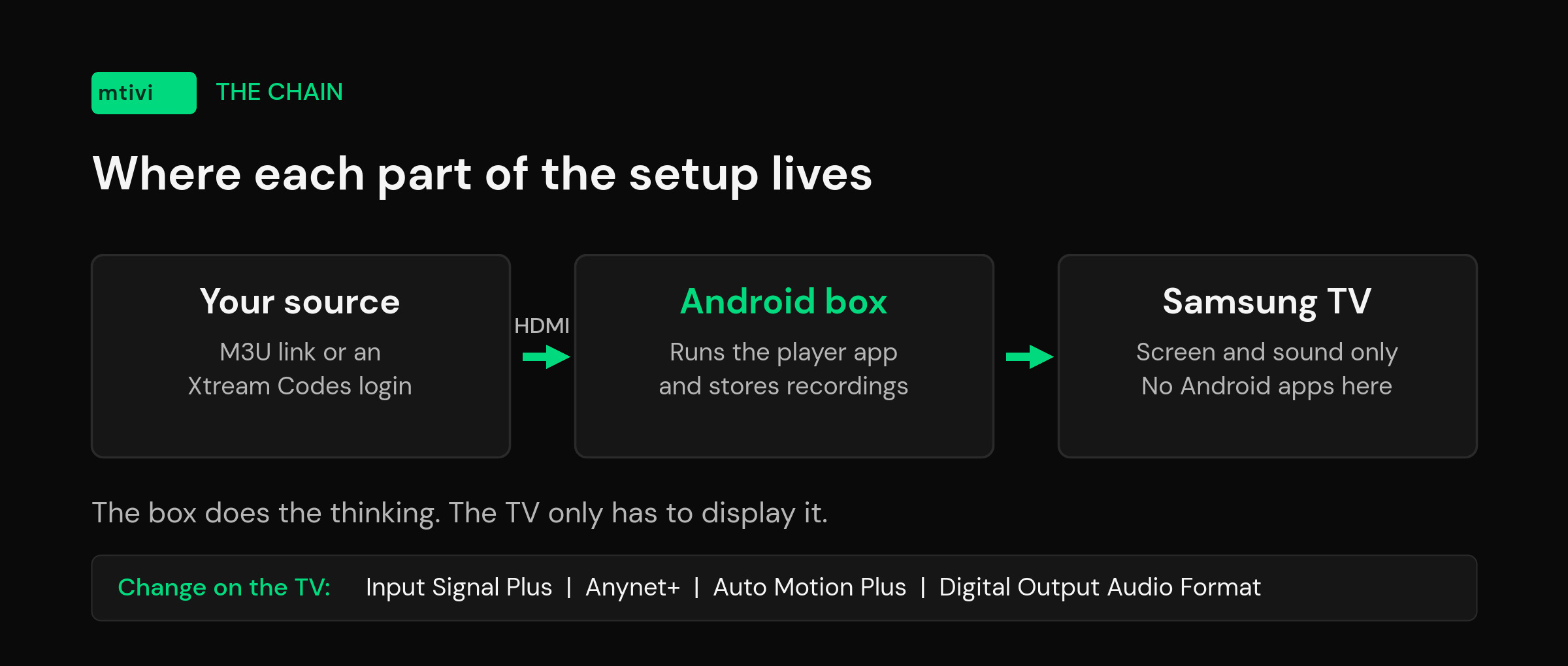
IPTV on Samsung TV Android box setups exist for one reason: Samsung’s Tizen system cannot install Android IPTV players. So you plug a small Android streaming box into an HDMI port, install the player there, and let the Samsung be the screen. The hardware part takes ten minutes. The four TV settings almost nobody mentions are what separates a setup that looks right from one that looks washed out, stutters on live sport, and needs three remotes.
This guide covers the whole chain: which box to buy, which HDMI port to use, the Samsung menu toggles that unlock 4K HDR and one-remote control, and how to get your playlist loaded once the box is running.
Why a Samsung TV needs an Android box for IPTV
Samsung TVs run Tizen, not Android. They look similar from the sofa — apps, a store, a home row — but they are different operating systems with different app packages. An Android APK will not install on Tizen, and there is no developer trick that changes that. TiviMate, IPTV Smarters Pro, OTT Navigator and mtivi are all Android apps, so none of them appear in Samsung’s store.
Tizen does have IPTV players of its own: Smart IPTV, Set IPTV, SS IPTV, Smart STB, IBO Player and OTTPlayer are the usual names. They work, and if one of them already does everything you need, you don’t need a box at all. Where people get frustrated is the fine print — several are region-locked and simply won’t appear in your country’s store, most charge a one-off activation fee tied to a single TV’s MAC address, and the feature sets are thin next to what Android players ship. Recording, multi-view, profile locks, cloud sync, subtitle handling: those are where the gap shows.
The other thing worth knowing before you spend anything: a Tizen player is only as good as the TV’s own processor. A five-year-old Samsung with a big playlist behaves like a five-year-old Samsung. A $50 box has newer silicon and more RAM than the chip driving your TV’s smart platform, which is why the box route often feels faster even on a nice TV. If you’re still deciding between routes, our breakdown of the best IPTV player for a Samsung smart TV compares the Tizen-native apps and the box option side by side.
Which Android box should you plug into a Samsung TV?
Three devices cover almost everyone. The specs that actually matter for a player app are RAM (big playlists live in memory), storage (recordings and cache), and whether there’s a real Ethernet port.
| Box | RAM / storage | Ethernet | Best for |
|---|---|---|---|
| Fire TV Stick 4K Max | 2GB / 16GB, quad-core 2.0GHz, Wi-Fi 6E | Adapter only | Cheapest reliable route; sideloading is trivial |
| Onn 4K Pro | 3GB / 32GB, Amlogic S905X5M 2.5GHz | Built in | Best value; the extra gigabyte shows on huge playlists |
| Nvidia Shield TV Pro | 3GB / 16GB, Tegra X1+ | Gigabit | Best decoder and upscaling; roughly triple the price |
| Unbranded Android box | Varies wildly, often overstated | Usually | Skip unless it’s Play-certified — no updates, missing codec licenses |
For most Samsung owners the Onn 4K Pro is the sweet spot: 3GB of RAM, an Ethernet port you don’t have to buy separately, and Google TV underneath so the Play Store just works. Buy the stick instead if the TV is on a stand near the router and you want the simplest possible install. Buy the Shield if you care about the decoder handling awkward streams and you already own it or can justify $199.
The one category to genuinely avoid is the no-name box with impressive numbers printed on the packaging. Those ship without Play certification and often without the audio codec licenses, which is exactly how you end up with picture but no sound on a third of your channels. If you want the longer argument, we ranked the best IPTV players for Android TV and Google TV on the hardware people actually own.
Step 1: pick the HDMI port, then switch on Input Signal Plus
This is the step that generates the most “my box doesn’t work on my Samsung” posts, and it’s a single toggle.
Samsung ports default to a reduced HDMI bandwidth mode. That’s fine for a games console output at 1080p; it is not enough for a 4K HDR handshake. When a 4K box tries to negotiate on a limited port you get one of three symptoms: a black screen with “No Signal”, a picture that refuses to flag HDR, or 4K that silently drops to 1080p SDR.
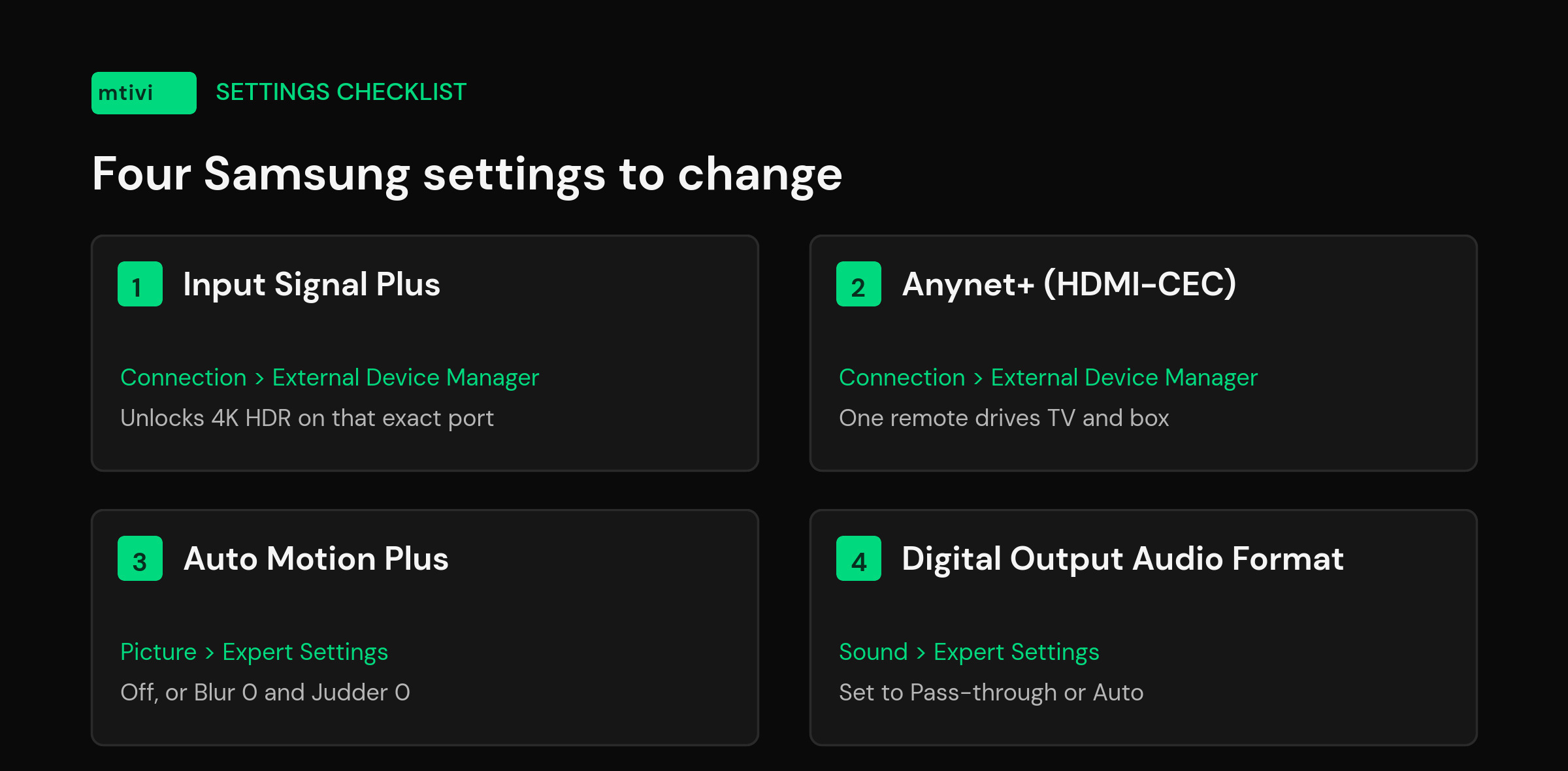
Turn it on for the specific port you used: Settings → Connection → External Device Manager → Input Signal Plus, then tick the HDMI number. On older Tizen menus the same setting is called HDMI UHD Color and sits under Picture or General. It is per-port, so enabling HDMI 1 does nothing for the box you plugged into HDMI 3.
Two practical notes while you’re back there. Use a Premium High Speed cable (18Gbps) at minimum for 4K60 with HDR — the cable in the box with a five-year-old soundbar frequently isn’t. And rename the input: Source → the HDMI tile → Edit, and call it “Player”. Six months from now you’ll thank yourself.
Step 2: turn on Anynet+ so one remote runs everything
Anynet+ is Samsung’s name for HDMI-CEC, the side channel that lets HDMI devices send each other commands. With it on, your Samsung remote drives the box, and turning the box on switches the TV to the right input by itself.
On 2022 and newer sets: Settings → All Settings → Connection → External Device Manager → Anynet+ (HDMI-CEC) → On. On 2021 and older: Settings → General → External Device Manager → Anynet+ (HDMI-CEC). Samsung’s own Anynet+ walkthrough has the menu screenshots if your model’s wording differs.
The gotcha: CEC power loops. If the TV starts waking up on its own at 3am, or flips to the box input every time you turn it on, the culprit is usually the box’s own CEC setting fighting the TV’s. Leave Anynet+ enabled and disable HDMI-CEC device control on the box instead. Fixing it from the TV side just costs you the one-remote convenience you turned it on for.
Step 3: fix the Samsung picture settings before you judge the picture
Plenty of people get the box working, watch fifteen minutes of live TV, decide the source is bad, and go looking for a different provider. Often it’s motion processing.
Samsung’s Auto Motion Plus interpolates frames. On 50/60fps live sport it’s harmless and some people like it. On 24fps films and series it produces the soap-opera effect — that oddly smooth, camcorder look. Go to Picture → Expert Settings → Auto Motion Plus (called Picture Clarity Settings on some models) and either switch it off or set Custom with Blur Reduction and Judder Reduction both at 0. Samsung documents the behavior in its own motion smoothing explainer.
Then check two more. Turn Game Mode on for the box’s input if channel changes feel laggy — it strips out the processing stages that add delay, and zapping feels noticeably snappier. And if colors look flat and gray after enabling HDR, that’s a tone-mapping mismatch rather than a broken box; our guide to washed-out HDR colors walks through it properly.
Step 4: send the audio where it belongs
If you have a soundbar, the box goes into a regular HDMI port on the TV and the soundbar goes into the TV’s HDMI ARC/eARC port. Don’t run the box into the soundbar unless the soundbar has spare inputs and you’ve checked it passes 4K HDR through — plenty of older bars don’t.
Then set Settings → Sound → Expert Settings → Digital Output Audio Format to Pass-through (or Auto). Surround tracks reach the soundbar untouched instead of being downmixed by the TV.
If some channels play with no sound at all, you’ve hit the codec license problem. Cheap boxes ship without AC3/EAC3 decoding, so anything using those tracks goes silent. Switching your player’s audio decoder from hardware to software usually recovers it; buying a certified box avoids it entirely.
Step 5: install the player, then load your playlist
On a Fire TV Stick, install the Downloader app from Amazon’s store, allow it to install unknown apps, and enter the code for the player you want — mtivi’s is 1706057. On the Onn, the Google TV Streamer or any Play-certified box, search the Play Store instead. Our Firestick player comparison covers the sideloading route in more depth.
Once the player is open you’ll be asked for a source. That’s either an M3U link or an Xtream Codes login from your provider — if you’re not sure which you have, M3U vs Xtream Codes explains the difference and when each one is better. Xtream logins generally pull the guide automatically; M3U often needs an EPG URL added by hand, which is covered in our EPG setup guide.
One thing that saves real time here: typing a long M3U URL with a TV remote is miserable. If your player supports setting the playlist up on a phone and syncing it down, do that instead. mtivi’s cloud sync carries playlists, favorites and channel order between devices, so the box arrives already configured rather than being a from-scratch rebuild — which matters more than it sounds when your Samsung is the third screen in the house.
Wired beats Wi-Fi, especially on a wall-mounted Samsung
A wall-mounted TV puts the stick in the worst possible spot: pressed against a metal back panel, behind a slab of glass, often with the router two rooms away. Wi-Fi 6E doesn’t help much when the antenna is inside a Faraday cage.
Two fixes. Use the short HDMI extender that comes in the box — it gets the stick out from behind the panel and typically adds a bar or two of signal. Or run Ethernet: the Onn and the Shield have ports, and the Fire TV Stick takes Amazon’s Ethernet adapter for about $15. On a wired connection, buffering complaints during peak hours usually stop being about your provider.
What the box won’t fix
Being straight about this saves you money. An Android box gives you a better player on a better processor; it does not give you a better source. If your provider drops connections at 8pm, a $199 Shield drops them at 8pm too. If a channel is delivered at a low bitrate, no amount of upscaling makes it 4K.
It also won’t merge with the TV’s own interface. The box is a separate input with its own home screen — you’re switching sources, not adding an app to Samsung’s row. And it doesn’t remove the need to keep the box’s own storage healthy: a player caching a very large playlist will slow down over months on a 16GB stick in a way it won’t on 32GB.
Related guides
- Best IPTV player for a Samsung smart TV — the Tizen-native apps compared, and when they’re enough
- Best IPTV player for the Google TV Streamer — if you’d rather buy Google’s box
- What is an IPTV player? — the plain-language version, if this is your first setup
Frequently asked questions
Can I install TiviMate or another Android IPTV player directly on a Samsung TV?
No. Samsung TVs run Tizen and Android apps are packaged differently, so an APK cannot be installed on them. There’s no sideloading workaround for consumer Tizen sets. If you want an Android player, the player has to run on an Android device connected over HDMI.
Which Android box is best for a Samsung TV in 2026?
The Onn 4K Pro for most people — 3GB of RAM, 32GB of storage and a built-in Ethernet port for around $50. The Fire TV Stick 4K Max is the cheapest dependable option if you don’t need Ethernet. The Nvidia Shield TV Pro is the best performer and the most expensive at roughly $199.
Why does my Samsung say “No Signal” when I plug in a 4K streaming box?
Almost always Input Signal Plus being off for that port. Go to Settings → Connection → External Device Manager → Input Signal Plus and enable the exact HDMI number the box is in. It’s per-port, so turning it on for one port does nothing for the others. If it still fails, swap in a Premium High Speed (18Gbps) cable.
Can I control the Android box with my Samsung remote?
Yes, with Anynet+ (HDMI-CEC) enabled: Settings → All Settings → Connection → External Device Manager on 2022 and newer models, or Settings → General → External Device Manager on 2021 and older. Basic navigation, volume and power then work from the Samsung remote. Voice search and app-specific buttons usually still need the box’s own remote.
Do I still need my IPTV subscription if I add an Android box?
Yes. The box changes which player software you can run, nothing else. Your playlist or Xtream Codes login comes from your provider exactly as before, and you enter the same details into the new player.
Does mtivi provide the channels or playlists I watch?
No. mtivi is a media player. We don’t provide, sell, or include any channels, movies, series, or playlists. You add your own source, and mtivi plays it.
Why do some channels play with no sound on my new box?
The box is missing an audio codec license — usually AC3 or EAC3 — so it can’t decode those tracks. Switch your player’s audio decoder from hardware to software as a first test. If that fixes it, the box is the limitation, and a Play-certified device won’t have the problem.
Should I turn Game Mode on for the box’s HDMI input?
If channel changes feel sluggish, yes. Game Mode skips several processing stages, which cuts input lag and makes zapping feel faster. The trade-off is less picture processing, so some people prefer Movie or Filmmaker mode for films and Game Mode only for live viewing.
Will an Android box fix buffering on my Samsung TV?
Only if the bottleneck was the TV’s processor or its Wi-Fi. A newer box with a wired connection fixes both of those. It cannot fix an overloaded provider or a slow home connection — if the same source buffers on your phone over mobile data, the box isn’t the problem.
Is a stick or a box better behind a wall-mounted Samsung?
A box, if you can place it on a shelf and run Ethernet. Wall mounting traps a stick against the metal rear panel, which hurts Wi-Fi badly. If you’re set on a stick, always use the supplied HDMI extender so the antenna clears the panel.
Do the app shortcut buttons on the Samsung remote still work?
They launch Tizen apps on the TV, so pressing one switches you off the box’s input rather than doing anything inside your player. Once the box is your main source, expect to press Source or Home to get back to it.
How long does the whole setup actually take?
Around ten minutes of hardware and menus — plug in, enable Input Signal Plus and Anynet+, adjust motion settings — plus however long your player takes to load the playlist. A large playlist can take a couple of minutes on its first import and is much quicker afterwards.