Skip to content
IPTV Washed Out Colors in HDR? How to Get Proper Color Back
You switch a channel to a big match or a new film, the picture jumps into HDR, and instead of looking richer it looks gray, flat and washed out. Blacks turn milky, faces go pale, and the whole image feels like someone dropped a sheet of tracing paper over the screen. It is one of the most common complaints on streaming boxes, and the good news is that it is almost never your playlist and almost always a setting you can change in a couple of minutes.
This guide walks through why IPTV washed out colors happen in the first place, the fastest checks to narrow down the cause, and the exact settings to fix it on a Fire TV, Firestick, Android TV, Google TV and Nvidia Shield. We will also settle the “Always HDR vs Adaptive” question that trips up so many people.
Why your IPTV looks washed out or gray in HDR
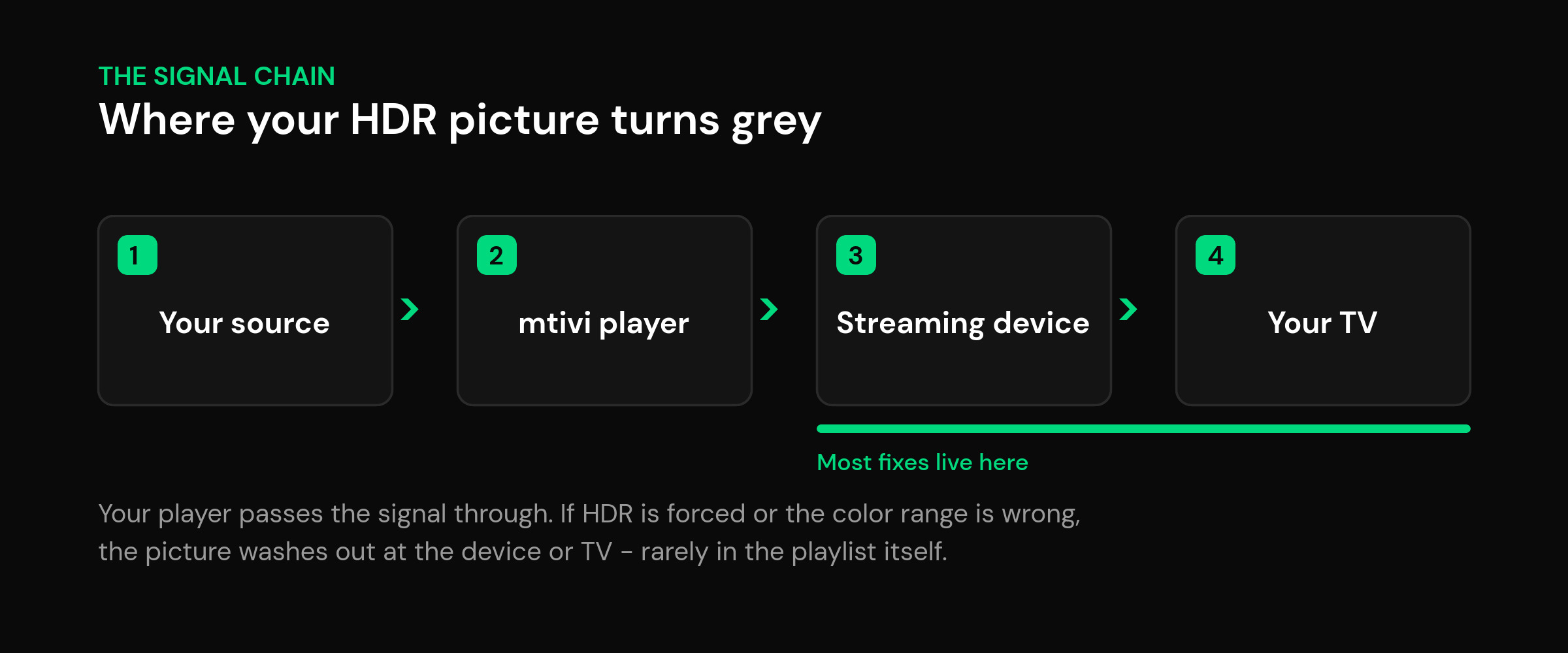
To understand the fix, it helps to know what HDR actually is. High dynamic range (HDR) stores a much wider range of brightness and color than standard dynamic range (SDR). For that extra range to look right, three things have to agree with each other: the stream, the streaming device, and the TV. When any one of them is wrong, the picture loses contrast and turns gray.
These are the usual culprits behind IPTV washed out colors:
- HDR is being forced onto SDR content. If your device is set to output HDR all the time, it wraps ordinary SDR channels in an HDR container. The TV then expects bright HDR data that never arrives, so mid-tones lift and the image looks pale and gray.
- The TV cannot properly map the HDR signal. Some panels apply the wrong tone-mapping curve, which flattens highlights and crushes or lifts shadows so everything looks low-contrast.
- The color range is mismatched. A “Full” vs “Limited” RGB mismatch, or the HDMI input running in a basic compatibility mode, produces washed-out blacks and a slightly foggy picture.
- Dolby Vision is being sent to a screen that handles it poorly. Dolby Vision looks stunning when everything supports it, but a bad profile match can make it too dark or, once you raise brightness to compensate, gray and washed out.
- Bit depth or bandwidth is too low. An 8-bit signal squeezed into an HDR pipeline shows color banding and a slightly plasticky, faded look.
Notice what is not on that list: your channels themselves. The stream carries the video; it is the device-to-TV handshake that decides whether it looks vivid or washed out.
First, rule out the quick stuff
Before you dive into menus, spend two minutes narrowing down where the problem lives. This saves you from changing ten settings at once and never knowing which one mattered.
- Try a different channel or a known SDR channel. If only certain HDR or 4K channels look washed out but SDR ones look fine, the issue is the HDR handshake, not the app.
- Switch the same source to a phone or tablet. If the picture looks correct there, your playlist is healthy and the TV setup is the problem.
- Toggle HDR off temporarily. If forcing the device to SDR instantly restores natural color, you have confirmed it is an HDR/tone-mapping issue and can focus your fixes there.
- Check you are on the right HDMI port. Many TVs only run full-bandwidth HDR on one or two of their inputs. A stick in the wrong port silently falls back to a weaker mode.
Washed-out audio is a different beast entirely, but if you are chasing several playback niggles at once it is worth reading our fix for IPTV audio that is out of sync while you are in the settings.
Fix washed-out HDR on Fire TV and Firestick
Fire TV devices are the number-one source of “why is Dolby Vision washed out on my Firestick” questions, and it usually comes down to one setting: the device is set to output HDR all the time instead of only when it is needed.
- Open Settings → Display & Sounds → Display.
- Find Dynamic Range Settings and set it to Adaptive rather than Always HDR. Adaptive tells the device to switch into HDR or Dolby Vision only for content that is genuinely HDR, and to leave everything else in natural SDR.
- Set Color Depth to Up to 10-bit (or Auto) so the pipeline has enough headroom to avoid banding.
- Leave Color Format on Auto or YCbCr unless your TV specifically calls for something else.
- On the TV side, make sure the HDMI input is set to the Enhanced / UHD Color mode (names vary by brand) so it accepts the full 4K HDR signal instead of a basic one.
After changing Dynamic Range to Adaptive, most people find the gray wash disappears immediately because SDR channels stop being dressed up as HDR. If you are shopping for a device that behaves well out of the box, our roundup of the best IPTV player for Firestick covers which apps play nicely with these settings.
Fix gray or washed-out HDR on Android TV, Google TV and Nvidia Shield
Android TV boxes, Google TV streamers and the Nvidia Shield give you more control, which is a blessing and a curse. The extra options are exactly why people see IPTV color banding on a Shield or a washed-out picture on a Google TV box.
- Match dynamic range instead of forcing it. In the device display settings, prefer a “match content” behavior so HDR is only used for HDR. Forcing HDR (or forcing SDR tone-mapping) on everything is the classic washed-out trigger.
- Check the RGB / color range. If your box exposes an RGB range or color space option, a Full-vs-Limited mismatch with the TV lifts blacks and fogs the image. Set both ends to match.
- Raise color depth to reduce banding. If you see stepped gradients in skies or dark scenes, bumping the output to 10-bit (where the TV supports it) smooths them out.
- Turn on Match Frame Rate. While you are there, enabling frame-rate matching keeps motion clean; it will not fix color on its own but it removes another source of “something looks off”.
If you want hardware that gets HDR right with the least fiddling, see our picks for the best IPTV player for Android TV and Google TV.
Set your TV up so HDR looks right
Even with a perfect signal, the TV can still ruin the picture. A few TV-side settings make a huge difference:
- Pick a neutral picture mode. Use Cinema, Movie or Filmmaker mode for HDR. Avoid Vivid or Dynamic, which oversaturate and can make the gray wash look even stranger.
- Label the HDMI input correctly. Some TVs only unlock full HDR when the input is named “PC”, a game console, or has “Enhanced” enabled. An unlabeled input can quietly cap the signal.
- Turn off aggressive “eco” or ambient light features. Automatic brightness limiters fight HDR tone-mapping and can leave the image looking dull and flat.
- Use a proper high-speed HDMI cable. A cheap or old cable that cannot carry 4K HDR bandwidth forces the whole chain into a lower mode, which shows up as washed-out color.
Always HDR vs Adaptive: which should you pick?
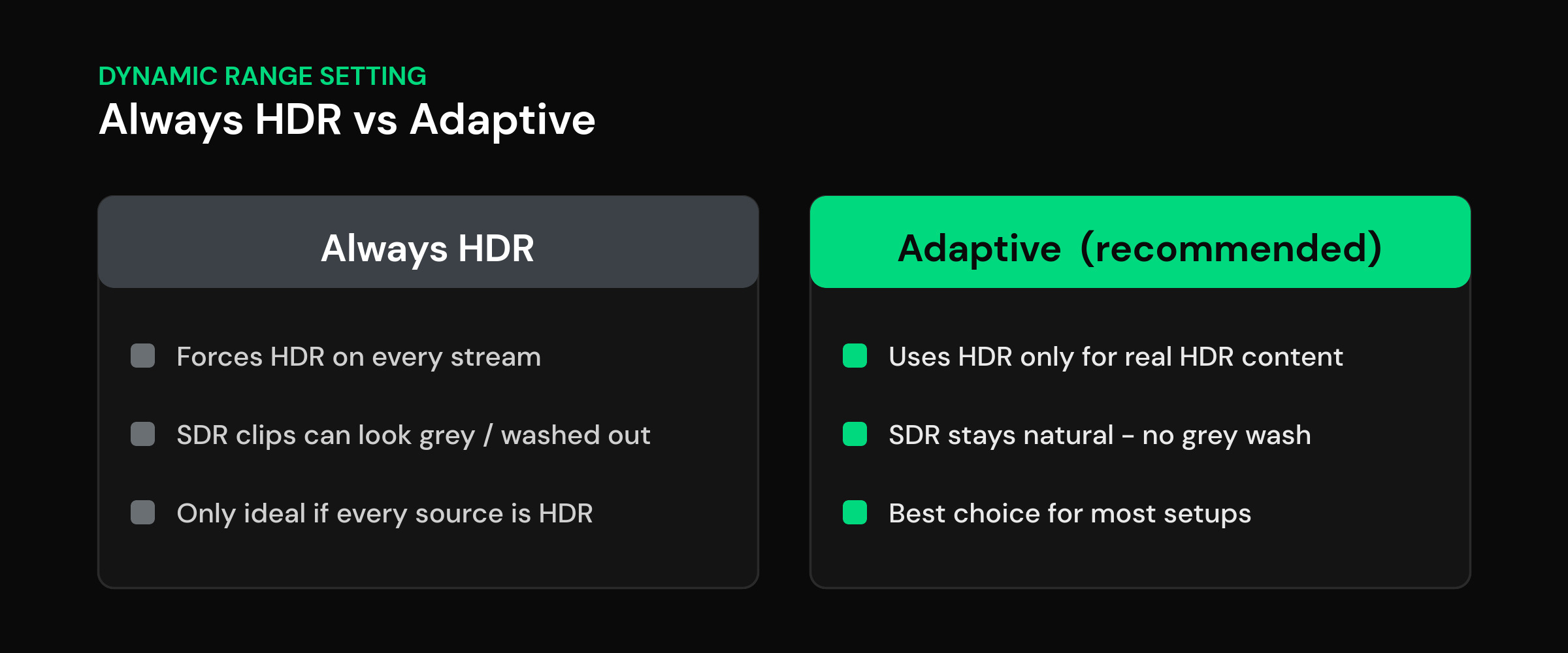
This is the single setting that fixes the most cases, so it deserves its own section. Here is the difference in plain terms:
| Setting | What it does | Best for |
|---|---|---|
| Always HDR | Outputs an HDR signal for everything, including SDR content, which often looks gray and washed out. | Only when every single thing you watch is true HDR. |
| Adaptive (match content) | Switches to HDR or Dolby Vision only for real HDR content and keeps SDR looking natural. | Almost everyone. This is the recommended default. |
For a mixed playlist of live TV, movies and series — which is what most people actually have — Adaptive wins. It gives you the HDR pop when it matters and stops washing out everything else.
Where your IPTV player fits in
Most of the washed-out fix lives in your device and TV settings, and it would be dishonest to pretend an app can override how your hardware maps HDR. What a good player can do is hand the device a clean, correct signal so those settings actually work.
mtivi is built to pass your stream through in its native form — true 4K, HDR10, HLG and Dolby Vision where your device and screen support them — instead of forcing a format that makes things worse. When your source is SDR, it stays SDR; when it is genuinely HDR, you get the full range. Pair that with Adaptive dynamic range on your device and the gray wash usually goes away for good. If you are still getting to grips with the basics, our explainer on what an IPTV player is puts it all in context.
Washed-out HDR: quick symptom-to-fix table
| Symptom | Likely cause | Fix |
|---|---|---|
| Everything looks gray and flat | HDR forced on SDR content | Set Dynamic Range to Adaptive / match content |
| Milky, foggy blacks | Full vs Limited RGB range mismatch | Match the color range on device and TV |
| Dolby Vision too dark, then gray when brightened | Poor Dolby Vision profile match | Use Adaptive; try HDR10 output if it persists |
| Stepped gradients / banding | Low bit depth or weak cable | Set 10-bit color depth; use a high-speed HDMI cable |
| Only some inputs look washed out | HDMI port not in Enhanced mode | Enable Enhanced / UHD Color on that HDMI input |
Related guides
- Best IPTV Player for Firestick in 2026
- Best IPTV Player for Android TV and Google TV
- IPTV Audio Out of Sync? How to Fix Lip-Sync Delay
- What Is an IPTV Player? A Clear Guide
Frequently asked questions
Why does my IPTV look washed out or gray in HDR?
Almost always because HDR is being applied to content that is not really HDR, or because the color range between your device and TV does not match. Setting the device to Adaptive (match content) dynamic range and matching the RGB range fixes most cases.
Should I use Always HDR or Adaptive?
Use Adaptive for almost every setup. It switches into HDR or Dolby Vision only for genuine HDR content and leaves SDR looking natural, which is exactly what stops the gray, washed-out look on a mixed playlist.
Why is Dolby Vision washed out or too dark on my Firestick?
Fire TV set to Always HDR forces a Dolby Vision or HDR container onto everything. That can look dark, and raising brightness to compensate makes it gray. Switch Dynamic Range Settings to Adaptive, and if a specific channel still misbehaves, try HDR10 output instead of Dolby Vision.
Why does HDR look gray on my Nvidia Shield or Android TV box?
Usually a forced dynamic range or an RGB range mismatch. Set the box to match content rather than forcing HDR or SDR, confirm the color range matches your TV, and raise color depth to 10-bit if your panel supports it.
What is color banding and how do I reduce it?
Banding is visible steps in what should be smooth gradients, like skies or shadows. It comes from too little bit depth or bandwidth. Set your device output to 10-bit color depth and use a certified high-speed HDMI cable to give the signal enough headroom.
Does the HDMI cable or port matter for washed-out HDR?
Yes. A cable that cannot carry 4K HDR bandwidth, or an HDMI port not switched to Enhanced / UHD Color mode, quietly drops the whole chain into a weaker signal that looks washed out. Use a high-speed cable and enable the enhanced mode on the input you use.
Is it my playlist or my device causing the washed-out colors?
Test the same source on a phone or tablet. If it looks correct there, your playlist is fine and the problem is in your TV or streaming-device settings. Washed-out HDR is a display-chain issue, not a playlist issue.
Should I set color format to RGB or YCbCr?
Leave it on Auto or YCbCr on most streaming devices unless your TV specifically asks for something else. The bigger factor is matching the Full-vs-Limited range on both ends so blacks do not look milky.
What TV picture mode is best for HDR?
Use a neutral mode such as Cinema, Movie or Filmmaker. Avoid Vivid or Dynamic, which oversaturate and can exaggerate the washed-out effect. Also switch off aggressive eco or ambient-light features that fight HDR tone-mapping.
Will turning off HDR fix the washed-out look?
Forcing SDR will usually remove the gray wash, but you also lose real HDR pop on content that deserves it. It is better used as a diagnostic step to confirm the cause; the proper fix is Adaptive dynamic range so HDR is used only when it is genuinely there.
Does mtivi fix washed-out HDR by itself?
An app cannot override how your hardware maps HDR, so no player can magically fix it alone. mtivi helps by passing your stream through in its native format instead of forcing HDR onto SDR, so your device and TV settings can do their job. Pair it with Adaptive dynamic range for the best result.
Does mtivi provide the channels or movies I watch?
No. mtivi is a media player. We don’t provide, sell, or include any channels, movies, series, or playlists. You add your own source, and mtivi plays it.