Skip to content
IPTV Player 4K HDR: 7 Settings for a True 4K Picture
Getting a real IPTV player 4K HDR picture is almost never a one-app problem. Four things have to line up: the stream your source actually sends, how your player decodes it, what your stick or box outputs over HDMI, and what your TV does with the signal when it arrives. Break any one of those links and you get the same symptoms — soft picture, gray washed-out color, stuttering pans — no matter which app you install.
So before you go hunting for a different player, work down the chain. Below is the order I check things in, the exact menu paths on the three device families most people are using, and the one fact about live TV in HDR that nobody seems to mention.
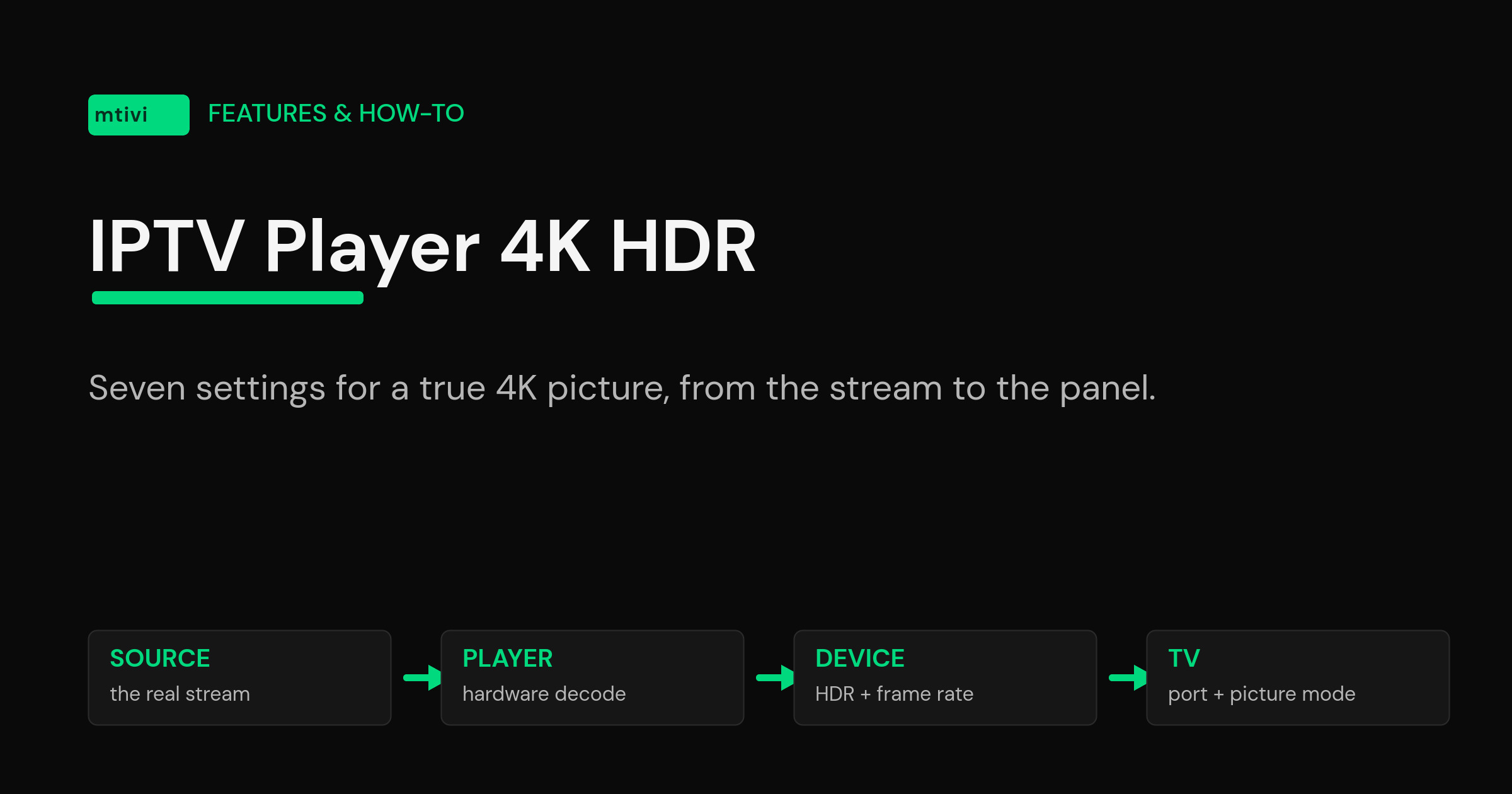
The 4K HDR chain: four links, and only one is the player
Think of it as a relay. The source hands a stream to your player. The player decodes it and hands frames to Android. Android hands a signal to the TV over HDMI. The TV decides how to display it. Every link can quietly downgrade the picture, and most of them do it silently — no error, no warning, just a worse image.
That is why “which player is best for 4K” is the wrong first question. A player can only be as good as the frames it is handed, and it can only look as good as the display pipeline lets it. Fix the chain first; then judge the app.
Step 1: find out what your source is actually sending
This is the step people skip, and it is the one that explains most disappointment. A channel labeled 4K in the playlist is not necessarily a 4K stream. Plenty of lists carry upscaled 1080p under a 4K label, and a few carry 720p. The label is just text in an M3U file — nobody validates it.
Open the stream info or statistics overlay in your player while a channel is playing and read the real numbers: resolution, codec, and bitrate. That takes ten seconds and settles the argument. As a rough sanity check on bitrate:
| What you see in stream info | Typical bitrate | What it means |
|---|---|---|
| 3840×2160, HEVC | 25–35 Mbps | A genuine 4K feed |
| 3840×2160, H.264 | 40–50 Mbps | Real 4K, older codec, heavier on the network |
| 3840×2160 at 8–12 Mbps | Well under spec | Almost certainly an upscale — it will look soft and block up in motion |
| 1920×1080 on a “4K” channel | 4–10 Mbps | The label is wrong; no setting will fix this |
If the numbers say 1080p, stop here. Nothing further down the chain creates detail that was never sent. What you can do is stop your TV from making the upscale worse — more on that in step 7.
Step 2: let the player decode in hardware
4K HEVC is not something you want a CPU chewing on. Hardware decoding hands the job to the dedicated video block in the chip, which is the only way a cheap stick keeps up with a 30 Mbps feed. If your player is set to software decoding, or has fallen back to it, you get dropped frames, audio drift and a hot device.
The practical rule: leave hardware decoding on by default, and only switch to software for the one or two odd channels that refuse to play. That combination — hardware first, a manual override per channel — solves more playback problems than any other single setting. If you want the longer version of that trade-off, we broke the engines down in native vs ExoPlayer vs VLC.
Two things to watch for. First, 10-bit HEVC is a separate capability from 8-bit HEVC; older boxes decode one and not the other, which is why a channel can play in SDR and stutter in HDR. Second, a device that is busy loading an 80,000-channel list is not a device with spare cycles for decoding, so a heavy playlist can look like a decode problem. If your list is huge, our guide to loading large playlists without lag covers that side of it.
Step 3: set Dynamic Range correctly (Always HDR vs Adaptive)
This is where the gray, washed-out picture usually comes from. Streaming devices let you force HDR on permanently or switch it per stream. Force it on, and SDR channels get stretched into an HDR container they were never graded for — flat blacks, milky whites, dull color. Adaptive switches the signal to match what is playing, which is what you want almost all of the time.
| Device | Where to look | Set it to |
|---|---|---|
| Fire TV stick or box | Settings › Display & Sounds › Display › Dynamic Range Settings | Adaptive (not Always HDR) |
| Nvidia Shield | Settings › Device Preferences › Display & Sound | Enable Dolby Vision / HDR10 only if the TV reports support |
| Google TV / Android TV box | Settings › Display & Sound › Advanced display | Let the device pick the format per stream |
Also check resolution while you are in there: set video output to Auto rather than pinning it to 4K60. Pinning forces every 1080p and 50 fps stream through a conversion it does not need. Amazon publishes a troubleshooting page for Dolby Vision and HDR not working on Fire TV that is worth a read if the option is missing entirely, and Nvidia has an equivalent for enabling Dolby Vision and HDR10 on Shield.
If your picture is specifically gray and lifeless rather than soft, that is a different diagnosis with a different fix — we wrote it up separately in IPTV washed out colors in HDR.
Step 4: turn on auto frame rate and stop the judder
Most streaming devices output a fixed 60 Hz. Film-sourced material is 24 fps and a lot of European live TV is 50 fps, so the device has to convert — and conversion is what produces that stuttering hitch on slow camera pans. Google is blunt about it in the official Android TV documentation: when the frame rate of a video does not match the refresh rate of the display, you get motion judder artifacts from frame rate conversion, and it is most visible during slow panning shots.
The fix is auto frame rate, called Match content frame rate on Android TV and Google TV, and Match Frame Rate on Shield. It lets the display drop to 24, 25, 50 or 60 Hz to match what is playing. Two things are worth knowing:
- The switch is not seamless. Expect a black screen for a second or two while the HDMI link renegotiates. That is the handshake, not a fault, and it happens on every device that does this.
- The app has to declare the frame rate. Android exposes an API for exactly this; if a player never calls it, the system has nothing to match to and the setting appears to do nothing. That is why turning it on helps in one app and not another.
Turn it on, play something film-based, and watch a slow pan. If the judder disappears, you have found several years of picture quality that was sitting there the whole time.

Step 5: Dolby Vision on live channels — the honest answer
Here is the part that saves people a lot of wasted troubleshooting. Dolby Vision carries dynamic metadata frame by frame, and HDR10 carries static metadata for the whole file. Both were designed around content that exists as a finished file before you watch it. Live television does not work that way, which is why broadcast HDR overwhelmingly uses Hybrid Log-Gamma — a format developed by the BBC and NHK that carries no metadata at all and is backward compatible with SDR sets.
So: if a live channel in your playlist is genuinely HDR, it is almost certainly HLG. Your TV may not announce it the way it announces Dolby Vision on a movie, and no player setting will convert an HLG live feed into Dolby Vision. Movies and series in a VOD library are a different story — those are files, and those can and do carry HDR10 or Dolby Vision.
Practical takeaway: judge your live channels on whether HLG is being passed through and displayed correctly, and save the Dolby Vision question for your on-demand library. Chasing a Dolby Vision badge on a live channel is chasing something that mostly does not exist.
Step 6: fix the HDMI chain people forget
Four physical things break 4K HDR more often than any software setting:
- The port. Many TVs only run full-bandwidth 4K on one or two HDMI inputs. If your stick is in the wrong one, you are capped and nothing on screen tells you.
- The TV’s input setting. Manufacturers hide a per-input toggle called HDMI UHD Color, Enhanced Format, HDMI Signal Format or similar, and it is usually off by default. Off means 8-bit, no HDR, on that input. Turn it on for the input your box is using.
- The cable. 4K HDR needs a genuine high-speed cable and HDCP 2.2 support end to end. A cable that works fine at 1080p can drop the link at 4K60 — the classic symptom is intermittent black flashes.
- Anything in between. Old soundbars and AV receivers pass audio happily and quietly strip HDR. Test by plugging the box straight into the TV.
On a Samsung or LG set where you are running an external box, the input-format setting is nearly always the culprit; we walked through that whole hardware chain in the Samsung TV plus Android box setup guide.
Step 7: match the picture mode to what you are watching
Once the signal arrives intact, the TV’s own processing decides how it looks. Two settings matter more than the rest: turn motion smoothing (the “soap opera effect”) off for film, and pick a picture mode that suits the material. Filmmaker or Cinema for movies and series; a brighter Standard or Sports mode for daytime live sport.
Android is starting to automate this. Android 16 added a picture-profile API so an app can request a profile per stream — a movie profile with accurate color and shadow detail for film, a brighter profile for live sport watched in a sunlit room. It is early and device support varies, but it is the direction things are heading, and it confirms the principle: one picture mode for everything is always a compromise.
How mtivi handles 4K, HDR and frame rate
mtivi is built to be the link in that chain that does not get in the way. It plays what your source sends — 4K, HEVC, 10-bit, HDR10 and HLG included — using hardware decoding by default, with a per-channel decoder switch for the handful of feeds that misbehave. Stream info is on screen when you want it, so you can check the real resolution and bitrate of a channel instead of trusting its name.
The design goal is deliberately unglamorous: pass the stream to your device at its native resolution, color space and frame rate, and let the device’s own HDR switching and frame-rate matching do their job rather than fighting them. Most picture problems in IPTV come from something in the chain re-scaling or re-converting a stream that was fine to begin with.
It runs on Android phones, tablets, Android TV, Google TV, Fire TV, Nvidia Shield and Android boxes today, with more platforms on the way. If you are picking hardware around it, our rundown of the best IPTV player for Android TV and Google TV and the Firestick equivalent cover which devices cope with 4K comfortably and which ones you should not expect miracles from.
The 60-second checklist
| Check | Where | Target |
|---|---|---|
| Real stream resolution and bitrate | Player stream info overlay | 3840×2160 at 25 Mbps or more |
| Decoding | Player playback settings | Hardware on, software as a per-channel fallback |
| Dynamic range | Device display settings | Adaptive, never forced always-on |
| Video output resolution | Device display settings | Auto |
| Auto frame rate | Match content frame rate / Match Frame Rate | On |
| HDMI input format | TV input settings | Enhanced / UHD Color enabled on that port |
| Motion smoothing | TV picture settings | Off for film, optional for sport |
Work top to bottom and stop at the first thing that is wrong — in my experience it is usually the dynamic range setting or the TV’s HDMI input format, and both take about fifteen seconds to change.
Related guides
- IPTV washed out colors in HDR: how to get proper color back
- Native vs ExoPlayer vs VLC: which player engine should you use?
- What is an IPTV player? A clear guide
- IPTV EPG setup: a full guide with now/next and catch-up
- Best IPTV player for Android TV and Google TV
Frequently asked questions
Why does my 4K channel look soft even on a 4K TV?
Almost always because the stream is not really 4K. Open the player’s stream info overlay and read the actual resolution and bitrate. A 3840×2160 label at 8 Mbps is an upscale, and no setting recovers detail that was never sent.
What is the difference between Always HDR and Adaptive?
Always HDR forces every stream into an HDR container, including SDR channels that were never graded for it, which is what makes the picture look gray and flat. Adaptive switches per stream so SDR stays SDR and HDR triggers only when the source is genuinely HDR. Adaptive is the right default.
Does auto frame rate actually make a visible difference?
Yes, on film-based material and on 50 fps live TV. A fixed 60 Hz output has to convert those frame rates, and the conversion shows up as judder on slow pans. Matching the display refresh rate to the content removes it. Fast-moving 60 fps material looks the same either way.
Why does my screen go black for a second when a channel starts?
That is the HDMI link renegotiating because auto frame rate or HDR switching changed the output format. It is normal on every device that supports those features. If the blackout lasts more than a few seconds or repeats, suspect the cable or an AV receiver in the path.
Can I get Dolby Vision on live channels?
Realistically, no. Dolby Vision depends on per-frame metadata generated during mastering, which live broadcast does not produce. Live HDR is overwhelmingly HLG, which carries no metadata by design. Dolby Vision and HDR10 belong to movies and series in a VOD library.
Is HLG worse than HDR10 or Dolby Vision?
Different, not worse. HLG trades per-scene metadata for something that works in a live signal chain and still looks correct on an SDR set. For live sport and events it is the format that actually ships, so a player and TV handling HLG properly matters more than a Dolby Vision badge.
Should I use hardware or software decoding?
Hardware for anything 4K — software decoding of 4K HEVC will drop frames on most sticks and boxes. Keep software decoding as a per-channel override for the occasional feed with an unusual codec profile that the hardware decoder refuses.
How much internet speed do I need for 4K?
Plan for 25–35 Mbps sustained for 4K HEVC and 40–50 Mbps for 4K H.264, with headroom on top for everything else in the house. Sustained is the key word: a connection that bursts fast but dips under load will buffer at exactly the wrong moment.
Why does 4K work on one HDMI port but not another?
Because many TVs only run full bandwidth on selected inputs, and most hide a per-input format toggle — HDMI UHD Color, Enhanced Format, or similar — that ships turned off. Enable it on the port your box is plugged into, then re-check.
Does the player itself affect picture quality?
It affects whether the picture reaches the screen intact. A player that decodes in hardware, reports the frame rate to the system and passes the stream through at its native resolution and color space lets the device do its job. One that re-scales or forces a fixed output undoes work further down the chain.
My movies are HDR but my live channels are not. Is something broken?
Probably not. Very few live channels are transmitted in HDR at all, and the ones that are use HLG. A VOD library is far more likely to carry HDR because those are finished files. Check the stream info on a live channel before assuming a fault.
Does mtivi provide 4K channels?
No. mtivi is a media player. We don’t provide, sell, or include any channels, movies, series, or playlists — you add your own source, and mtivi plays whatever that source sends, up to and including 4K HDR.