Skip to content
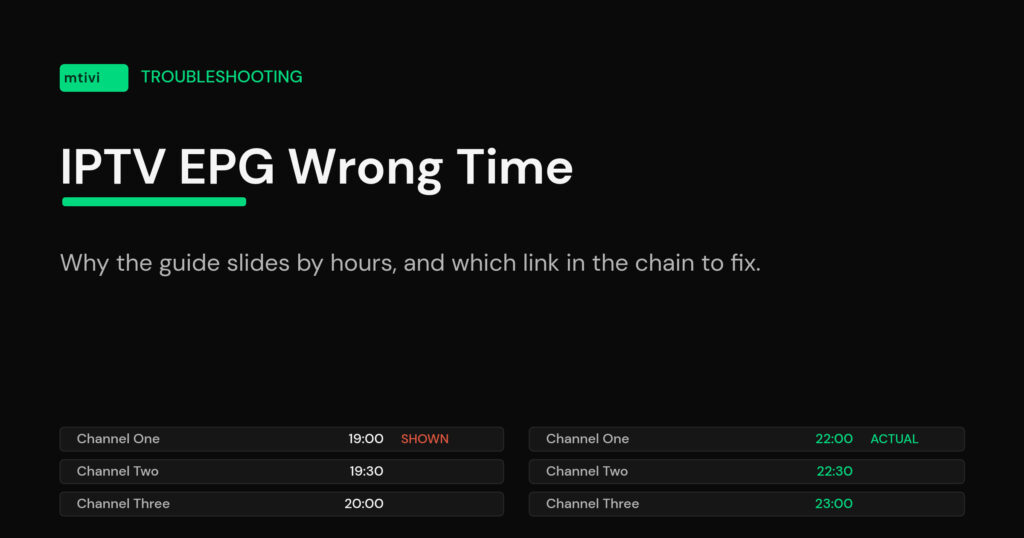
IPTV EPG Wrong Time? How to Fix a Guide That’s Off by Hours
An IPTV EPG wrong time problem almost always comes down to one question: is the guide file lying about its timezone, or is your device? Everything else — the offset sliders, the refresh buttons, the reinstall advice you find on forums — is downstream of that. Answer it correctly and the fix takes about ninety seconds. Guess at it and you end up nudging an offset back and forth for a week while the guide drifts again every few months.
This guide walks the chain from the guide file to the clock on your screen, shows you how to tell in under a minute which link is broken, and covers the two cases where nothing you do in the app will help.

The short answer
Guide times reach your screen through three steps, and each one can break it:
- The guide file writes a timestamp. Every program in an XMLTV file carries a start and stop time in the form
20261009200000 +0100— the date and time, then the zone that time was written in. - Your player converts it. It reads that trailing offset, works out the real moment in universal time, and re-renders it in whatever timezone your device claims to be in.
- Your device supplies the local zone. If the box thinks it is somewhere it is not, step two produces a perfectly correct calculation and a completely wrong answer.
So a whole-hour shift is a timezone fault, and it lives in either step one or step three. It is almost never a bug in the player itself, which is why reinstalling rarely changes anything.
Diagnose it in sixty seconds
Look at the shape of the error before you touch a single setting. The pattern tells you which link in the chain broke.
| What you’re seeing | Almost certainly | Where the fix lives |
|---|---|---|
| Every channel off by the same whole number of hours, all year | Device timezone is wrong, or someone set a manual offset | Your device settings, then the app |
| Off by exactly one hour, and only for part of the year | A daylight-saving bug in whoever generates the guide | Your source — or a manual offset as a stopgap |
| Some channels correct, others hours out | Two guide sources feeding one lineup | Guide source list in the app |
| Off by a few minutes, drifting | Not a timezone problem at all — the box clock is adrift | Automatic date & time on the device |
| Guide is right, but the picture runs behind it | Normal delivery latency, not the guide | Nothing to fix — pad your recordings instead |
That last row catches more people than you would think. If the guide says a program starts at 20:00 and the picture changes at 20:03, your EPG is fine. Live delivery over the internet runs a little behind broadcast by nature, and no offset setting will close that gap.

Fix 1: get the device honest before you touch the app
Do this first, every time. If the device clock is wrong, an app-side offset will paper over it today and be wrong again the next time the region changes its clocks.
- Turn on automatic date and time. On Android TV, Google TV and Fire TV this lives under Settings → System (or Device Preferences) → Date & time. Automatic means the box asks a time server over NTP instead of trusting whatever was typed in at setup.
- Set the timezone to your actual region, not a city that happens to share your current offset. Zones carry daylight-saving rules with them, courtesy of the tz database. Pick a zone with the wrong rules and you will be correct for eight months and an hour out for four.
- Check the clock on the home screen against your phone. If they disagree, stop here — the guide is not your problem yet.
- Reboot after changing it. Some boxes only re-evaluate the zone on boot, and the guide will keep rendering the old one until they do.
Cheap boxes are the usual offenders. A box that lost its network during first-run setup will happily sit on a default zone forever, and nothing on screen ever tells you.
Fix 2: use the app’s time offset — and know that zero is usually right
Most guide-capable players expose a setting called EPG time offset, time shift or guide offset in their guide options. It adds or subtracts whole hours from every program in the grid. Used properly it is a repair tool for a broken source. Used carelessly it is the single most common cause of a wrong guide, because someone nudged it once and forgot.
So before you change it, set it back to zero and look. A guide that is correct at zero was never broken; a previous offset was doing the damage. If it is still wrong at zero and your device clock checks out, then the guide file itself is the problem, and an offset is the right tool.
Getting the sign right trips people up, so: if the guide shows programs later than they actually air, the guide is running ahead and you subtract. If the guide shows them earlier than they air, you add. Some players ask for hours, some for minutes — three hours is either -3 or -180. Refresh the guide after saving; a cached grid will not redraw on its own.
Player to player, this control moves around. TiviMate keeps it in its EPG settings as a time-offset field. Others bury it under the playlist or provider profile, and a few do not surface it at all — if you cannot find it, that is worth knowing before you spend an evening hunting. Our full IPTV EPG setup guide covers where guide options generally live and how to add a source properly.
The one-hour case that comes back twice a year
This one deserves its own section because the symptom is so specific and the cause is so consistently misdiagnosed.
If your guide is perfect for months and then, on the weekend the clocks change, everything slides by exactly one hour — the fault is upstream. Whoever builds your guide file is writing a fixed offset year-round instead of switching between standard and summer time. A generator that stamps +0000 in July for a region actually on summer time is telling your player something untrue, and your player is dutifully believing it.
You have two options and neither is elegant. Apply a one-hour offset in the app and remember to remove it when the clocks change back — set a calendar reminder, because you will forget. Or ask your source to fix the generator, and in the meantime switch to a different guide source for the affected channels. The second is the only permanent answer.
One clue worth checking: if only some of your channels slide by an hour and the rest hold steady, it is definitely a generator problem, not a device one. Your box cannot be in two timezones at once.
Why half your channels are right and half are wrong
Mixed results almost always mean mixed sources. Plenty of setups end up with the guide data that came bundled with the playlist plus an extra XMLTV URL someone added later to fill gaps. Two files, two conventions, two sets of timestamps — and channels drawing from the second file inherit its bad offset while the rest look fine.
Work out which group is wrong, then check which source those channels are matched to. Often the cleanest fix is to drop the redundant source entirely rather than try to offset it, since an app-wide offset would break the channels that were already correct.
This overlaps with the other big guide complaint — channels with no guide data at all, which is a channel-ID matching problem rather than a timing one. Different fault, different fix; how EPG data actually works covers the matching side.

When you genuinely cannot fix it
There are two dead ends worth naming so you stop digging.
The first is a guide file with no timezone on its timestamps at all. The format allows it, and when it happens every player has to invent an assumption. Different players invent different ones, which is why the same source can look correct in one app and three hours out in another. Nothing on your end fixes a missing offset; only the person generating the file can add it.
The second is a guide built for a different region than the feed. Some lineups carry channels from several countries with one guide file written in a single zone. Whichever group you are not in will always be out, and an app-wide offset simply swaps which half is wrong. Per-source guide assignment is the only real answer here, and it means splitting the lineup rather than adjusting a number.
A quick word on formats
How you connected matters more than people expect. With a plain M3U link, guide data usually arrives as a separate XMLTV file, and the two are matched up by channel ID afterwards — two moving parts, two chances for the timing to disagree. An Xtream Codes login normally hands over channels and guide together from one source, which removes a whole category of mismatch. It is not a guarantee of correct times, but it is fewer places for the offset to go astray. We compare the two properly in M3U vs Xtream Codes.
How mtivi handles guide times
mtivi reads the timezone written into each program entry and renders it in your device’s local time, which is the behavior you want when the source is well formed. When it is not, guide options include a time-shift control so you can correct a bad source without leaving the app, and now/next labels sit directly on the channel list so you can sanity-check a suspected offset against what is actually playing — without opening the full grid.
Because settings travel with your account through cloud sync, a correction you make once on the TV carries to the phone and the tablet instead of being re-entered on each. That matters more than it sounds when a daylight-saving bug hits three devices at once. mtivi is free to start, and you can load a playlist and see your first guide without an account. Which player suits which box is a separate question — the best IPTV player for Android TV and Google TV goes into that, and if any of the vocabulary here is new, what an IPTV player is covers the ground underneath this article.
Related guides
- IPTV EPG setup: a full guide with now, next and catch-up
- What is EPG in IPTV? The TV guide explained
- M3U vs Xtream Codes: which format should you use?
- IPTV audio out of sync? How to fix lip-sync delay
- IPTV player cloud sync: the same setup on every device
Frequently asked questions
Why is my IPTV EPG showing the wrong time?
Because one of two things is misreporting a timezone. Either your device is set to the wrong zone, so the player converts a correct timestamp into the wrong local time, or the guide file was written with a fixed or missing offset that does not match reality. Check the device clock and timezone first; if those are right, the guide file is at fault.
How do I fix an EPG timezone offset?
Set your device to automatic date and time with the correct regional timezone, reboot, then set the app’s EPG time offset back to zero and look at the guide. If it is now correct, you are done. If it is still out by whole hours, apply an offset equal to the difference — subtract if the guide runs ahead of what actually airs, add if it runs behind — then refresh the guide.
My guide is exactly one hour out. What causes that?
Almost always a daylight-saving bug at the source. The generator writes the same offset all year instead of switching between standard and summer time, so the file is correct for part of the year and an hour out for the rest. If it appeared on the weekend the clocks changed, that is your answer. A manual one-hour offset works as a stopgap, but you have to remember to remove it later.
Should the EPG time offset be zero or should I set a value?
Zero, in a healthy setup. A well-formed guide file carries its own timezone and the player does the conversion for you. An offset is a repair tool for a source that got it wrong, not a normal setting. If someone set a value earlier, it is a common reason a guide that looks broken is actually fine underneath.
Why are only some of my channels showing the wrong time?
Because those channels are drawing guide data from a different source than the rest. Setups often end up with the guide bundled with the playlist plus an extra XMLTV URL added later, and only the second one has a bad offset. A device timezone problem would shift every channel equally, so an uneven shift always points at the sources.
Does an app-wide EPG offset fix a mixed-source problem?
No, and it usually makes things worse. An app-wide offset moves every program in the grid, so correcting the broken channels breaks the ones that were already right. When only part of the lineup is out, remove or replace the source feeding those channels rather than shifting the whole guide.
Why does the picture change a few minutes after the guide says a program starts?
That is delivery latency, not a guide error. Live streams over the internet run slightly behind the original broadcast, so a small lag between the guide and the picture is normal and no offset will remove it. It is worth knowing if you schedule recordings — pad the start and end by a few minutes.
Can the wrong device timezone break anything besides the guide?
Yes. Scheduled recordings fire at the wrong moment, catch-up windows line up against the wrong program, and reminders arrive at the wrong time, because all of them are calculated from the same clock the guide uses. Fixing the timezone usually fixes several complaints at once.
Does reinstalling the player fix a wrong guide time?
Rarely, and only by accident — a reinstall clears a stale offset someone had set. It cannot correct a device timezone or a badly generated guide file, which is why so many forum threads end with the problem coming back. Work through the device clock, then the offset, then the source instead.
Why does the same guide source look correct in one player and wrong in another?
Because the file almost certainly has timestamps with no timezone attached. The format permits it, and each player then has to assume something — some assume universal time, others assume the device’s local zone. Same file, different assumptions, different results. Only the source can fix that by writing explicit offsets.
Will refreshing the EPG apply my new offset straight away?
Not always. Many players draw the grid from a cached copy of the guide, so a saved offset can appear to do nothing until the guide is refreshed or the app is restarted. If a change looks ignored, force a guide refresh before assuming the setting is broken.
Does mtivi provide the channels or the guide data?
No. mtivi is a media player. We don’t provide, sell, or include any channels, movies, series, or playlists. You add your own source, and that source supplies both the channels and the guide data — including the timestamps this article is about. mtivi’s job is to read them correctly and give you a way to correct them when they are wrong.