Skip to content
IPTV Player Won’t Open After an Android Update? Here’s the Fix
When your IPTV player won’t open after an Android update, the app is almost never the thing that broke. The update reset a permission, invalidated a cached login, or dropped your sideloaded app back into Android’s restricted-settings bucket. Force stop the app, clear its cache (not its data), re-grant storage access, and it usually launches on the next try. The full sequence below takes about ten minutes.
The pattern is boringly consistent. Your box updates overnight. The next evening you press the app icon, the splash screen flashes, and you’re back on the home screen — or you get a black rectangle that never becomes a channel list. Nothing about your playlist changed. Nothing about your provider changed. What changed is the layer underneath, and recent releases in Android’s version history are far more aggressive about revoking things silently than the versions most troubleshooting articles were written for.
First, work out which kind of “won’t open” you have
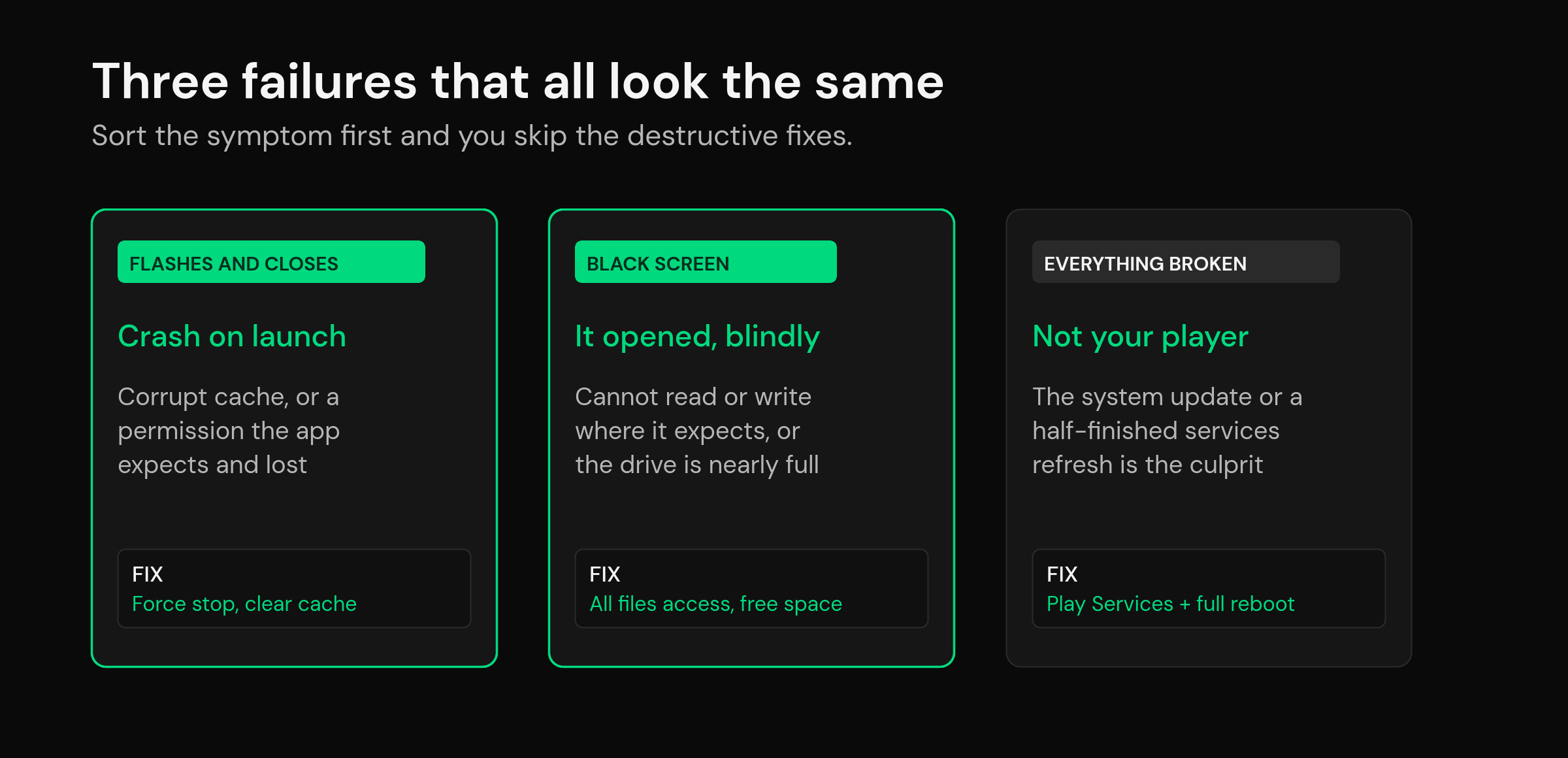
Three very different failures all look like “the app is dead” from the sofa. Sorting them takes thirty seconds and saves you from clearing data you didn’t need to clear.
| What you see | What it usually is | Start at |
|---|---|---|
| Icon flashes, bounces straight back to the home screen | Crash on launch — corrupt cache or a permission the app expects and no longer has | Fix 1, then Fix 2 |
| Black or blank screen that sits there forever | App opened fine but can’t read its own storage, or is waiting on a network call that never returns | Fix 2, then Fix 4 |
| Opens, then asks you to log in again or shows an empty list | Not a launch problem at all — the stored session was cleared | Playlist and login keep disappearing |
| Every app misbehaves, not just your player | The system update itself, or a half-finished Play Services refresh | Fix 7 |
The seven fixes, in the order that actually works
1. Force stop first, then clear the cache — never “clear data”
An update can leave a player’s process wedged in memory in a state it can’t recover from, and a relaunch just re-attaches to the same broken process. Force stop kills it properly. Then clear the cache, which throws away decoded artwork, guide fragments and temporary files — the stuff most likely to be malformed after an OS jump — while leaving your playlist, favorites and settings alone.
“Clear data” is the button that wipes all of that. It works, and it is also the reason people spend an hour rebuilding a channel list they’d spent months curating. Treat it as fix number six, not fix number one.
2. Re-grant the permissions the update quietly reset
This is the fix the generic advice skips. Android has spent several releases tightening what an app can touch, and a version jump can revoke or downgrade a grant your player has relied on since you installed it. The ones that matter for a TV player:
- Storage / All files access — needed to read a local playlist file, write recordings, or cache guide data on external storage. If this is missing, a player often launches to a permanent black screen rather than an error.
- Notifications — required since Android 13 for anything that runs a foreground service, which includes background recording and download tasks.
- Install unknown apps — if you update by sideloading, this permission is per-source and Android does reset it.
- Network / background data — rarely revoked outright, but a data saver toggle re-enabled by an update will strangle the app on launch.
Open the app’s info page, walk the permissions list, and turn everything back on that looks relevant. On a phone you may also need to switch storage from “media only” to “allow all files”.
3. Sideloaded the app? Turn “Allow restricted settings” back on
Android 13 introduced restricted settings, which block apps installed from outside an app store from taking sensitive permissions such as accessibility services. Android 14 and 15 kept it. Most IPTV players don’t need accessibility services — but remote-mapping helpers, on-screen keyboard tools and some TV launchers do, and after a major update the restriction comes back even for an app you’d already unblocked.
The catch that costs people an evening: the “Allow restricted settings” option is hidden until you try the blocked action and get refused. Attempt to enable the permission first, get the warning, then go to the app’s info page, open the three-dot menu, and the option appears.
4. Check free storage before you blame the app
System updates keep the old system image around, and on a 8 GB stick or a budget box that can drop free space into the low hundreds of megabytes. A player with a large guide database and a few thousand cached logos needs room to write on launch; when it can’t, it dies quietly with no error at all.
Anything under about 500 MB free is a red flag. Clear caches across your biggest apps, delete anything you’ve downloaded and forgotten, and try the player again before touching anything else. If you’re running a big list, our guide to loading huge playlists without lag covers why storage headroom matters so much on cheap hardware.
5. Fix autostart and background restrictions
Manufacturer skins on Android boxes ship their own autostart managers, and an update commonly resets the whitelist. If your player was set to launch at boot or resume after standby and now does nothing, look for an autostart, startup manager or boot manager entry in settings and re-add the app. On phones and tablets, check that battery optimization hasn’t been switched back to “optimized” — an aggressive power profile can kill a player mid-launch if it takes more than a couple of seconds to load a long list.
6. Reinstall the current build — the right way
If fixes one to five don’t do it, the installed binary itself may be mismatched with the new OS. Download the current build fresh and install over the top; an in-place install keeps your data. Only uninstall completely if the over-the-top install refuses, and go in knowing you’ll lose local settings unless they’re stored somewhere other than the device. On a Fire TV stick the usual route is the Downloader app; on Android TV and Google TV boxes a file manager or your usual store works.
7. If everything is broken, it’s the system
When your player, your browser and your store app all misbehave together, stop debugging the player. Clear the cache on the Play Store and Play Services, reboot properly (pull power for thirty seconds — a menu restart doesn’t always drain state on cheap boxes), and let the device sit on its home screen for a few minutes so post-update background jobs can finish. A surprising number of “the update killed my apps” threads resolve themselves at this step.
Exact settings paths, device by device
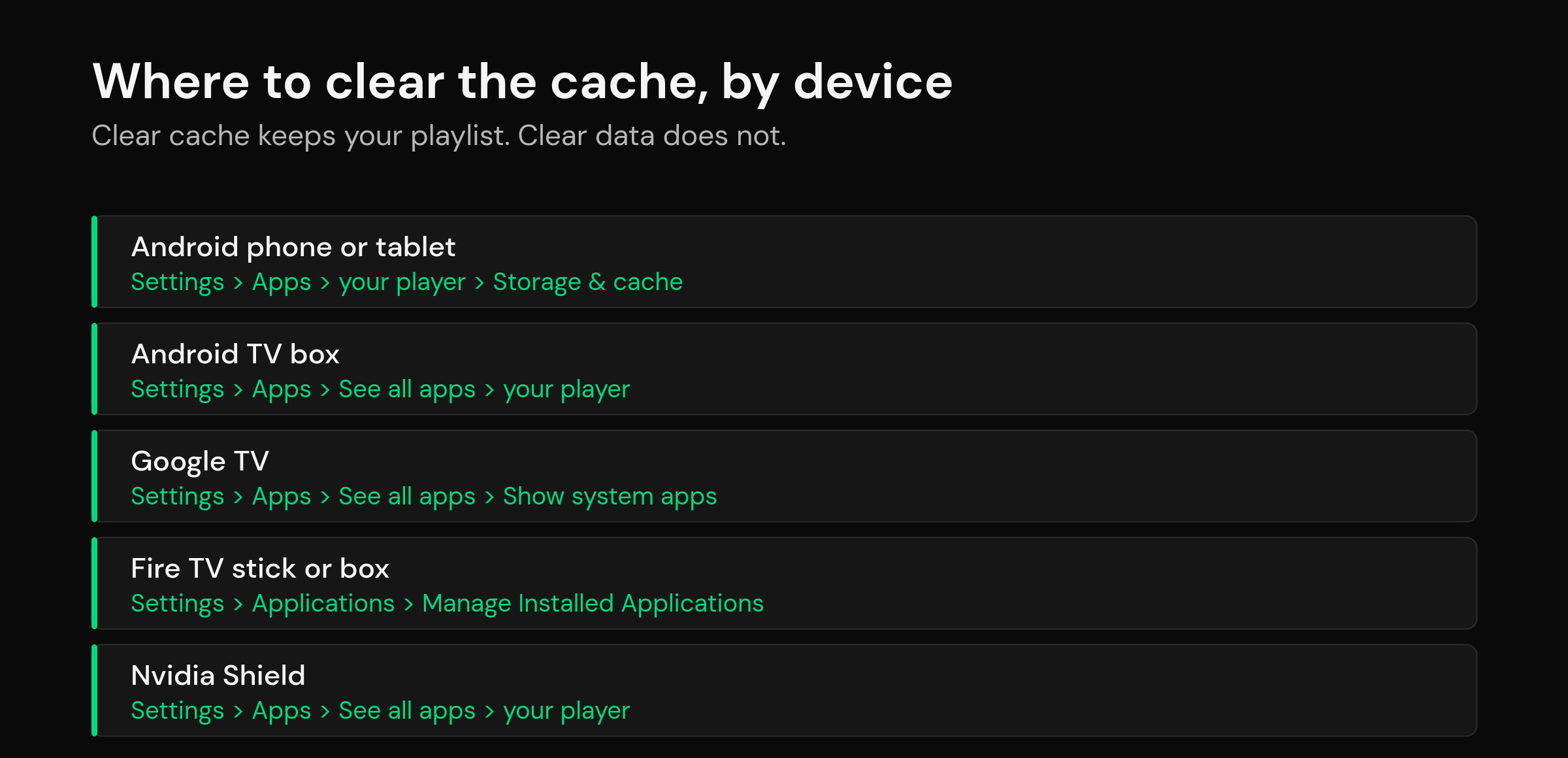
Menu wording drifts between OS versions and manufacturer skins, but these are the paths that have held up across recent releases.
| Device | Force stop / clear cache | Permissions |
|---|---|---|
| Android phone or tablet | Settings > Apps > your player > Storage & cache > Clear cache | Settings > Apps > your player > Permissions |
| Android TV box | Settings > Apps > See all apps > your player > Clear cache | Same screen > Permissions |
| Google TV | Settings > Apps > See all apps > Show system apps > your player | Settings > Apps > App permissions |
| Fire TV stick or box | Settings > Applications > Manage Installed Applications > your player > Force stop, then Clear cache | Settings > Applications > Manage Installed Applications > your player > Permissions |
| Nvidia Shield | Settings > Apps > See all apps > your player > Clear cache | Settings > Apps > App permissions > Storage |
If you’re weighing up which app to run on a given box in the first place, our roundup of the best IPTV player for Android TV and Google TV is a better starting point than picking whichever one a forum post mentioned in 2023.
What “clear data” really costs — and how to make it cost nothing
The reason a post-update fix turns into a bad evening is that the last resort is destructive. Clear data, or uninstall and reinstall, and on most players you’re re-entering your source details, rebuilding favorites, re-hiding the groups you never watch, and redoing every rename. That work lived only on the device that just broke.
It doesn’t have to. mtivi keeps your playlist, favorites, groups and player settings against your account with cloud sync, so a wipe stops being a rebuild and becomes a sign-in. Same on a box you’ve never touched before — see how cloud sync works across devices, or the walkthrough for moving your setup to a new device if the update is the nudge that finally retires a tired stick.
That changes the troubleshooting order too. When the destructive fix is cheap, you can jump straight to it instead of spending forty minutes on permission archaeology.
Stop the next update from doing this again
- Keep at least 1 GB free on any streaming stick. Storage pressure turns a routine update into a broken one.
- After every OS update, open the player once deliberately rather than discovering the problem when someone wants to watch something.
- Re-check autostart and battery settings after a major version jump — that whitelist is the first thing skins forget.
- Keep your playlist details somewhere retrievable, or use a player that stores them to your account rather than only to the box.
- If a box is two or more Android versions behind and updates keep breaking things, the hardware is telling you something.
Related guides
- IPTV player keeps logging you out or losing your playlist
- Xtream request failed / failed to connect: how to fix it
- What is an IPTV player? A clear guide
- Cloud sync: the same playlist on every device
Frequently asked questions
Why won’t my IPTV player open after an Android update?
Nine times out of ten the update either revoked a permission the app depends on, left a corrupt cache behind, or reset a manufacturer autostart whitelist. Force stop the app, clear its cache, then re-grant storage and notification permissions on the app’s info page. That sequence fixes most post-update launch failures without touching your playlist.
Should I clear cache or clear data?
Cache first, always. Clearing the cache throws away temporary files and cached artwork and keeps your playlist, favorites and settings. Clearing data wipes everything and puts you back at first-run setup. Only clear data once cache clearing, permission re-grants and a reinstall over the top have all failed.
My IPTV player opens to a black screen instead of crashing. Is that different?
Yes, and it usually points at storage rather than a crash. The app process started but can’t read or write where it expects to, so it never draws a channel list. Check the storage or All files access permission first, then free space on the device. A black screen that lasts more than about thirty seconds is not a slow load.
Do I need to re-grant permissions after every Android update?
Not after every one, but you should check after any major version jump. Minor security patches rarely touch grants. A move from one Android version to the next can change how storage access works, add a new permission class, or restore restrictions on apps installed from outside a store.
What is “Allow restricted settings” and does my player need it?
It’s an Android 13-and-later protection that blocks apps installed from outside an app store from taking sensitive permissions such as accessibility services. Most IPTV players never need it. Remote-mapping tools, launchers and keyboard helpers do, and the option only appears in the app’s three-dot menu after Android has actually blocked you once.
Will reinstalling the app delete my playlist and favorites?
Installing the same app over the top keeps your data. A full uninstall and fresh install does not — unless your player stores your setup against an account rather than only on the device. With mtivi’s cloud sync your playlist, favorites and settings come back when you sign in, so a reinstall costs you a minute rather than an evening.
Every app on my box is broken after the update, not just the player. What now?
Stop troubleshooting the player. Clear the cache on the store app and Play Services, then power the device off at the wall for thirty seconds rather than using the menu restart. Leave it idle on the home screen for a few minutes so post-update background jobs can finish before you test again.
Can low storage really stop an app from opening?
Absolutely, and it’s underdiagnosed. Updates keep the previous system image around, which can leave a small stick with a few hundred megabytes free. A player that writes a guide database and caches channel logos on launch will fail silently with no error message at all. Aim to keep at least 1 GB free.
Is it safer to wait before installing an Android or Fire OS update?
On a device you rely on nightly, yes — give a major version update a week or two and let other people find the breakages. Security patches are worth taking promptly. If your device offers a delay or a manual update option, use it on major jumps and take the small ones as they come.
My box is several Android versions behind and updates keep breaking things. Should I replace it?
Probably. Once a box is two or more versions behind, app compatibility gets progressively worse and each update carries more risk. A current-generation stick or box with more RAM and more storage removes an entire category of problem. Move your setup across first so the swap costs nothing but the hardware.
Does mtivi provide the channels or playlists I watch?
No. mtivi is a media player. We don’t provide, sell, or include any channels, movies, series, or playlists. You add your own source, and mtivi plays it.
Where do I start if none of this worked?
Work outward from the app. Test the same source on a second device — if it fails there too, the problem is your source, not the update. If it plays fine elsewhere, the box is the culprit and a clean install plus an account-backed restore is the fastest way back to watching.