Skip to content
IPTV Player Keeps Logging Out? Here’s How to Make It Stick
If your IPTV player keeps logging out, or you open it to find the playlist gone and every favorite wiped, the cause is almost never random. Something reset the small pocket of storage the app uses to remember you, and once you know which of a handful of things did it, the fix takes a couple of minutes. More importantly, you can set things up so it stops happening for good.
I’ve watched this play out on a Firestick that dropped its list after a system update, and on an Android box that “forgot” its login every time it went to sleep. Same symptom, different trigger. Below is the short version first, then each cause with its actual fix, and finally the one change that stops the re-adding loop entirely.
The quick answer
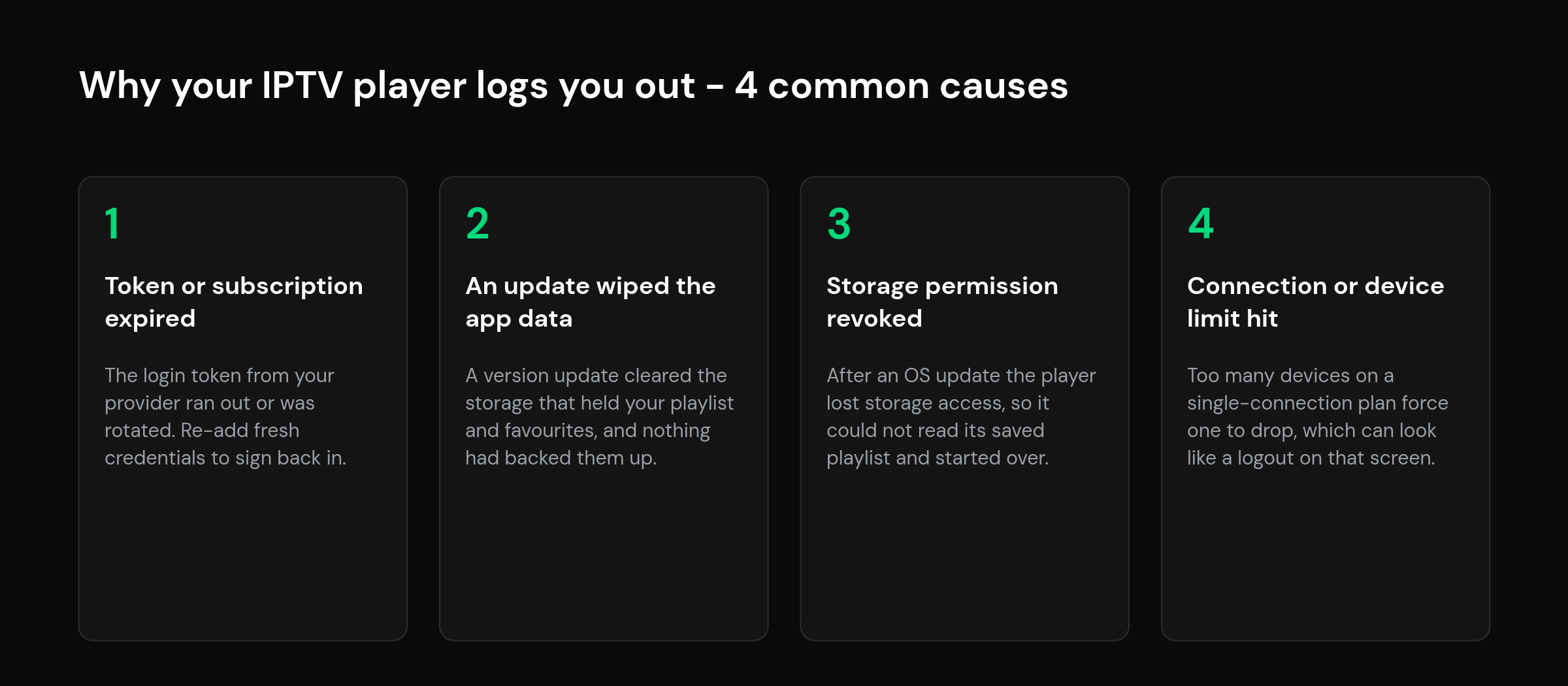
An IPTV player logs you out or loses your playlist when the data it saved (your login token, your M3U or Xtream Codes details, your favorites) gets cleared or can no longer be read. The four usual triggers are an expired provider token, an app update that wiped local storage, a revoked storage permission after an OS update, and a connection limit that reads as a logout. Work through them in that order and you’ll land on yours quickly.
Cause 1: your provider token or subscription expired
Most modern setups don’t store a plain password. When you add a playlist by M3U URL or Xtream Codes, the server hands your app a token that stands in for your login. Tokens rotate and expire. When one lapses, the player can’t authenticate, and instead of a clear “token expired” message you often just get bounced to the login screen or an empty list.
The fix is to re-add fresh credentials. Log into your provider’s portal, confirm the account is still active, then copy the URL or username and password again rather than trusting what’s already saved. If the same details won’t connect at all, you’re likely looking at an Xtream request failed error on the server side, which is a different problem worth ruling out before you touch anything else.
Cause 2: an app update wiped the local data
Player apps keep your playlist, EPG cache and favorites in local storage. A version update, a “clear data” you didn’t mean to tap, or an aggressive storage cleaner can empty that folder. The app opens like it’s brand new because, as far as it can tell, it is.
There’s no recovering data that was never backed up, so the fix here is really a rebuild: add your playlist again and reconfigure. The uncomfortable part nobody mentions is that local-only storage means any reset starts you from zero. That’s the whole reason the last section matters. If you’re re-entering a big list, reloading a large playlist cleanly is worth doing once, properly.
Cause 3: the app lost its storage permission
This one is sneaky. After a major OS update, an app can silently lose the storage permission it relies on, or land in a restricted state where it can read and write far less than before. It still launches, but it can’t reach its own saved playlist, so it behaves like it logged you out.
Open your device settings, find the app under the apps list, and check its permissions. Grant storage access if it’s off. While you’re there, disable battery optimization for the player. Overly keen power management is a common reason a player gets killed in the background and “forgets” everything by the time you come back, which is a close cousin of cache being dropped under memory pressure.
Cause 4: you’re hitting a connection or device limit
Plenty of plans allow only one connection at a time. Open the same playlist on a second screen and the first can drop, which on that screen looks like a surprise logout. It isn’t your app failing; it’s the account refusing a second simultaneous stream.
Count what’s actually connected. A phone left playing in another room, a box on standby that never fully closed the stream, a second TV, all of it counts. Close the ones you’re not using, or move to a plan with more connections. Players that cap registered devices have their own version of this, so if you juggle several screens it’s worth understanding hitting a device limit and how to free a slot.
A five-minute checklist
When you just want it working again, run these in order and stop at the one that fixes it:
| Step | Do this | If it works, the cause was |
|---|---|---|
| 1 | Re-copy fresh credentials from your provider portal and re-add the playlist. | An expired or rotated token. |
| 2 | Check the app’s storage permission and turn off battery optimization for it. | A revoked permission or a background kill. |
| 3 | Close every other device using the same line, then reopen the player. | A connection or device limit. |
| 4 | Update the app and the device firmware, then test again on a stable network. | A stale build or a flaky connection. |
| 5 | Test the same source on a phone. If it holds there, the fault is device-side, not the account. | The device settings, not your playlist. |
The lasting fix: stop re-adding your playlist
Every fix above gets you back on air, but they all share a weakness: if your setup lives only on one device, any reset drops you to zero again. The way out is to keep your setup somewhere the app can always fetch it, not just in local storage that an update can wipe.
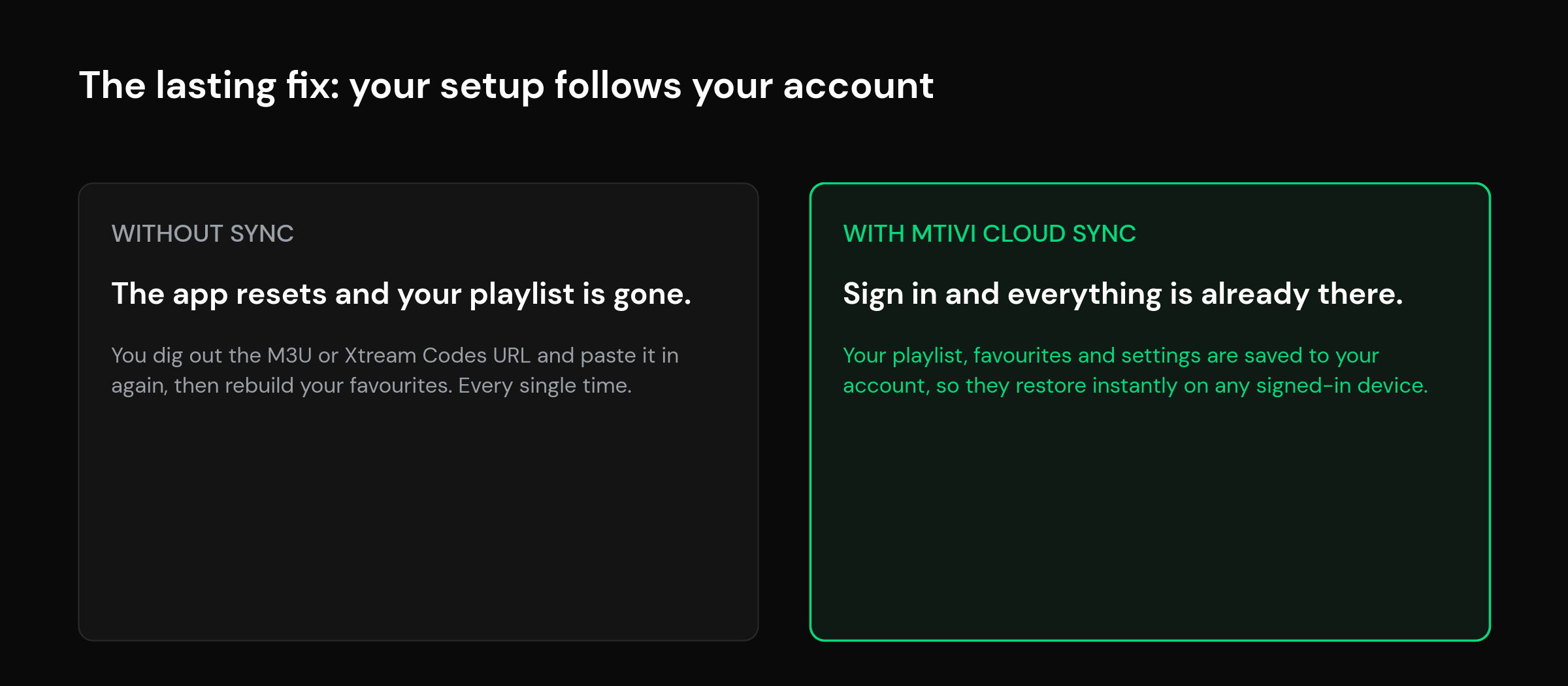
That’s the idea behind mtivi’s cloud sync. Your playlist, favorites and settings are saved to your account, so if the app ever resets, an update clears its data, or you pick up a different device, you sign in and everything is already there. No digging out the M3U URL, no rebuilding favorites from memory. It’s the same reason cloud sync keeps your playlist on every device feels less fragile than a local-only setup: the thing that used to disappear now follows your account instead.
It won’t paper over a genuinely expired subscription (nothing can, that’s on the provider), but it does end the specific pain of losing your list to an app reset. If you’re new to how these apps work in the first place, it’s worth a minute on what an IPTV player actually does so the difference between the app and your source is clear.
When it’s the provider, not your player
Rule out the account before you blame the app. If the same credentials fail on a second player too, if channels vanished rather than the whole list, or if you got a billing notice, the issue is upstream and no amount of app-side tinkering will fix it. Swapping players only helps when the player is genuinely the weak link. Diagnose first, switch second.
A quick way to separate the two: keep one throwaway note of when the logouts happen. If they cluster right after you open a second screen, it’s a connection limit. If they follow every app or system update, it’s local data or permissions. If they arrive on a schedule regardless of what you do, the token or subscription is timing out and the answer sits with your provider. Patterns tell you more than any single logout ever will, and they stop you wasting an evening resetting an app that was never the problem.
Frequently asked questions
Why does my IPTV player keep logging me out?
Usually because the login token from your provider expired or rotated, so the app can no longer authenticate and drops you to the login screen. Re-adding fresh credentials from your provider portal fixes most cases; if it doesn’t, check storage permissions and whether you’ve hit a connection limit.
Why did my IPTV playlist disappear after an update?
An app or system update can clear the local storage that held your playlist, or reset the storage permission the app depends on. If the setup was only saved on that device, there’s nothing to recover, and you’ll need to add the playlist again. Keeping it in a synced account is what prevents a repeat.
How do I stop my IPTV player from forgetting my playlist?
Give the app permanent storage permission, turn off battery optimization for it so the system stops killing it in the background, and keep it updated. The most reliable fix is storing your playlist and favorites to an account that syncs, so a reset restores everything instead of wiping it.
My favorites are gone but the channels are still there. What happened?
Favorites are stored separately from the playlist, and a partial data reset or a permission change can clear them while the source itself reloads. Rebuild them once, then use a player that backs favorites up to your account so the next reset doesn’t cost you the list again.
Does clearing the app cache log me out?
Clearing the cache alone usually keeps your login but drops the temporary EPG and thumbnail data, which the app rebuilds. Clearing app data is the one that logs you out and wipes your playlist, so be careful which option you tap in the device settings.
Why does it log out only on one device when I open another?
That’s a connection limit. Many plans allow just one stream at a time, so opening the same playlist elsewhere forces the first screen off. Close the other devices, or move to a plan that allows more simultaneous connections.
Is a VPN causing my IPTV player to log out?
It can. A VPN that keeps switching servers, or one that changes your apparent location mid-session, can break a token that was issued for a different address. Test once with the VPN off; if the logouts stop, adjust the VPN to a stable server rather than an auto-hopping one.
Will reinstalling the app fix the constant logouts?
Sometimes, because a clean install resets a corrupted local state. But if the cause is an expired token, a connection limit or a provider issue, reinstalling won’t help and you’ll be back to square one. Diagnose the cause first so you don’t lose your setup for nothing.
Why does my box forget the playlist every time it sleeps?
Aggressive power management is closing the app in the background and dropping its state. Disable battery or power optimization for the player in your device settings, and if the box has a “clear memory on standby” style feature, turn it off for this app.
How can I back up my IPTV setup so I never lose it?
Use a player that saves your playlist, favorites and settings to your account rather than only to the device. With mtivi’s cloud sync, signing in on any device restores your whole setup automatically, so an app reset or a new box never means starting over.
Is it my playlist or my player causing the logouts?
Test the same source on a second player or a phone. If it holds there, your account is fine and the problem is in the first app or its device settings. If it fails everywhere, the issue is upstream with your provider, not the player.
Does mtivi provide the channels or playlists I watch?
No. mtivi is a media player. We don’t provide, sell, or include any channels, movies, series, or playlists. You add your own source, and mtivi plays it, syncing your playlist and favorites so you don’t lose them.