Skip to content
IPTV Smarters Unable to Play Stream? How to Find the Cause and Fix It
When IPTV Smarters says unable to play stream, the app itself is rarely the real culprit – the message is a catch-all that fires whenever the player asks for video and gets nothing it can show on screen. The same failure hides behind its cousins – playback error, server not responding, and something went wrong – and every one of them has the same starting point: work out which of four things broke, because the fix is completely different depending on the answer.
Most guides throw the same tired list at you – clear the cache, change the player, reinstall – without ever helping you tell whether the app, your connection, the video format, or the source is at fault. That is why people clear the cache five times and nothing changes. Spend one minute isolating the cause first and you usually fix it on the first real try.
What “unable to play stream” is actually telling you
The error is deliberately generic. IPTV Smarters shows it the moment it requests a channel and cannot turn what comes back into a picture. That could be because the app is in a bad state, because your device cannot decode the video, because the connection dropped or hit its limit, or because the channel on the other end is simply down. The wording never tells you which – so the trick is to stop reading the message and start narrowing it down.
If you are new to how any of this fits together, it helps to understand what an IPTV player is and where it sits between your playlist and the picture on screen. The player does not host anything; it requests a stream and decodes it, which is exactly why four separate things can each break playback.
The 30-second test: every stream, or only some?
This is the single most useful question you can ask, and almost no one asks it. Open three or four very different channels – a standard-definition channel, an HD one, a 4K one, and something from a different group or a second source if you have one. Then read the result.
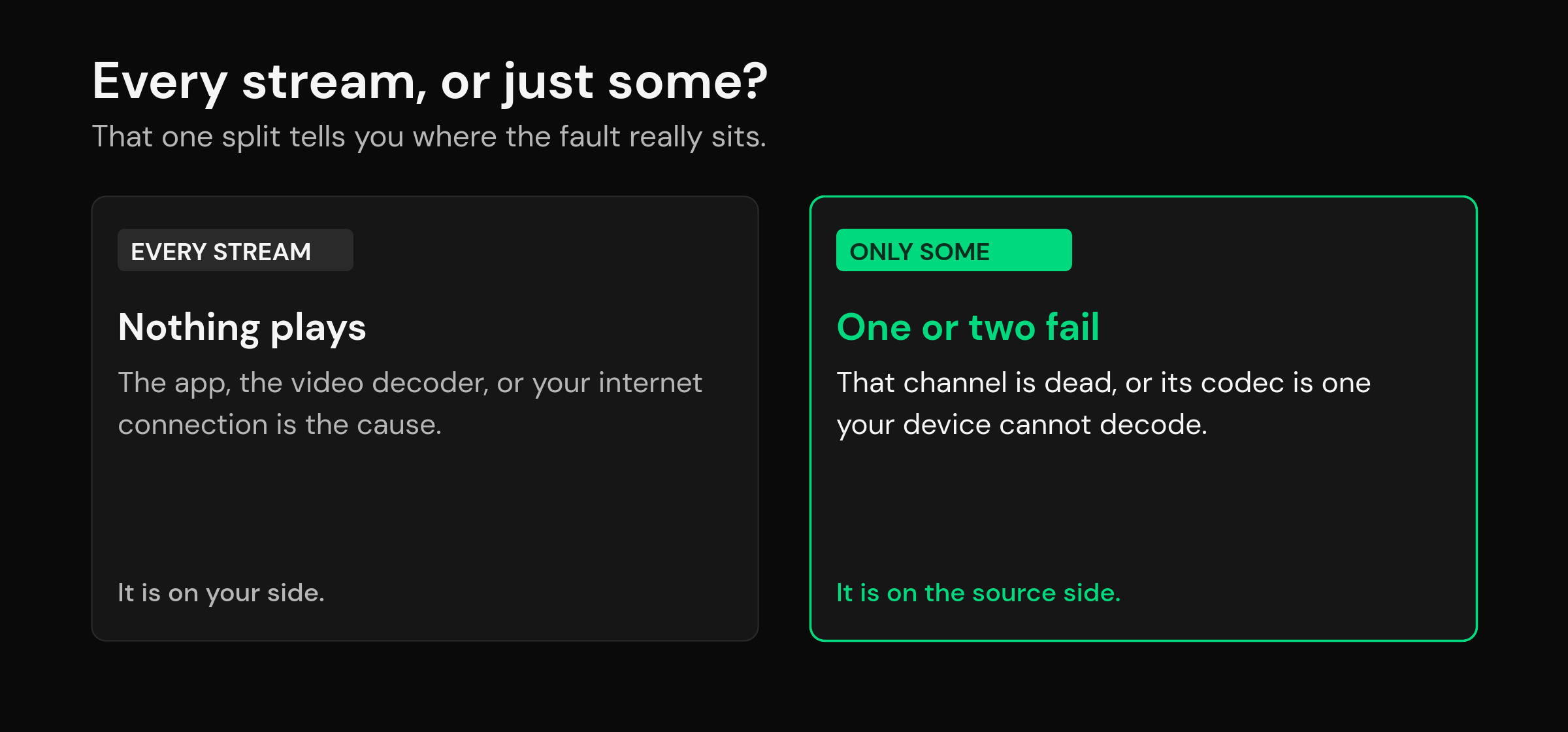
If every stream fails, the problem is on your side: the app, the video decoder, or your internet connection. If only some streams fail while others play fine, the app and your connection are clearly working – so the fault is the source or the codec of the streams that fail. That one split saves you from trying source-side fixes on an app problem, and app fixes on a dead channel.
If every stream fails: app, decoder, and connection fixes
When nothing plays, work down this short list in order. The first two clear the majority of cases.
1. Force-close, reopen, then restart the device. A stuck decoder session or a half-loaded playlist will refuse every stream until the app is fully closed. Swipe it away from recents, reopen it, and if that fails, reboot the stick or box. This costs thirty seconds and fixes an embarrassing number of “unable to play stream” reports outright.
2. Check the connection – and your connection count. Run a quick speed test on the same device; buffering that ends in a playback error is often just an unstable Wi-Fi signal or a slow DNS lookup. There is a second, sneakier cause here: most subscriptions allow a limited number of simultaneous connections. If you are signed in on the TV, a phone, and a spare box, a new stream can be refused – which surfaces as server not responding or unable to play stream even though nothing is technically broken. Close the app on the other devices and try again.
3. Clear the app cache (not the data). In your device settings, open Apps, find IPTV Smarters, and clear the cache. Avoid “clear data” unless you are ready to re-enter your playlist, because that wipes your setup. A bloated cache genuinely can stall playback after a long run.
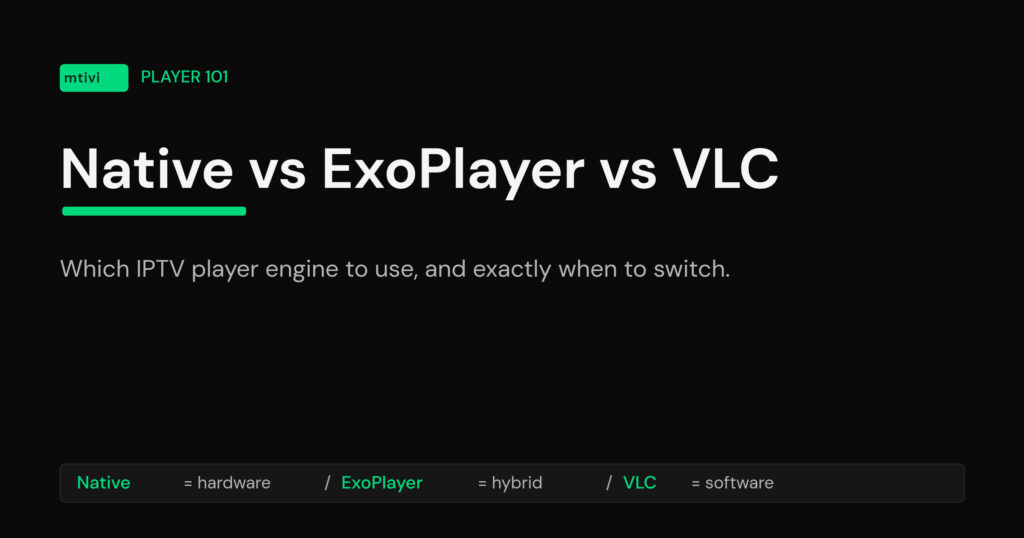
4. Switch the video decoder – the fix people skip. This is the big one. In the player’s settings there is a decoder option, usually labeled Hardware, Software, and sometimes Hardware+. Hardware decoding hands the video to a dedicated chip and is efficient, but if that chip does not support the stream’s codec – HEVC (H.265) and newer formats are common offenders – it simply fails. Flip the decoder to Software and the CPU takes over, which plays far more formats. If a specific channel only works one way, that is your proof the codec was the problem all along.
5. Update or reinstall, and check the clock. An out-of-date build, or a device with the wrong date and time, can break the secure handshake to the server and throw a playback error. Update the app from its store, or reinstall it, and confirm the device clock is set automatically.
The honest trade-off: on a cheap, low-power stick, software decoding can stutter on 4K because the CPU has to do all the work. If switching to software fixes the error but the picture judders, the device is underpowered for that stream, not misconfigured. This is the same class of problem behind a player stuck on a loading screen – the app is waiting on something the hardware cannot deliver.
If only some streams fail: source and codec fixes
When most channels play but a few refuse, stop touching the app – it is working. The fault is in the specific streams that fail. Use the pattern to name the cause.
| What you see | Most likely cause | First move |
|---|---|---|
| One channel fails, everything else is fine | That single source is down or overloaded | Try again later; the app cannot fix a dead source |
| A whole group fails – often the 4K or UHD list | A codec your device cannot decode in hardware | Switch the decoder to Software, or use a newer device |
| Movies and series play, live TV fails | Different delivery format for live vs on-demand | Check whether you loaded the list as M3U or Xtream |
| Many fail at peak evening hours only | The source is overloaded when everyone is watching | Off-peak it will return; nothing to fix locally |
Codec mismatches are the most common reason a group of streams fails while the rest of your list is fine. Older or budget devices often decode H.264 perfectly but choke on newer, more efficient formats in hardware. If you are unsure whether your list came in as a plain playlist or a login, our guide to M3U vs Xtream Codes explains why the same subscription can behave differently depending on how you added it.
Why a better-built player avoids most of these dead-ends
Half of the fixes above exist only because some players make you diagnose the decoder by hand. A player that is built to get out of your way handles that automatically.
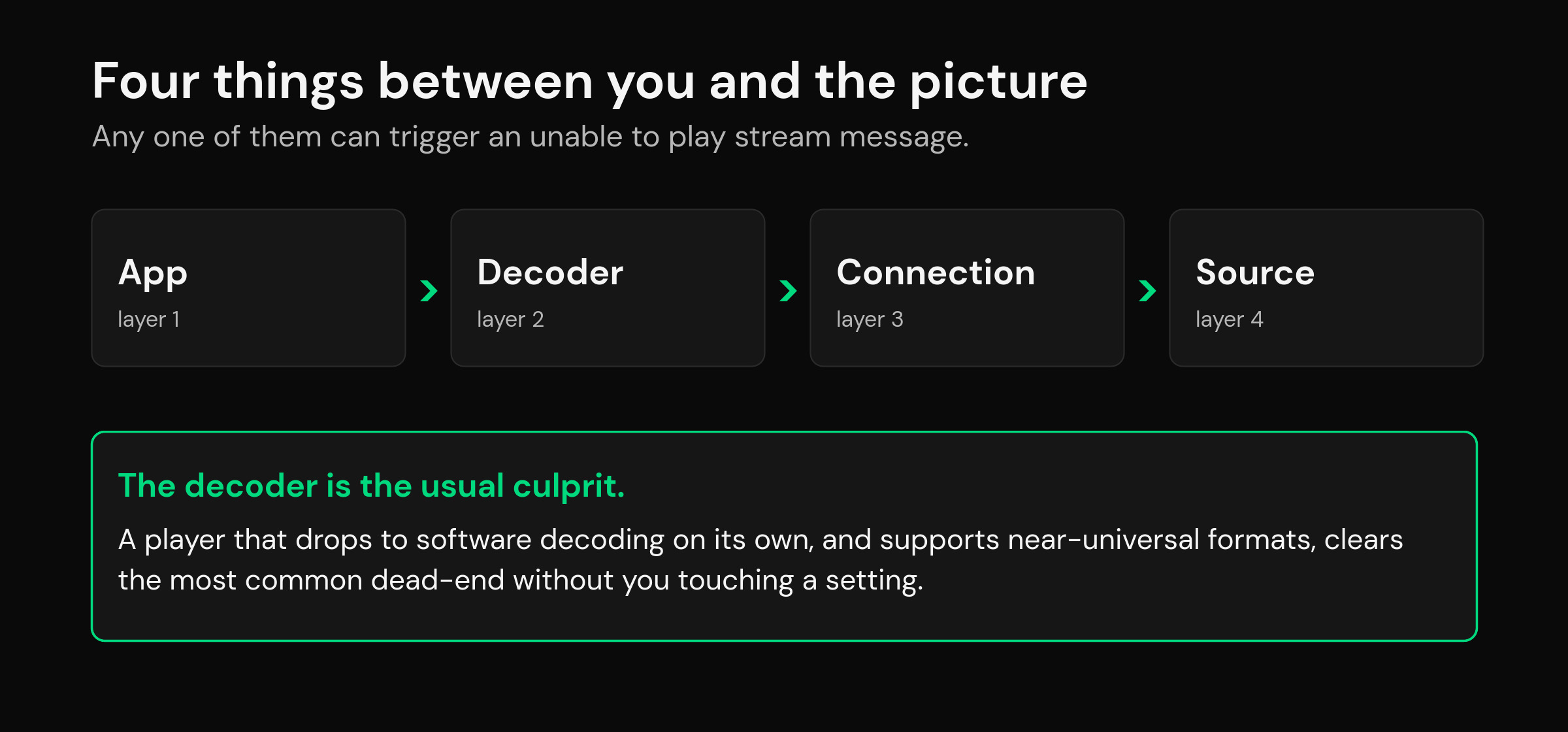
mtivi is a media player you point at your own playlist, and it is designed to remove the whole app-and-decoder class of failures before you ever see an error. When the hardware chip cannot handle a stream’s codec, mtivi drops to software decoding on its own – no menu diving, no guessing – so the picture just appears. Its near-universal format support means the formats that trip a hardware-only decoder still play, and a built-in speed test flags a weak connection up front so you are not left staring at a vague playback error. Because it stays smooth even with very large lists, a bloated playlist does not choke the app either – the same reason it is worth loading a large playlist without lag in a player that expects one.
Being honest about the limits matters: no player, mtivi included, can revive a source that is genuinely offline or conjure a connection that has hit its ceiling. What a well-built player removes is the self-inflicted half of the problem – the app state, the decoder mismatch, the format it should have handled. If you are weighing your options, it is worth seeing how IPTV Smarters compares with other players on exactly these fundamentals.
Quick reference: which message means what
IPTV Smarters uses a handful of near-identical error strings. They point at overlapping causes, so treat this as a starting direction rather than a verdict.
| Message | Where to look first |
|---|---|
| Unable to play stream | Decoder or format if only some fail; app or connection if all fail |
| Playback error | Video decoder mismatch – switch Hardware to Software |
| Server not responding | Connection, DNS, or too many simultaneous connections |
| Something went wrong | App state – force-close, clear cache, restart the device |
Worth knowing: a playback error that shows up right after an app update is usually the build, not your setup – the same story as fixing buffering after an update. Roll through the app fixes first before you suspect your provider.
Frequently asked questions
Why does IPTV Smarters say unable to play stream?
Because the player asked for a channel and could not turn the response into a picture. That happens for one of four reasons: the app is in a bad state, your device cannot decode the video format, your connection dropped or hit its limit, or the source itself is down. The message never says which, so isolate it by checking whether every stream fails or only some.
Is unable to play stream the app or the provider?
Run the quick test. If every single stream fails, it is almost always your side – the app, the decoder, or the connection. If most streams play and only a few fail, the app is clearly working and the fault is those specific sources or their codec. That split tells you who to blame in about thirty seconds.
How do I fix a playback error in IPTV Smarters?
Switch the video decoder from Hardware to Software in the player settings – a playback error is most often a codec the hardware chip cannot handle. If that does not help, force-close the app, clear its cache, restart the device, and check that your date and time are set automatically.
What does server not responding mean in IPTV Smarters?
It points at the connection between you and the source. Check your internet with a speed test, and check how many devices are signed in – most subscriptions cap simultaneous connections, so a new stream can be refused while others are active. Close the app elsewhere and try again.
Why does only one channel fail while the rest work?
That single source is down, overloaded, or temporarily unavailable. When the rest of your list plays fine, the app, the decoder, and your connection are all working, so there is nothing to fix on your end. Try the channel again later.
Why do all my 4K channels fail but HD works?
4K streams usually use a newer, heavier codec such as HEVC, and many budget devices cannot decode it in hardware. Switch the decoder to Software so the CPU handles it, or use a device that supports the format. If software decoding plays it but the picture stutters, the device is simply underpowered for 4K.
Does clearing the cache actually help?
Sometimes. A bloated cache can stall playback after long use, so clearing it is worth a try. Clear the cache, not the data – clearing data wipes your playlist and settings and forces a full re-setup. If the error returns immediately after a clean cache, the cause is elsewhere.
Will a VPN cause unable to play stream errors?
It can. A VPN adds a hop that may be slow, may be blocked, or may route you somewhere the source treats differently. If the error started when you turned a VPN on, disable it briefly to test. If everything plays without it, the VPN or its server is the issue, not the app.
I reinstalled IPTV Smarters and it still fails – now what?
A reinstall only fixes app-state problems. If it still fails on every stream, look at the connection and the connection count next; if it fails on only some streams, the decoder or those specific sources are the cause. Reinstalling cannot fix a dead source or a maxed-out subscription.
Can a different IPTV player fix this?
It can remove the self-inflicted half of the problem. A player that falls back to software decoding on its own and supports near-universal formats avoids most decoder and format dead-ends without any menu diving. It still cannot revive a source that is offline or a connection that has hit its limit – no player can.
Does mtivi provide the channels I am trying to play?
No. mtivi is a media player. We do not provide, sell, or include any channels, movies, series, or playlists – you add your own source. mtivi’s job is to play the playlist you already have as reliably as possible, which is why it focuses on decoding and format handling rather than supplying anything to watch.
Why does the error only happen in the evening?
That is a source-side load problem, not your setup. When many people watch the same source at peak hours, it can slow or refuse new connections, which surfaces as unable to play stream or server not responding. Off-peak the same channels return on their own, so there is nothing to fix locally.