Skip to content
TiviMate Buffering After Update? Fixes That Actually Work
TiviMate buffering after an update is usually fixable in about ten minutes: force-stop the app and clear its cache (not its data), raise the buffer size under Settings → Playback, and switch between hardware and software decoding. If the stutter survives all three, roll back to the previous APK or test the same stream in a different player.
That paragraph is the short version. The longer version matters, because “buffering” covers three different problems wearing the same symptom: an app misbehaving, a device running out of headroom, and a stream that was struggling before you ever touched the update button. TiviMate’s mid-2026 releases (5.3.2 landed on June 1, 5.3.3 followed on June 22) both kicked off forum threads from users whose setups had been rock-solid for months. Some of those complaints were the update’s fault. Plenty weren’t. This guide works through the fixes in the order that sorts one from the other.
Why an update can start the buffering
Updates change more than the changelog admits. A new player core can reset or reinterpret your decoder choice, cached channel data can go stale against the new version’s format, and defaults you tuned two years ago can quietly flip back. On top of that, an update is a magnet for coincidence: you notice buffering the evening after updating, but the real cause is peak-hour congestion at the source that would have hit the old version just as hard.
So before blaming version 5.3.x, run the checklist. It’s ordered from least to most drastic, and the first three steps end most genuine post-update cases.
Which fixes this guide covers
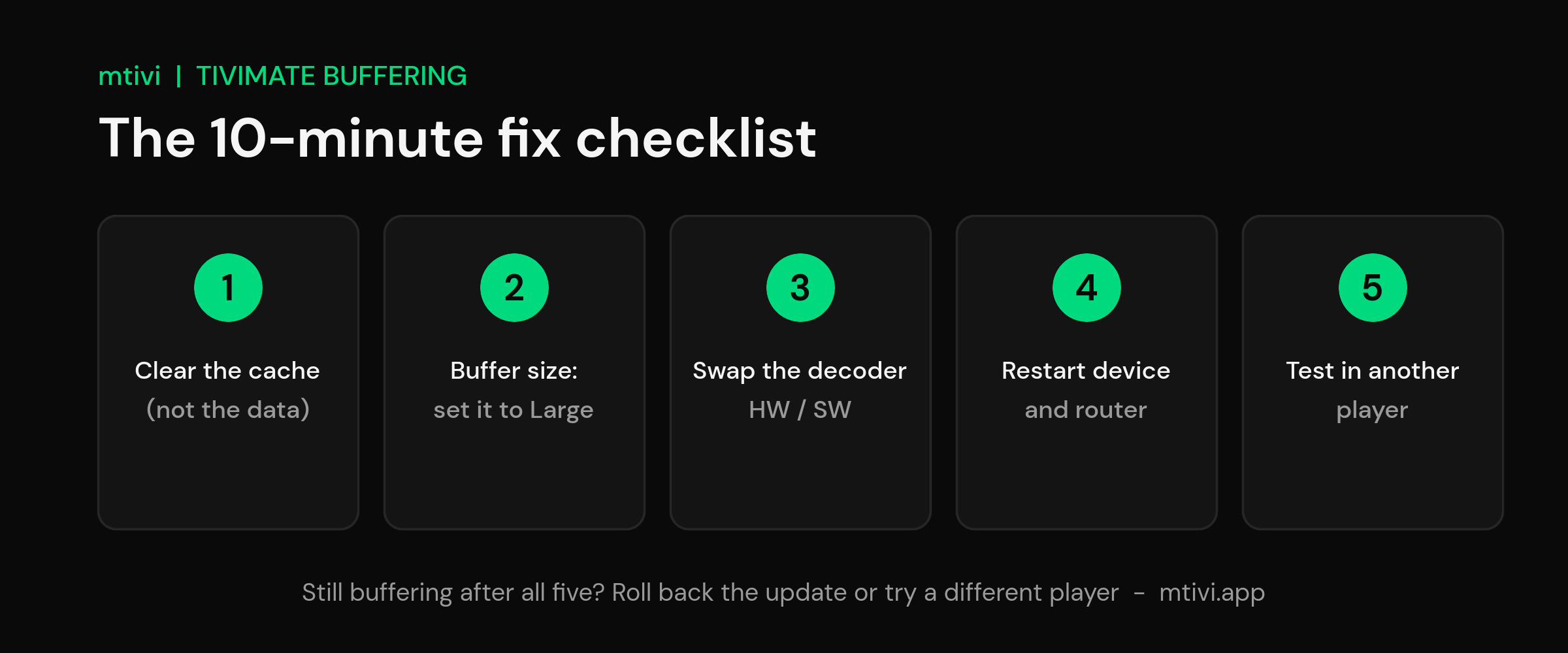
Five steps, in order: clear the cache, raise the buffer, swap the decoder, restart the hardware, and test another player. Then two sections that save time later: how to pick a buffer size for your connection, and which settings an update can quietly reset. Rolling back comes last, because it is the only step that can cost you your setup.
The 10-minute fix checklist
1. Force-stop the app and clear the cache — not the data
On your device, go to Settings → Apps → TiviMate, hit Force stop, then open Storage and choose Clear cache. Cache is disposable working files, and clearing it after an update flushes stale leftovers from the old version. Do not press Clear data — that wipes your playlists, favorites and settings, and unless you have a backup you’ll be rebuilding your whole setup. (If a player has ever dropped your playlist on its own after an update, our guide to an IPTV player that keeps logging out covers why and how to stop it.) Restart the device afterwards, not just the app.
2. Raise the buffer size
In TiviMate, open Settings → Playback → Buffer size and step it up — Large is the sensible test value. A bigger buffer gives the stream more runway before playback starts, which smooths out short network hiccups at the cost of slightly slower channel changes. If buffering appeared the day you updated, this is less likely to be the root cause than the decoder, but it takes ten seconds to test and costs nothing.
3. Swap the decoder
This is the fix that most often ends update-specific buffering. In Settings → Playback, switch the decoder: if it’s on hardware, try software, and the other way round. Hardware decoding hands video to your device’s dedicated chip and is normally the smooth option, but a player update can change how streams are fed to it, and devices differ in which media formats they support cleanly. Software decoding leans on the CPU instead — heavier work for a low-power stick, but it side-steps a misbehaving hardware path entirely. If you want to know what each engine is doing under the hood, our explainer on Native vs ExoPlayer vs VLC walks through it. Test both modes on the channels that stutter worst before you judge.
4. Restart the device and the router
Unglamorous, still effective. Streaming sticks hold apps in memory for days, and after an update a full power-cycle clears old processes competing for RAM. Pull the power for thirty seconds. Do the router too — a stale connection between your device and the source quietly causes more “app problems” than anyone likes to admit.
5. Test the same channel in another player
Load your playlist into any other IPTV player — a free one is fine for a test — and play the exact channel that buffers. This one step tells you where the problem actually lives.
Picking a buffer size without guessing
The buffer step above is quicker if you know what each size is for. A buffer is simply the head start the player keeps in hand before it shows you a frame. The bigger it is, the longer a stream can stall without you noticing; the smaller it is, the closer you sit to the live broadcast and the faster channels change. There is no universally right answer, only the right one for your line.
| Your connection | Buffer to try | The trade-off |
|---|---|---|
| Wired, fast and steady | Small or default | Near-instant channel changes; little cushion if the line hiccups |
| Wi-Fi with the odd drop | Medium to large | Rides out short dips; channel changes take a moment longer |
| Weak, busy or long-distance | Largest | Keeps playing through congestion; you sit further behind live |
One limit is worth knowing before you max the slider out. A buffer protects you against short interruptions. If a stream cannot keep up on average, because the line or the source is simply too slow for that channel’s bitrate, a bigger buffer only delays the moment it runs dry. That is exactly the case the other-player test below exposes.
Settings an update can quietly reset
When a player update changes its playback core, the settings that sit closest to that core are the ones most likely to move. After any update, not only this one, it is worth a two-minute walk through these before you go further:
- Decoder mode. Hardware, software or automatic. The single setting most often behind post-update stutter.
- Buffer size. Back to a default you did not choose.
- Frame-rate matching. If it switched off, motion can look jerky in a way that is easy to mistake for buffering.
- Audio output and passthrough. A change here can bring stutter, silence or sound that drifts out of sync.
- Video quality ceiling. A player that now asks for the highest rung on every channel needs a line that can sustain it.
Change one at a time and test the same channel after each change, so you know which one mattered.
App-side or connection-side? Reading the test
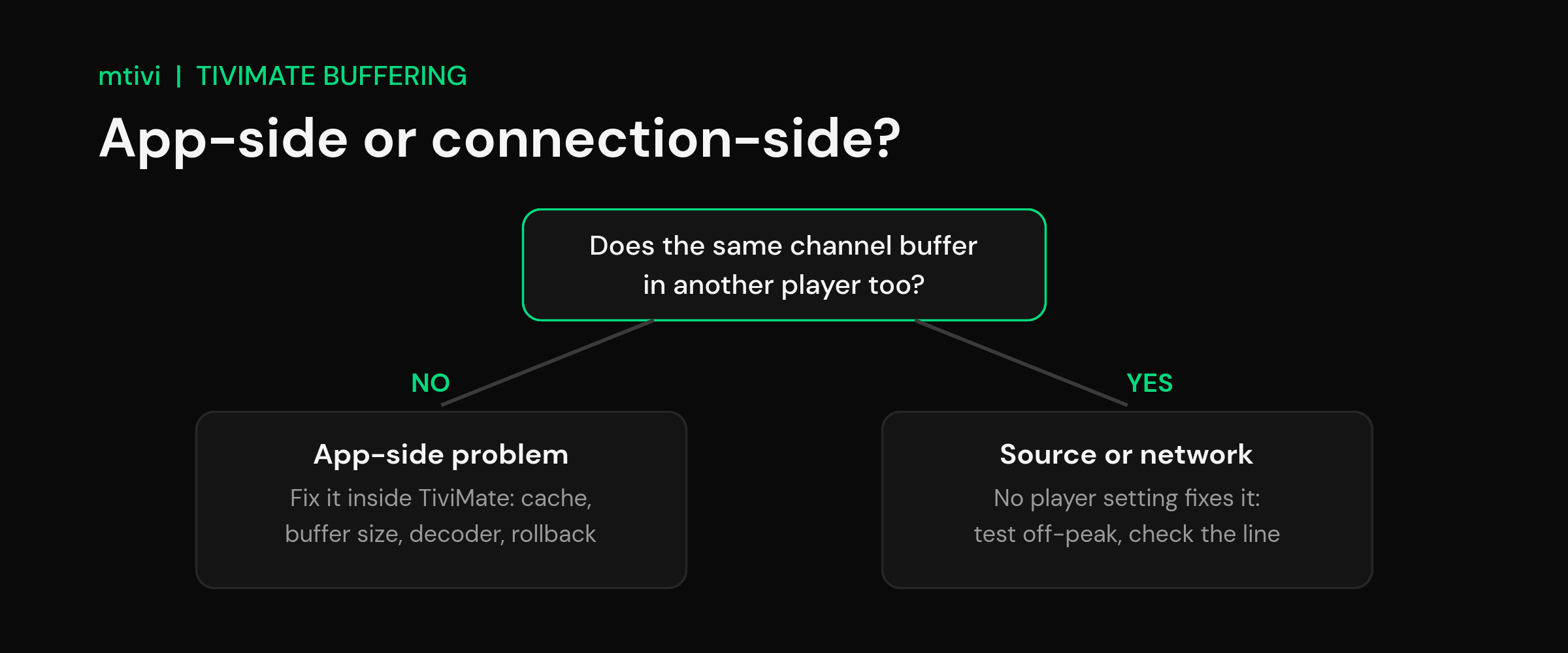
If the stream runs smooth in the other player, your problem is app-side, and the cache, buffer and decoder steps above — or a rollback — will get you there. If the same channel buffers everywhere, no TiviMate setting will save you: the stream, the server behind it, or your line is the bottleneck.
Two more tells point at the connection side. Buffering that only shows up in the evening is peak-hour congestion at the source or on your line. And buffering on a handful of channels while the rest run clean points at those specific streams, not your setup. IPTV delivery is only as strong as its weakest hop, and the player is the one hop you fully control.
Rolling back to the previous version
If the checklist fails and other players handle the same streams fine, roll back. Two warnings first.
Back up before touching anything: Settings → General → Backup Data saves your playlists, favorites and configuration (backup and restore is a TiviMate Premium feature). Uninstalling without a backup means starting from zero.
Then uninstall the current version and sideload the previous APK. Only download APKs from a source you already know and trust — random APK mirrors are a real malware risk — and turn off auto-update afterwards, or the store will cheerfully reinstall the version you just escaped.
Treat the rollback as a diagnosis as much as a cure. Old version instantly smooth? The update was the problem: report it to the developer and check back in a release or two. Old version stutters too? The update was never the cause, and it’s time to look harder at the stream or the line.
If every update cycle is a gamble: try a different player
TiviMate is a capable app with a huge user base, and one rough update doesn’t change that. But if you keep landing on pages like this one, it’s fair to ask whether your player should be the moving part in the setup.
mtivi is a premium media / TV player for every screen — TV, phone, tablet, stick or box — built around exactly this reliability pain. It plays the playlist you already have (M3U, M3U8 or Xtream Codes), stays smooth even with very large playlists, and gives you the same decoder control this guide leans on plus three buffer profiles, Fastest, Balanced and Smoothest, under Settings, then Playback. Cloud sync keeps playlists, favorites and settings identical across devices, Kids and Private profiles (on the paid plans) keep a family setup sane, and it records live TV even on single-connection plans. It’s free to start with no account needed to begin, and runs today on Android phones and tablets, Android TV, Google TV and Fire TV — it is on Google Play, and on a Firestick you can install it with Downloader code 1706057. The download page has both options.
| TiviMate | mtivi | |
|---|---|---|
| Price to start | Free app; Premium unlocks recording, backup and multiple playlists | Free to start, no account to begin; Pro, Max or the one-time Lifetime plan add advanced features |
| Recording | Premium feature | Instant recording on Free — works even on single-connection plans |
| Settings across devices | Manual backup and restore (Premium) | Cloud sync, live today |
| Very large playlists | Handles big lists; performance varies by device | Built to stay smooth with very large playlists |
| Devices today | TV devices (Android TV, Google TV, Fire TV) | Android phones and tablets plus Android TV, Google TV and Fire TV; iPhone, iPad, Mac, Apple TV, Windows and smart-TV apps coming |
Frequently asked questions
Why does TiviMate buffer after an update?
Usually stale cache left over from the old version, a decoder behavior that changed with the new player core, or coincidence – the stream or network was already struggling and the update got the blame. Clearing the cache and swapping between hardware and software decoding resolves most genuine post-update cases.
What buffer size should I set in TiviMate?
Test with Large (Settings > Playback > Buffer size). If Large fixes it, your connection needs the extra runway and you can walk it back a step for faster channel changes. If nothing changes, the buffer was never the problem – move on to the decoder.
Should I roll back a TiviMate update?
Only after the cache, buffer and decoder steps fail and another player plays the same streams smoothly. Back up first (Settings > General > Backup Data, a Premium feature), sideload the previous APK from a source you trust, and disable auto-update so the fix sticks.
Is TiviMate buffering caused by my internet or the app?
Play the same channel in a different player on the same device. Smooth there means it is app-side – fix TiviMate or roll it back. Buffering everywhere, or only at peak hours, means your line or the source is the bottleneck and no app setting will fix it.
Will clearing TiviMate’s data fix buffering?
It is the nuclear option and rarely worth it. Clear data wipes playlists, favorites and settings, while stale cache goes away with the much safer Clear cache button. Only clear data if you have a backup and everything else has failed.
Does a bigger buffer always fix TiviMate buffering?
Not always. A larger buffer smooths brief dips but adds delay and can make things worse on a truly weak connection. Match the buffer to your network rather than maxing it out.
Could the buffering be my provider, not TiviMate?
Often yes. If only some channels stutter, or it happens at peak evening hours, the provider server or your line is the bottleneck – no player setting fixes an overloaded source.
Does switching players fix buffering that started after an update?
It can, if the update introduced a decoder or buffering regression. A player like mtivi, with a choice of buffer profiles and decoder modes, is a quick way to check: if the same channel plays smoothly there, the update was the problem.
Should I change decoder settings to stop buffering?
Trying hardware versus software decoding can help on some devices, since a bad match causes stalls. Change one setting at a time so you know what worked.
Will a VPN reduce IPTV buffering?
Sometimes – if your ISP throttles streaming, a VPN can bypass it. But a VPN can also add overhead and slow things down, so test with it on and off.
Why does TiviMate buffer on my Firestick but not on my phone?
Usually memory and the connection. A Firestick has far less memory than most phones and often sits on weaker Wi-Fi behind the TV. Restart the stick, close other apps, try a larger buffer, and move it to the 5 GHz band or a wired adapter before blaming the app.
How do I stop TiviMate from updating automatically?
Switch off automatic updates in the Google Play Store’s settings on your device, or per app from its listing on a phone or tablet. A copy installed from an APK does not update itself unless you accept the app’s own update prompt.
Related guides
- How to Record IPTV on a Single-Connection Plan (No Second Line Needed)
- Best IPTV Player for Firestick in 2026 (Tested & Ranked)
- IPTV Native vs ExoPlayer vs VLC: Which Player Engine Should You Use?
- IPTV Audio Out of Sync? How to Fix Lip-Sync Delay in 2026
- TiviMate Alternatives in 2026: When to Switch and to What
- TiviMate 5-Device Limit: How to Free a Slot and When to Switch