Skip to content
IPTV Subtitles Not Showing? How to Get Captions Back on Live TV and VOD
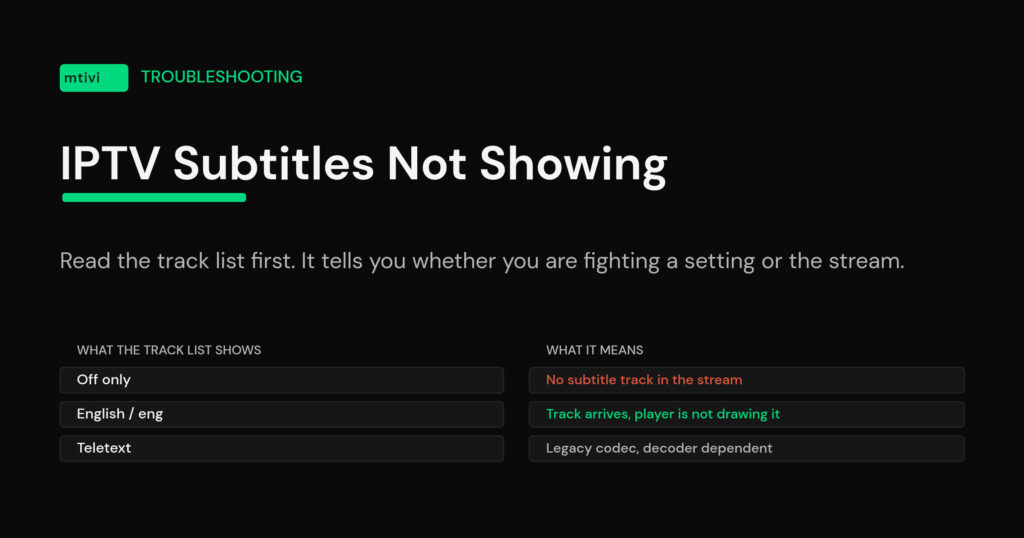
IPTV subtitles are not showing for one of two reasons: the stream carries no subtitle track at all, or it carries a track your player refuses to render. Open the subtitle menu mid-playback and look at the list. If it is empty, no setting on your box will fill it. If it has entries and you still see nothing, the fix is a decoder or a renderer, not the source.
That single check saves most people an hour. It is also the step every guide skips, which is why so many threads about missing captions end with someone being told to ask their provider — advice that goes nowhere, because the provider is usually passing through whatever the original feed carried.
Below is the whole diagnostic ladder: how to read the track list, what the four kinds of subtitle actually are, which ones your player can style and which it cannot, why live channels are so much worse than on-demand, and what to do when the track genuinely is not there.
Start here: the ten-second track test
Play a channel or a movie, bring up the playback overlay, and find the subtitle or CC button. Most Android players put it in the same row as audio track selection; on a remote, the down arrow usually opens it. What you see next tells you which half of this article you need.
An empty list, or a list containing only Off, means the stream has nothing to show. A list with entries — English, eng, Subtitle 1, Teletext — means the data is arriving and something downstream is dropping it.
Do the same test on a different item. Live channels and on-demand titles come down completely different paths, so a movie with working subtitles and a live channel with none is normal, not a bug. If both are empty across the whole playlist, and a second player behaves the same way, the source is the problem.
The four kinds of subtitle, and why it matters which one you have
People say “subtitles” as if it is one thing. It is at least four, and they behave nothing alike once they reach your TV.
| Type | Where it lives | Usually found on | Can you restyle it? |
|---|---|---|---|
| Embedded CC (EIA-608 / CTA-708) | Inside the video stream itself | North American live feeds | Rarely — the player has little control |
| DVB bitmap subtitles | A separate picture track | European and Middle Eastern live feeds | No — it is an image, not text |
| DVB teletext subtitles | A legacy data track (page 888 and friends) | Older European channels | Sometimes, if the player decodes it at all |
| Text sidecar (WebVTT, SRT, SSA) | A separate text file or HLS track | On-demand movies and series | Yes — size, color, position, translation |

The two that cause the most confusion are at opposite ends. EIA-608 and its successor CTA-708 ride inside the video picture data rather than as their own track, so a player can show them but barely style them, and only two language tracks fit. Text sidecars are the opposite: fully editable, fully translatable, and almost exclusively attached to on-demand titles.
If your track list says Teletext or shows a language you cannot switch off cleanly, you are in the middle two rows, and your options narrow fast.
Fixes 1 to 3: the settings that hide subtitles you already have
Assuming the track list is not empty, work through these in order. They cover the large majority of “the track is there but nothing appears” reports.
Turn the master switch on. Several players ship with subtitles disabled globally, and selecting a track during playback does nothing while that switch is off. Look for a Subtitles section in the app’s own settings, not the OS settings, and enable display there first.
Set a default subtitle language. Picking a track mid-playback is a one-off in most apps — change channel and it is gone. A default subtitle language in the player’s playback settings is what makes the choice stick across zaps and sessions. This is the single most common complaint in caption threads, and it is a two-tap fix once you know where it lives.
Change the decoder. If the track is listed, selected, and still invisible, the decoder is dropping it. Switch between hardware and software decoding, or between the player’s engines if it offers a choice. Google’s Media3 supported-formats documentation lists exactly which subtitle codecs the common Android playback engine handles; DVB bitmap and teletext support in particular has been patchy across versions, which is why the same channel behaves differently in two apps on the same box. Our comparison of TiviMate, OTT Navigator and IPTV Smarters goes into how differently these apps handle track rendering.
Why live channels rarely have subtitles at all
Here is the uncomfortable part. Most live channels in a typical playlist have been re-encoded somewhere along the line, and re-encoding is where subtitle tracks die. The video and audio survive because they have to; the caption track is optional metadata and gets dropped by default in a lot of transcoding setups. Add the fact that many original feeds never carried captions in the first place, and you get playlists where on-demand titles have subtitles and live TV has essentially none.
You can confirm this quickly. If every on-demand item in your playlist offers subtitle tracks and no live channel does, nothing is broken on your device. That is the source’s encoding pipeline, and no player setting reverses it.
This is also why the old workarounds stopped working. People used to bounce live channels out to an external player to pick up subtitles, or ran a desktop player alongside. Both are slow, both break on TV hardware, and neither invents a track that was never sent.
Picture-based subtitles: readable, but frozen
DVB bitmap subtitles are pictures of text, burned into their own track. Your player draws the image; it cannot read the words. That has three consequences worth knowing before you spend an evening on settings.
You cannot resize them meaningfully. You cannot recolour them or move them out of the way of a score bar. And no translation feature in any player can convert them, because there is no text to convert — a point that catches out a lot of people who assume translation is a universal toggle.
If the subtitles you can see are enormous, badly placed, or in a language you do not read, and the styling menu does nothing, this is almost certainly why. The realistic answer is a different subtitle source, not a different setting.
When the caption settings menu will not even open
On Fire TV specifically, some players hand caption styling to the operating system rather than drawing it themselves. When the OS caption screen is unavailable on that device, you get an error instead of a menu, and there is no in-app fallback. Amazon documents the platform-level controls in its Fire TV subtitles and closed captions guide, but that only helps if the app is actually reading those preferences.
The durable fix is a player that renders and styles subtitles with its own engine, independent of the OS caption service. Then size, color, background and position are app settings that work identically on a stick, a box and a phone. Our guide to getting readable closed captions on any channel covers the styling side in detail.
External SRT files: useful, and narrower than you think
Loading your own SRT works well for on-demand titles, where the file can be matched to a fixed-length item and synced with an offset if it drifts. It does not work for live TV, because there is no fixed start point to sync against. Anyone promising otherwise is describing a VOD workflow.
Two practical notes. Save the file with UTF-8 encoding or non-Latin characters arrive as boxes and question marks. And if the player cannot see the file at all, that is Android’s scoped storage rules, not the player — grant storage access to the app in Android’s app settings and re-open the picker.
If your subtitles are present but consistently early or late, that is a sync problem rather than a missing-track problem, and it often travels with an audio delay. Our guide on fixing IPTV lip-sync delay covers the offset controls.
When the track really is not there: create one instead of hunting for it
Everything above assumes a subtitle track exists somewhere. Often it does not, and that is the case the whole category has ignored for years — deaf and hard-of-hearing viewers get told to ask a provider who cannot help, and caregivers end up juggling three apps to watch one film.
mtivi takes the other route. mtivi Subtitles creates subtitles on the device when the playlist carries none, and it works on live TV as well as movies and series — near instant, on screen in about two seconds, and that pause is a deliberate hold for accuracy rather than lag. If the words appear but you cannot read them, mtivi Translation handles the language side across live TV, movies and series in 55+ languages, including the subtitles mtivi Subtitles just produced. On Pro plans, translation is set once and applies everywhere, rather than being re-picked on every channel change.
Nothing here changes what your source sends. It changes what happens on your side of the stream when your source sends nothing, which is the gap that turns a channel into an unwatchable one. There is more on how the language side works in our guide to IPTV subtitle translation, and if the distinction between a player and a source is still fuzzy, what an IPTV player actually is is the place to start.
The diagnostic order, start to finish

| # | Check | What it means if it fails |
|---|---|---|
| 1 | Open the subtitle menu during playback | Empty list = no track in the stream. Skip to step 7. |
| 2 | Master subtitle switch in the app’s settings | Off globally, so per-track selection does nothing. |
| 3 | Default subtitle language set | Selection resets on every channel change. |
| 4 | Switch decoder (hardware / software) | Decoder cannot render that subtitle codec. |
| 5 | Try the same title in a second player | Works there = app limitation. Fails there = the stream. |
| 6 | Compare a live channel against an on-demand title | VOD only = the live feeds were re-encoded without captions. |
| 7 | Use a player that can generate and translate subtitles | The only route left when the source sends nothing. |
Work down that list once and you will know, with certainty, whether you are fighting a setting or a stream. Most people are fighting a stream — and once you accept that, the question stops being how to enable subtitles and starts being which player can put them there for you. If the same playlist is also throwing playback errors, our guides on Xtream connection failures and unable-to-play-stream errors are the next stop.
Related guides
- IPTV Closed Captions: How to Get Readable Subtitles on Any Channel
- IPTV Subtitle Translation: How to Watch Any Channel in Your Own Language
- IPTV Audio Out of Sync? How to Fix Lip-Sync Delay in 2026
- M3U vs Xtream Codes: Which IPTV Format Should You Use?
- What Is an IPTV Player? A Clear Guide for 2026
Frequently asked questions
Why are my IPTV subtitles not showing on live channels but fine on movies?
Because they travel differently. On-demand titles usually ship with a text subtitle file attached, while live channels have often been re-encoded on the way to you, and re-encoding commonly drops the caption track. If every movie has subtitles and no live channel does, that is the source’s encoding, not your device.
How do I turn subtitles on in an IPTV player?
Start playback, open the playback overlay, and select the subtitle or CC icon — on a remote the down arrow usually opens it. Pick a track from the list. If the app has a master subtitles switch in its own settings, that has to be on first, or the per-track selection does nothing.
Why do my subtitles switch off every time I change channel?
Selecting a track during playback is a one-off in most players. Set a default subtitle language in the player’s playback settings instead — that is what makes the choice persist across channel changes and restarts.
Why can I not resize or recolour my IPTV subtitles?
You are almost certainly looking at DVB bitmap subtitles, which are pictures of text rather than text. The player draws the image and has nothing to restyle. Embedded EIA-608 and CTA-708 captions are similarly limited because they sit inside the video data.
Can I load my own SRT file for an IPTV stream?
For on-demand titles, yes — and you can nudge the timing with an offset if it drifts. For live TV it does not work, because there is no fixed start point to sync the file against. Save the file as UTF-8 or accented and non-Latin characters will render as boxes.
Why does the closed captions settings screen throw an error on my Fire TV?
Some players delegate caption styling to the operating system instead of drawing it themselves, and on Fire TV that system screen is not always reachable. There is no in-app fallback in that design. A player with its own subtitle renderer sidesteps the problem entirely.
What is the difference between closed captions and subtitles in this context?
Closed captions normally mean the broadcast-style track carried inside a live feed, aimed at deaf and hard-of-hearing viewers and including sound descriptions. Subtitles usually mean a separate text track carrying dialogue only, most often attached to on-demand titles. Players list both in the same menu, which is why the terms blur.
My subtitles are in a language I cannot read. Can they be translated?
Text-based tracks can be. mtivi Translation covers live TV, movies and series in 55+ languages and can be set once rather than re-picked per channel. Picture-based DVB subtitles cannot be translated by any player, because there is no text underneath to work from.
Does switching the decoder actually affect subtitles?
Yes, more than people expect. Subtitle codec support varies between playback engines and between versions of the same engine, DVB bitmap and teletext especially. If the track is listed and selected but invisible, switching between hardware and software decoding is the fastest thing to try.
Why does the same channel show subtitles in one app but not another?
Different apps use different playback engines with different subtitle support, and some render captions themselves while others hand the job to the system. The stream is identical; what changes is which codecs the app can decode and draw.
Can subtitles be created if the stream has none at all?
Yes. mtivi Subtitles produces subtitles on the device when the playlist carries none, and it covers live TV as well as movies and series. They appear near instantly — on screen in about two seconds, a short hold that buys accuracy.
Does mtivi provide any channels, movies or series?
No. mtivi is a media player. We don’t provide, sell, or include any channels, movies, series, or playlists. You add your own source, and mtivi plays it.