Skip to content
TiviMate Buffering After Update? Fixes That Actually Work
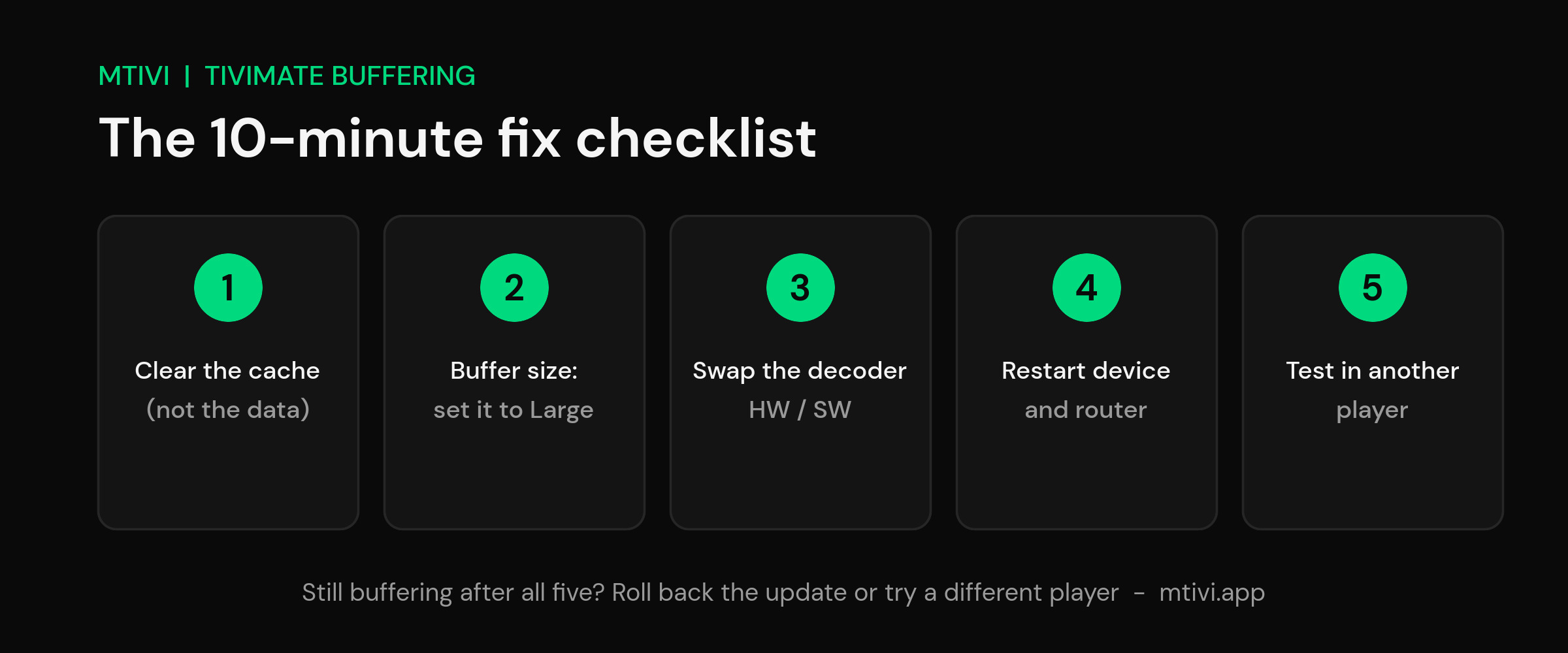
TiviMate buffering after an update is usually fixable in about ten minutes: force-stop the app and clear its cache (not its data), raise the buffer size under Settings → Playback, and switch between hardware and software decoding. If the stutter survives all three, roll back to the previous APK or test the same stream in a different player.
That paragraph is the short version. The longer version matters, because “buffering” covers three different problems wearing the same symptom: an app misbehaving, a device running out of headroom, and a stream that was struggling before you ever touched the update button. TiviMate’s mid-2026 releases (5.3.2 landed on June 1, 5.3.3 followed on June 22) both kicked off forum threads from users whose setups had been rock-solid for months. Some of those complaints were the update’s fault. Plenty weren’t. This guide works through the fixes in the order that sorts one from the other.
Why an update can start the buffering
Updates change more than the changelog admits. A new player core can reset or reinterpret your decoder choice, cached channel data can go stale against the new version’s format, and defaults you tuned two years ago can quietly flip back. On top of that, an update is a magnet for coincidence: you notice buffering the evening after updating, but the real cause is peak-hour congestion at the source that would have hit the old version just as hard.
So before blaming version 5.3.x, run the checklist. It’s ordered from least to most drastic, and the first three steps end most genuine post-update cases.
The 10-minute fix checklist
1. Force-stop the app and clear the cache — not the data
On your device, go to Settings → Apps → TiviMate, hit Force stop, then open Storage and choose Clear cache. Cache is disposable working files, and clearing it after an update flushes stale leftovers from the old version. Do not press Clear data — that wipes your playlists, favorites and settings, and unless you have a backup you’ll be rebuilding your whole setup. Restart the device afterwards, not just the app.
2. Raise the buffer size
In TiviMate, open Settings → Playback → Buffer size and step it up — Large is the sensible test value. A bigger buffer gives the stream more runway before playback starts, which smooths out short network hiccups at the cost of slightly slower channel changes. If buffering appeared the day you updated, this is less likely to be the root cause than the decoder, but it takes ten seconds to test and costs nothing.
3. Swap the decoder
This is the fix that most often ends update-specific buffering. In Settings → Playback, switch the decoder: if it’s on hardware, try software, and the other way round. Hardware decoding hands video to your device’s dedicated chip and is normally the smooth option, but a player update can change how streams are fed to it, and devices differ in which media formats they support cleanly. Software decoding leans on the CPU instead — heavier work for a low-power stick, but it side-steps a misbehaving hardware path entirely. Test both modes on the channels that stutter worst before you judge.
4. Restart the device and the router
Unglamorous, still effective. Streaming sticks hold apps in memory for days, and after an update a full power-cycle clears old processes competing for RAM. Pull the power for thirty seconds. Do the router too — a stale connection between your device and the source quietly causes more “app problems” than anyone likes to admit.
5. Test the same channel in another player
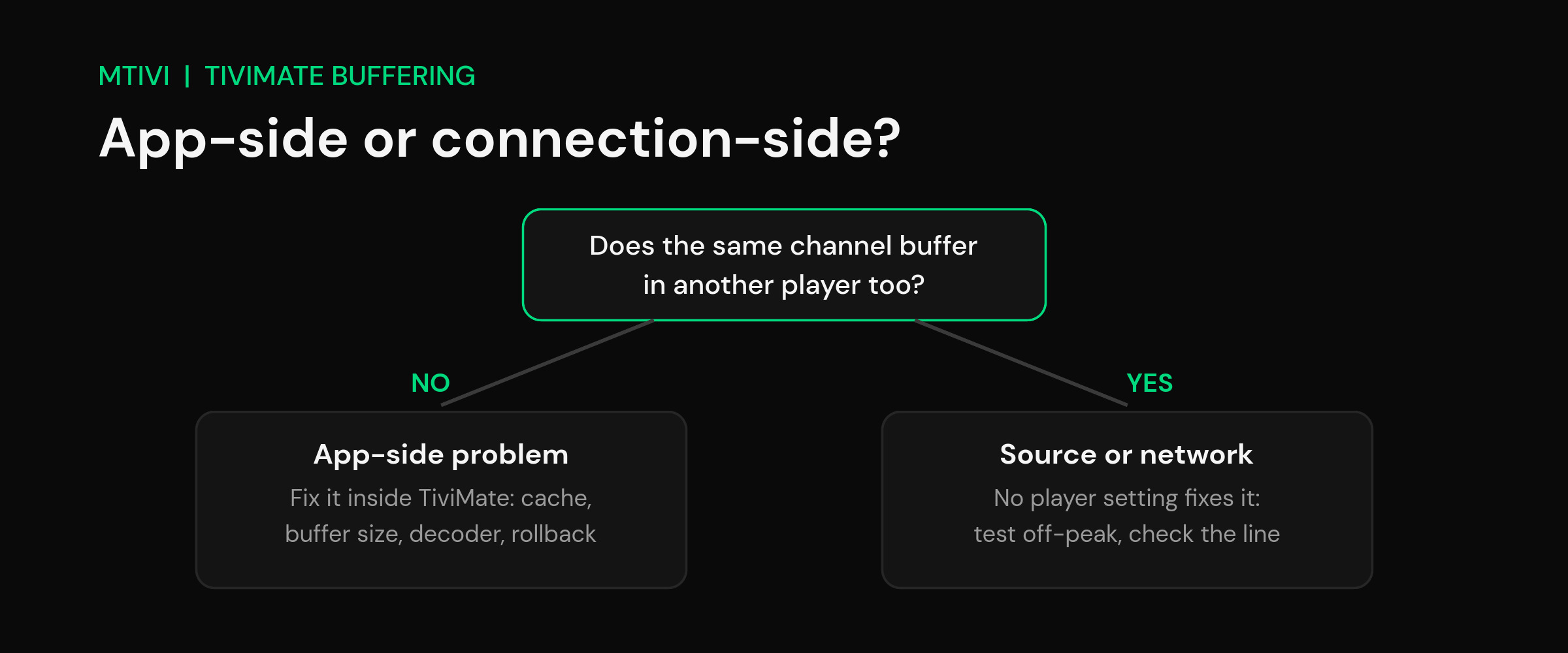
Load your playlist into any other IPTV player — a free one is fine for a test — and play the exact channel that buffers. This one step tells you where the problem actually lives.
App-side or connection-side? Reading the test
If the stream runs smooth in the other player, your problem is app-side, and the cache, buffer and decoder steps above — or a rollback — will get you there. If the same channel buffers everywhere, no TiviMate setting will save you: the stream, the server behind it, or your line is the bottleneck.
Two more tells point at the connection side. Buffering that only shows up in the evening is peak-hour congestion at the source or on your line. And buffering on a handful of channels while the rest run clean points at those specific streams, not your setup. IPTV delivery is only as strong as its weakest hop, and the player is the one hop you fully control.
Rolling back to the previous version
If the checklist fails and other players handle the same streams fine, roll back. Two warnings first.
Back up before touching anything: Settings → General → Backup Data saves your playlists, favorites and configuration (backup and restore is a TiviMate Premium feature). Uninstalling without a backup means starting from zero.
Then uninstall the current version and sideload the previous APK. Only download APKs from a source you already know and trust — random APK mirrors are a real malware risk — and turn off auto-update afterwards, or the store will cheerfully reinstall the version you just escaped.
Treat the rollback as a diagnosis as much as a cure. Old version instantly smooth? The update was the problem: report it to the developer and check back in a release or two. Old version stutters too? The update was never the cause, and it’s time to look harder at the stream or the line.
If every update cycle is a gamble: try a different player
TiviMate is a capable app with a huge user base, and one rough update doesn’t change that. But if you keep landing on pages like this one, it’s fair to ask whether your player should be the moving part in the setup.
mtivi is a premium media / TV player for every screen — TV, phone, tablet, stick or box — built around exactly this reliability pain. It plays the playlist you already have (M3U, M3U8 or Xtream Codes), stays smooth even with very large playlists (80,000+ channels), and gives you the same decoder control this guide leans on plus a built-in speed test for chasing real network problems. Cloud sync keeps playlists, favorites and settings identical across devices, Public, Kids and Private profiles keep a family setup sane, and it records live TV even on single-connection plans. It’s free to start with no account needed to begin, and runs today on Android phones and tablets, Android TV, Google TV and Fire TV — it is on Google Play, and on a Firestick you can install it with Downloader code 1706057. The download page has both options.
| TiviMate | mtivi | |
|---|---|---|
| Price to start | Free app; Premium unlocks recording, backup and multiple playlists | Free to start, no account to begin; Pro and Max add advanced features |
| Recording | Premium feature | Instant recording on Free — works even on single-connection plans |
| Settings across devices | Manual backup and restore (Premium) | Cloud sync, live today |
| Very large playlists | Handles big lists; performance varies by device | Built to stay smooth at 80,000+ channels |
| Devices today | TV devices (Android TV, Google TV, Fire TV) | Android phones and tablets plus Android TV, Google TV and Fire TV; iPhone, iPad, Mac, Apple TV, Windows and smart-TV apps coming |
Frequently asked questions
Why does TiviMate buffer after an update?
Usually stale cache left over from the old version, a decoder behavior that changed with the new player core, or coincidence – the stream or network was already struggling and the update got the blame. Clearing the cache and swapping between hardware and software decoding resolves most genuine post-update cases.
What buffer size should I set in TiviMate?
Test with Large (Settings > Playback > Buffer size). If Large fixes it, your connection needs the extra runway and you can walk it back a step for faster channel changes. If nothing changes, the buffer was never the problem – move on to the decoder.
Should I roll back a TiviMate update?
Only after the cache, buffer and decoder steps fail and another player plays the same streams smoothly. Back up first (Settings > General > Backup Data, a Premium feature), sideload the previous APK from a source you trust, and disable auto-update so the fix sticks.
Is TiviMate buffering caused by my internet or the app?
Play the same channel in a different player on the same device. Smooth there means it is app-side – fix TiviMate or roll it back. Buffering everywhere, or only at peak hours, means your line or the source is the bottleneck and no app setting will fix it.
Will clearing TiviMate’s data fix buffering?
It is the nuclear option and rarely worth it. Clear data wipes playlists, favorites and settings, while stale cache goes away with the much safer Clear cache button. Only clear data if you have a backup and everything else has failed.
Does a bigger buffer always fix TiviMate buffering?
Not always. A larger buffer smooths brief dips but adds delay and can make things worse on a truly weak connection. Match the buffer to your network rather than maxing it out.
Could the buffering be my provider, not TiviMate?
Often yes. If only some channels stutter, or it happens at peak evening hours, the provider server or your line is the bottleneck – no player setting fixes an overloaded source.
Does switching players fix buffering that started after an update?
It can, if the update introduced a decoder or buffering regression. A player like mtivi with adaptive buffering and a built-in speed test often plays the same stream more smoothly – try it on the problem channel.
Should I change decoder settings to stop buffering?
Trying hardware versus software decoding can help on some devices, since a bad match causes stalls. Change one setting at a time so you know what worked.
Will a VPN reduce IPTV buffering?
Sometimes – if your ISP throttles streaming, a VPN can bypass it. But a VPN can also add overhead and slow things down, so test with it on and off.
Related guides
- How to Record IPTV on a Single-Connection Plan (No Second Line Needed)
- Best IPTV Player for Firestick in 2026 (Tested & Ranked)
- Is Using an IPTV Player Legal? The 2026 Answer
Last updated: July 21, 2026.