Skip to content

IPTV Catch-Up Not Working? How to Fix Grayed-Out Catch-Up and Archive Playback
If IPTV catch-up not working is what brought you here, the fix almost always comes down to one question: is the archive missing on your source’s side, or is your player asking for the wrong slice of it? Those two problems look identical on screen — a grayed-out program, a spinner that never resolves, a “not available” toast — and they need opposite fixes. Chase the wrong one and you will spend an evening clearing caches for nothing.
Here is the short version. If the program has no clock or replay marker in the guide at all, the archive does not exist for that channel and no setting in any app will conjure it. If the marker is there but playback fails or lands on the wrong program, you have a time problem — a device clock, a time zone, or a guide that is offset from the real schedule. Everything below is ordered so you rule out the cheap causes first.
Start here: source-side or player-side?
Do this before you touch a single setting. Open your guide, scroll back to yesterday evening on two different channels — one big general channel, one small niche one — and look at what the guide draws on the past programs.
- No marker on either channel. Your source is not publishing an archive at all, or your plan does not include it. Nothing in the player will change that.
- Marker on one channel, nothing on the other. Normal. Archives are enabled per channel, not per playlist. The niche channel simply is not recorded.
- Marker present, playback fails. Now it is worth troubleshooting. This is the time-and-mapping case, and it is fixable.
- Marker present, plays the wrong program. Classic offset. Your guide and the archive disagree about what time it is.
That thirty-second test decides which half of this guide you need. Most people who post “catch up not available” in forums are in bucket one and never find out, because every article they read starts with “clear your cache”.
What catch-up actually is, and why the button grays out
Three features get mixed up constantly, and the mix-up is why the fixes get applied to the wrong problem.
Time-shift lets you pause and rewind the program that is on right now. It works off a rolling buffer measured in minutes. Catch-up replays programs that already finished, from an archive your source recorded and stores on its side — this is the same idea broadcasters call time-shifted viewing, just delivered over your playlist. Recording is different again: a file written to your own storage that survives long after the archive rolls off.
The critical part is that catch-up is not a player feature in the way people assume. Your player does not store anything. It reads two things from your playlist and guide, then builds a request for a specific window of a specific channel:
- Whether the channel is archived at all. In an M3U playlist this arrives as a catch-up attribute on the channel line. In an Xtream Codes setup the server reports it per stream. No attribute, no marker, no catch-up.
- How far back the archive goes. Usually expressed in days. One to seven is typical; plenty of sources sit at two or three, and some publish 24 to 72 hours and nothing more.
Then it needs the program’s exact start time and duration from the guide to know which slice to ask for. That is the hinge on which everything breaks. If the guide has no entry for that channel, the player has nothing to anchor a request to, so the past looks empty even though the archive exists. If the guide’s times are shifted by an hour, the player asks confidently for the wrong hour — and gets it.
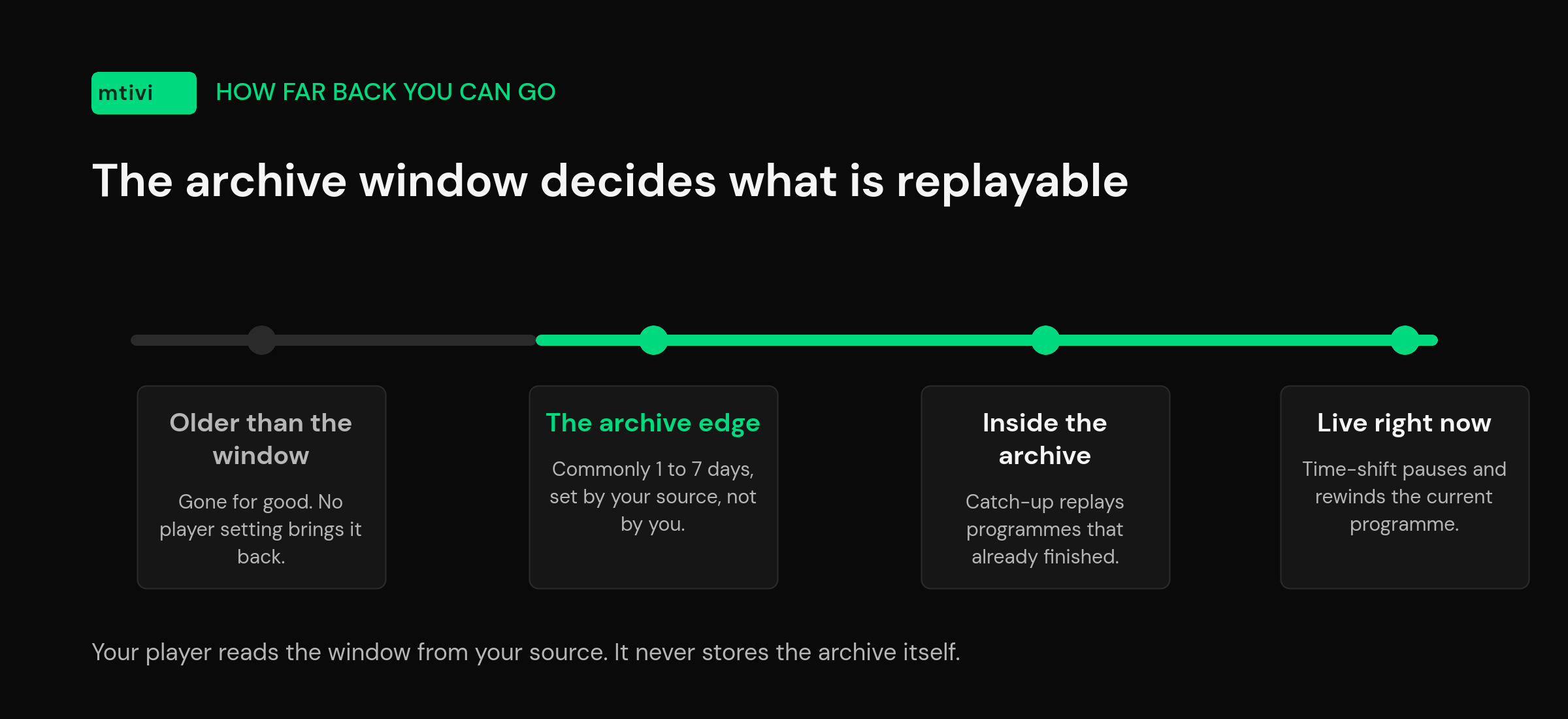
So the grayed-out button has exactly three root causes: the archive does not exist, the guide cannot describe it, or the clock disagrees. Everything in the next section is one of those three.
Seven fixes, in the order that actually works
1. Confirm the channel really is archived
Look for the replay or clock marker on a past program. If your player shows a catch-up depth anywhere in the channel information panel, that number is the archive window in days and it comes straight from your source — it is a report, not a setting. Zero or blank means no archive.
Check a second channel before concluding anything. Sources routinely archive a hundred channels and skip a thousand, and the ones people most want back are often the ones excluded. If your plan was a cheaper tier, archive access is one of the first things trimmed.
2. Fix the device clock before anything else
An archive request is a timestamp. If your box thinks it is 14:00 when it is 15:00, every request lands an hour off, and on some sources it is simply refused. Android boxes that sit unplugged for a while, or that never got a network time sync, drift or reset to a default date entirely.
On Android and Android TV, set date and time to automatic and set the time zone manually to your own rather than leaving it on a network default that may resolve to the wrong region — Google’s own instructions cover both toggles. Reboot afterwards. A surprising number of “archive not playing” reports die right here.
3. If the clock is right but the guide is wrong, use an EPG offset
This is the distinction that saves the most time. If the clock in the corner of your TV is correct and live TV plays the right program, but the guide labels everything an hour or two out, do not change the device clock — you will break live playback to patch the guide. Apply an EPG time offset in the player instead.
Guide data carries its times with a UTC offset, and some sources publish fixed offsets that ignore daylight saving. That produces the tell-tale symptom of a guide that was perfect for eight months and then drifted by exactly one hour overnight in spring. Nudge the offset by one hour, check a program you know the real start time of, and adjust again if needed. Our full walkthrough of that is in IPTV EPG wrong time.
4. Make sure the guide has real data for that channel
Catch-up needs a program entry to anchor to. If the channel shows “No information” in the guide, there is nothing to click back into, so it will look exactly like a missing archive.
That gap is almost always a tvg-id mismatch: the identifier on the channel line in your playlist does not match any channel node in the guide file. Fixing the mapping — or adding a guide source that covers the channel — often restores catch-up markers on channels you assumed were never archived. Work through IPTV EPG setup if the guide is patchy, and what EPG actually is if the terminology is new.
5. Refresh the playlist — carefully
Archive flags change on the source’s side and your player only learns about it on the next refresh. Force a playlist and guide update and check again.
The trap: in several players the only reliable refresh is deleting the playlist and re-adding it, which takes your favorites, hidden channels and group order with it. Before you do that, export or sync your setup. That gotcha is the whole reason we wrote back up your IPTV player setup — rebuilding four hundred favorites by hand to fix a catch-up flag is a bad trade.
6. Free a connection
Catch-up playback consumes a connection slot exactly like a live channel does. If you are at your limit — another TV in the house, a phone still holding a session, a player left running in the background — the archive request gets rejected, and most apps report that as a generic playback failure rather than “too many connections”.
Fully close the player on every other device, not just back out to the home screen, then retry. If you keep hitting this, recording is the structural answer: a scheduled recording gives you a file you own, and on a single-connection plan there are ways to do it without losing your live slot — see recording on a single-connection plan.
7. Test the same program in a second player
Last step, because it is the most work and the least often needed. Add the same playlist to a different player app and try the same past program. If it plays there, the first app is mishandling the request. If it fails in both, the archive is not there or your account cannot reach it — stop troubleshooting the app.
Xtream Codes logins usually make this test easier than a bare M3U link, because the archive information is reported by the server rather than inferred from playlist attributes. The difference between the two formats is covered in M3U vs Xtream Codes.
Symptom, cause, fix
If you only read one part of this guide, read this. Find your symptom in the left column and you will know within seconds whether to touch your source, your clock, or your guide.
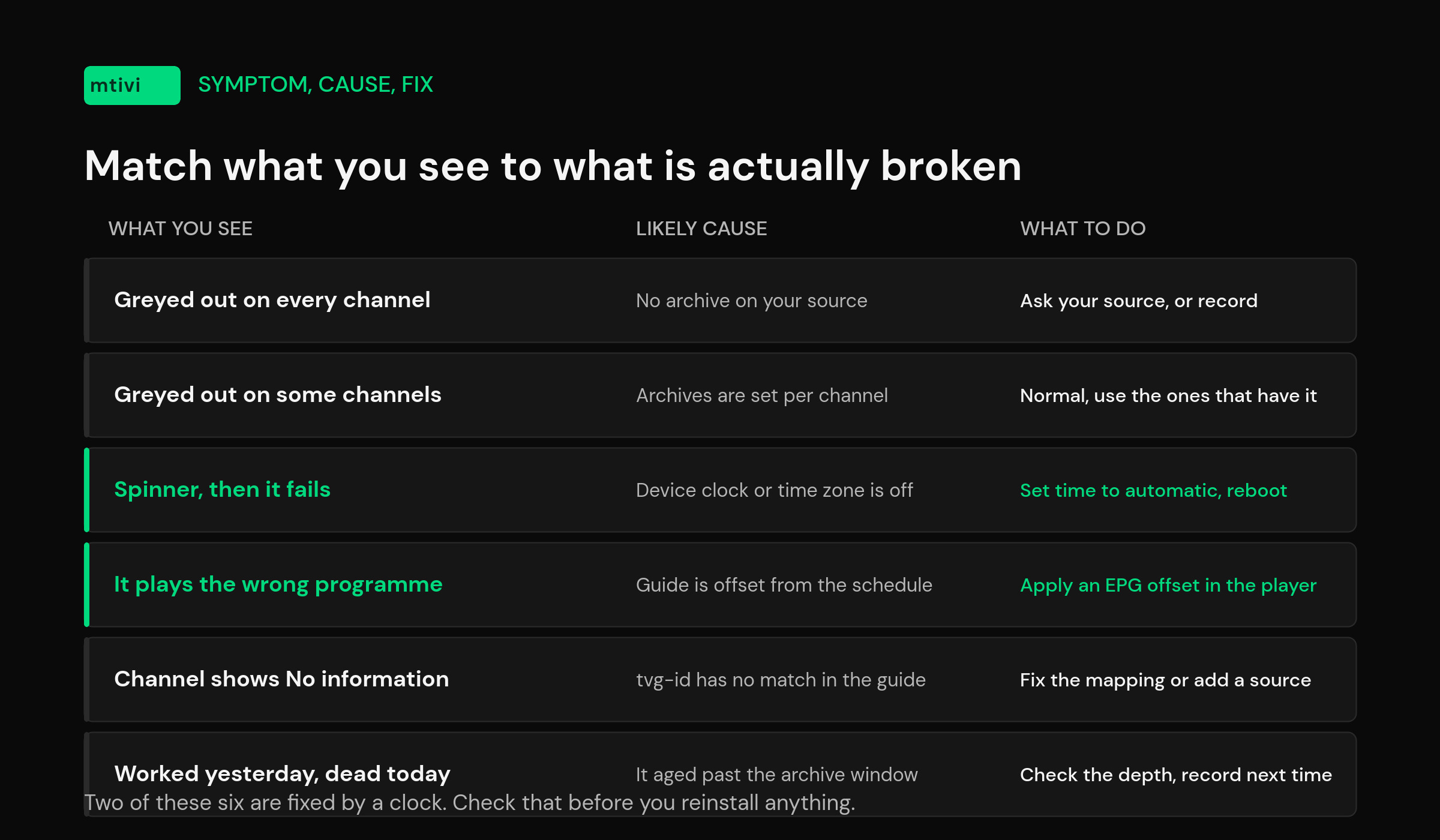
| What you see | Most likely cause | What to do |
|---|---|---|
| Past programs grayed out on every channel | No archive on the source, or plan excludes it | Ask your source; record instead |
| Grayed out on some channels only | Archive is enabled per channel | Normal — use the channels that have it |
| Marker there, spinner then failure | Wrong device clock or time zone | Set automatic time, set time zone manually, reboot |
| Plays, but it is the wrong program | Guide offset from real schedule | Apply an EPG offset in the player, not a clock change |
| Channel shows “No information” | tvg-id mismatch, no guide data to anchor to | Fix the mapping or add a guide source |
| Worked yesterday, dead today | Program aged past the archive window | Check the archive depth in days; record next time |
| Works on one device, not another | Connection limit or a stale playlist copy | Close other sessions fully, refresh the playlist |
| Guide drifted by exactly one hour in spring | Source publishes fixed offsets, ignores daylight saving | Offset the guide by one hour seasonally |
Why the same channel replays in one app and not another
Two players, one playlist, different results. That is common and it is not mysterious.
Building a valid archive request needs a player to parse the guide fully — start times, durations and their time offsets — and then handle the archive style the source uses. Players differ in how much of that they implement. A lightweight app that shows a guide grid but only ever plays the live entry cannot construct a past request at all, so its past programs are permanently grayed out no matter what the source offers. Others handle one archive style and not another.
There is also a discovery gap. Some apps have working catch-up buried behind a long-press on a past program with no visual hint anywhere, so people conclude their source does not offer it. If you have never tried holding select on a finished program in your guide, try it before you conclude anything.
This is the design line mtivi took: surface catch-up and time-shift directly in the guide where you are already looking, keep the EPG offset control in reach so a shifted guide is a thirty-second fix rather than a rebuild, and be honest that the archive itself comes from your source. mtivi is a media player, so what it can do is read what your playlist offers and present it properly — it can never add an archive that is not there. The rest of the guide experience is in cloud sync across devices and the wider feature set at what an IPTV player is.
When catch-up is not coming back
Some honesty, because the internet is short on it here.
If your source does not archive a channel, that is the end of the road. No app setting, no cache clear, no reinstall changes it. Archives cost storage, so they are selective by design, and the channels with the tightest rights are usually the first ones excluded.
Archive windows also expire, and they expire quietly. A program that was replayable on Tuesday can be gone on Friday with no notice and no error explaining why. If there is something you actually care about keeping, the only durable answer is a recording on your own storage — a file that is still there next month regardless of what the source rolls off. That trade-off is compared properly in IPTV players with DVR.
And if catch-up works everywhere except one device, stop suspecting the source. That is a clock, a connection slot, or a stale playlist on that device — three things you can fix in about five minutes with the steps above.
Related guides
- IPTV EPG wrong time: fixing a guide that is off by hours
- IPTV EPG setup: getting a full guide with now, next and catch-up
- What is EPG in IPTV? The TV guide, explained
- Best IPTV player with DVR: recording compared
- Back up your IPTV player setup before you refresh anything
- M3U vs Xtream Codes: which format should you use?
Frequently asked questions
Why is IPTV catch-up grayed out on every channel?
Because your source is not publishing an archive, or your plan does not include one. Catch-up is recorded and stored on the source’s side, so if it is absent there, no player setting will enable it. Confirm by checking two very different channels: if neither shows a replay marker on yesterday’s programs, the archive is missing rather than broken.
How do I tell if a channel has catch-up before I try to play it?
Look for a clock or replay marker drawn on past programs in the guide, and check the channel information panel for an archive depth in days. That number is reported by your source, not chosen by you. No marker and no depth means that channel is not archived, even if the channel next to it is.
Catch-up plays, but it is the wrong program. What is wrong?
Your guide and the archive disagree about the time. The player is asking for the correct slot as it understands it and getting exactly what it asked for. Apply an EPG time offset in the player, usually one hour, then verify against a program whose real start time you know. Do not fix this by changing the device clock, or live playback will break instead.
Should I change my device clock or the EPG offset?
Change the device clock only if the clock itself is wrong — if the time on your TV does not match the time in the room. If the clock is right and only the guide is shifted, use the EPG offset. Getting this backwards is the single most common way people turn one problem into two.
Why did catch-up work yesterday and not today?
The program most likely aged out of the archive window. Windows are commonly one to seven days, and many sources sit at two or three, so a program can disappear with no warning. If the whole feature stopped rather than one program, look at the device clock or a connection limit instead.
Does catch-up use one of my connections?
Yes. Replaying an archived program opens a session in the same way live playback does, so it counts against your limit. If another device is still holding a session — including a player left running in the background — the archive request can be refused and reported as a generic playback error.
Why does the guide show “No information” and no catch-up on some channels?
The channel’s identifier in your playlist does not match any channel in your guide data, so the player has no program entry to anchor an archive request to. Fix the tvg-id mapping or add a guide source that covers those channels, and the markers often reappear on channels you assumed were never archived.
Will reinstalling my player fix catch-up?
Rarely, and it costs you your favorites, hidden channels and group order. Reinstalling only helps if the app’s stored playlist data is genuinely corrupt, which is uncommon. Work through the clock, offset, guide mapping and connection checks first, and back up your setup before you delete anything.
What is the difference between catch-up, time-shift and recording?
Time-shift pauses and rewinds the program currently airing, using a short rolling buffer. Catch-up replays programs that already finished, from an archive stored by your source. A recording is a file written to your own storage, which stays available after the archive expires. Only the last one is permanently yours.
Can a different player app fix catch-up?
Sometimes. Building an archive request requires the app to parse guide times and durations properly and handle the archive style your source uses, and not every app does. If the same past program fails in two different apps on the same playlist, the app is not the problem — the archive is missing or your account cannot reach it.
Does mtivi provide any channels or catch-up archives?
No. mtivi is a media player. We do not provide, sell, or include any channels, movies, series, or playlists — you add your own source. What mtivi does is read what your source offers and present it properly, including surfacing catch-up and time-shift in the guide and giving you an EPG offset control when the guide’s times need correcting.
My guide drifted by exactly one hour and catch-up broke with it. Why?
Some sources publish guide times with a fixed offset that ignores daylight saving, so the data stays accurate for most of the year and then shifts overnight when the clocks change. Correct it with a one-hour EPG offset in the player and expect to reverse it when the clocks change back.