Skip to content

IPTV Parental Control Password: Set It, Reset It, Lock It
An IPTV parental control password is a short numeric code your player checks before it opens a locked group or title. Setting one takes a minute. Recovering it is harder, because the code lives on the device rather than on your subscription.
That is the practical answer, and most pages stop there. The more useful answer is the one underneath it: a code is the weakest of the three locks available to you, and if you only set the code you have probably protected less than you think. This guide covers the credential itself — choosing it, changing it, recovering it — and then the part that actually decides whether a child gets through: whether the channels are hidden behind a gate or simply not in the list they are looking at.
Start here, because three different people are reading this
Password questions in this area split three ways, and the right advice for one is the wrong advice for another. Find your row before you change anything.
| What you actually want | Where to go |
|---|---|
| “I want a family-safe setup from scratch” | Start with IPTV parental controls and kids-safe profiles — that page covers the whole setup, this one covers the code. |
| “I want to set or change the PIN” | The sections below on choosing a code and locking groups. |
| “I set one and I cannot remember it” | Jump to the reset ladder — and read the warning about reinstalling before you do anything. |
One thing this page is not: a way around somebody else’s lock. Every recovery step below assumes the device is yours and you are the person who set the code in the first place.
A PIN does not know who is standing in front of the TV
This is the sentence that reframes the whole topic, and it comes from the plainest possible source. Wikipedia’s entry on the personal identification number notes that “despite the name, a PIN does not personally identify the user.” It authenticates knowledge of a number. That is all it has ever done.
In a bank that is fine, because one person holds the card. In a living room it is a design problem, because the number is typed on a 55-inch screen with a remote control, in front of the household, roughly once a week. A child who has watched you enter it twice is, as far as the player is concerned, you.
The arithmetic is not reassuring either. The same page notes that financial PINs “are often four-digit numbers in the range 0000–9999, resulting in 10,000 possible combinations,” and that many verification systems allow three attempts, “thereby giving a card thief a putative 0.03% probability of guessing the correct PIN before the card is blocked.” Then comes the caveat that matters here: that figure “holds only if all PINs are equally likely.” They are not. Research quoted on the same page puts it bluntly — “armed with only four possibilities, hackers can crack 20% of all PINs.”
Now remove the bank’s protections. Most players do not block after three wrong entries, do not log attempts, and do not tell you an attempt happened. A curious eleven-year-old has unlimited tries, a comfortable sofa and a rainy afternoon. Against that, four digits are a speed bump.
Why your player has no “block adult content” switch
People often ask why a player cannot just filter by rating the way a television does. The answer is in the file formats, and it is the most useful thing on this page.
A broadcast box can filter because the broadcast carries an age rating the box can read. A playlist does not. Wikipedia’s M3U reference states plainly that “there is no formal specification for the M3U format; it is a de facto standard,” and its table of the IPTV attributes people actually use lists group, logo, name, number, CUID, country, language and a radio flag. There is no rating attribute in it. Nothing in a channel line says how old you should be.
The guide file is only slightly better. The official XMLTV DTD does define a rating element — but the program content model marks it rating*, meaning zero or more, and the DTD’s own comment describes it as a film convention: “Various bodies decide on classifications for films — usually a minimum age you must be to see it. In principle the same could be done for ordinary TV programs.” In principle. The DTD also lets the file declare which rating system it used, in free text, so one file can say 15 and another NC-17 with nothing connecting them. And since, as the same file notes, “almost everything in the DTD is optional,” a guide with no ratings at all is a perfectly valid guide.
So there is nothing dependable for a filter to read. Which means every control your player really offers is a decision about list membership, not about content: this group is visible, that group is not. Once you see it that way, the right strategy stops being “set a stronger code” and starts being “make sure the thing is not in the list.”
The three layers a lock can live in
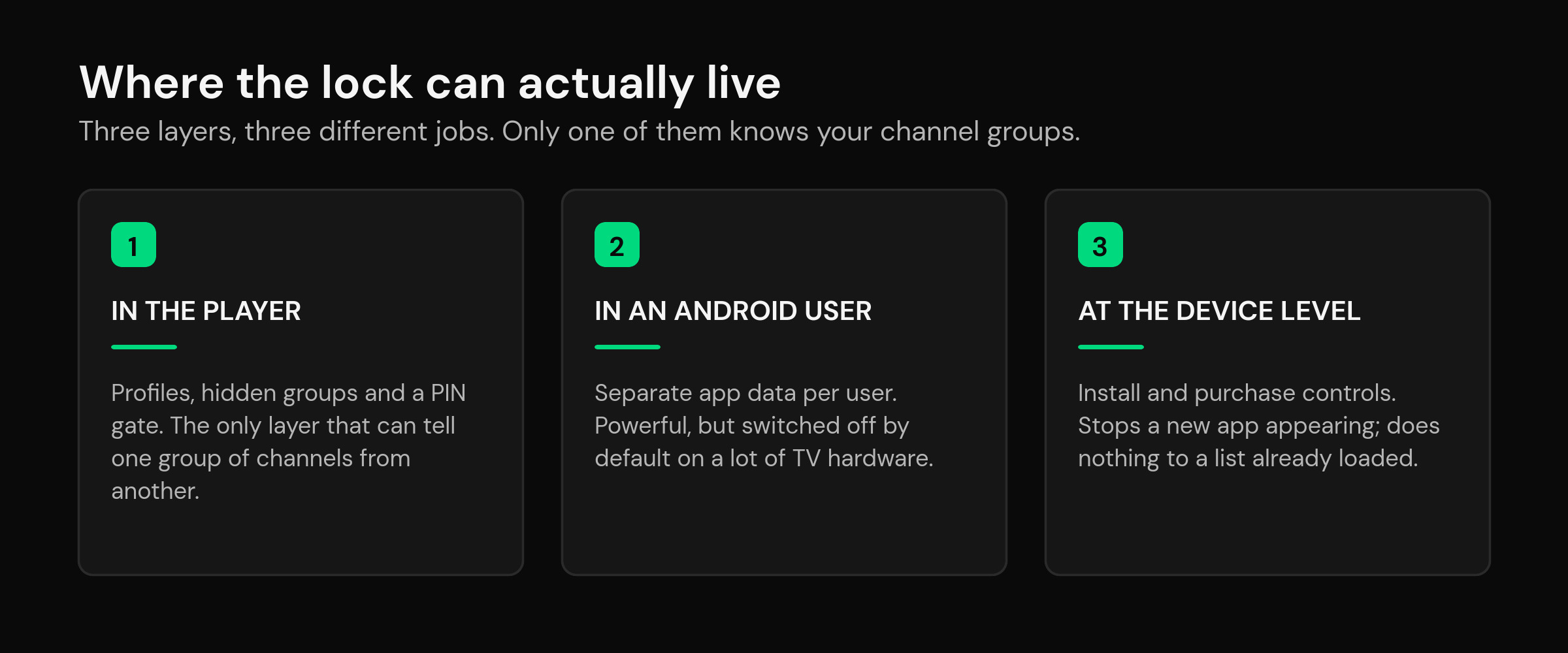
Before you set anything, know which layer you are working in, because each one stops a different thing and none of them stops all three.
| Layer | What it can do | What it cannot do |
|---|---|---|
| Inside the player — profiles, hidden groups, a PIN gate | Decide which channels and titles exist for whom. The only layer that understands your groups. | Stop a second app being installed and the same playlist pasted into it. |
| A separate Android user | Give the child a completely separate copy of the app with its own data. | Exist at all on a lot of TV hardware — see below. |
| Device and store level | Require a password before new apps or purchases. | Touch a playlist that is already loaded in an app that is already installed. |
The middle row deserves its own paragraph, because “just make a separate user for the kids” is standard internet advice and it quietly fails on the exact devices most people watch on. Android’s own multi-user documentation opens with precisely this use case — “parents might allow their children to use the family tablet” — and confirms that “no user has access to the app data of another user.” Good so far. Then it states that “the multi-user feature is disabled by default,” and that to turn it on “device manufacturers must define a resource overlay” raising the maximum user count above one. Manufacturers “can decide upon the maximum number of users.” That is why plenty of streaming sticks and cheap boxes have no Users menu at all: nobody enabled it, and you cannot.
Two more lines from that page are worth knowing before you rely on this route. Restricted profiles — the kind where the parent controls which apps appear — are “available only on tablets and television devices,” so behavior differs by form factor. And bluntly: “any user can affect the installed apps for all users.” A secondary user is a data wall, not an authority wall.
How to set the password without leaving a gap
Menu names differ, but the sequence is the same in every player worth using. Do it in this order, because doing it in the other order leaves the list exposed for the minute in between.
- Open the player’s settings, not the device’s. The parental section usually sits under Settings, Preferences or a Profiles entry. If you only find app permissions, you are in the Android settings by mistake.
- Set the code first, before choosing what to lock. Some players will happily let you mark a group as locked while the code is still unset or still at whatever it shipped with.
- Enter it twice and read the confirmation. If a player accepts a mistyped second entry without complaint, that is worth knowing about it now rather than in three weeks.
- Now choose the groups. Lock by group rather than channel by channel — a playlist refresh can add channels, and a per-channel list will not cover the new ones.
- Sign out of the remote entry point if there is one. If the player has a companion web page or a phone app for managing playlists, close that session too.
- Restart the app and try one locked channel. Settings that were never written to disk are common, and a restart is how you find out.
Step four is where most setups quietly break. Channel groups are rebuilt whenever the list is refreshed, and a group that was locked can come back under a slightly different name and land outside your rule. If you have seen this pattern before with favorites vanishing, the mechanism is the same one described in why IPTV favorites disappear after an update: your settings point at names in a file you do not control. Tidying that file up first — see cleaning up IPTV channel names and hiding dead channels and reordering groups — makes every later rule stick better.
Choosing a code a child will not guess
The standard advice (“don’t use 1234”) is correct and nowhere near enough, because in a household the attacker is not a stranger. They know your birthdays. They know the house number. They watched you unlock the tablet.
What actually helps:
- Use six digits if the player allows it. ISO 9564-1, the international standard for financial PIN management, “allows for PINs from four up to twelve digits, but recommends that for usability reasons the card issuer not assign a PIN longer than six digits.” Six is the sweet spot the payments industry landed on, and it is a hundred times the search space of four.
- Avoid anything derivable from the family. Birth years, the year you moved in, a phone number’s last four. The PIN research quoted earlier found that PINs beginning “19” cluster heavily for exactly this reason.
- Never reuse a bank or phone PIN. This one is not about the children. A code you type on a shared TV in front of guests should not be a code that also moves money.
- Do not use repeats or runs. 1111, 0000, 4321. Financial institutions frequently refuse to issue these; your player will not refuse, so refuse on its behalf.
- Write it somewhere adult, once. A password manager, or a note in your phone that is not called “TV PIN”. The recovery path is bad enough that a written record is the sane precaution, and it is why the next section exists.
Locking channels so the lock actually holds
A locked group is a locked front door. Here are the side doors, in the order people find them.
Search. Type three letters and a player will often return matches from every group it knows about, locked or not. Check whether search respects the lock before you trust it.
Recents and continue-watching. Anything an adult watched can reappear as a tile on the home screen with a thumbnail attached. This is the single most common leak, and it has nothing to do with your code. If your player tracks progress, see how that shelf behaves in how continue watching and resume work.
The guide grid. A locked channel is often still a row in the EPG, complete with program titles and descriptions. It will not play, but it will read. If you are not sure how your guide is populated, what EPG means in IPTV and the full EPG setup guide explain what data the grid is pulling in.
Catch-up and replay. These sometimes live in a separate screen with its own idea of which channels are available.
The movies and series library. Locking live TV groups does nothing to the on-demand rows, which are usually organized by an entirely different set of categories.
The second playlist. If several sources are combined, your rule may apply to one of them. Worth checking after any change — see merging multiple playlists into one clean list.
A second app. Nothing in the player can stop someone installing a different player and pasting in the same link. That is the device layer’s job, and it is the reason the three layers exist.
Forgot your IPTV parental control password? The reset ladder
Work down this ladder in order. Each rung costs more than the one above it, and the bottom rung costs you your whole setup — which is why the internet’s favorite answer is listed last rather than first.
- Look for a change or reset option that does not need the old code. Some players tie the parental code to an account, so signing in on the same device offers a reset. If yours does, this is over in thirty seconds.
- Check whether the code is stored with the account rather than the app. If the player has a companion web page, look there before touching the TV. An account-side code survives an app reinstall; a device-side one does not.
- Clear the app’s cache — not its data. Cache is disposable. Data is your setup. On most Android and Fire TV boxes both buttons sit side by side under Settings > Apps, and the wrong one wipes your playlists, favorites and history along with the code. Clearing cache rarely fixes a forgotten PIN, but it costs nothing, so it belongs above the destructive options rather than below them.
- Reinstall the app, having first made sure you can get everything back. This is the step every other page recommends first, usually described as “easy.” It is not easy. It removes the code by removing everything, and on a player without cloud sync you are re-entering playlist links, re-picking favorites, rebuilding groups and re-adding your guide source with a remote control. Before you do it, read how to back up your IPTV player setup. If your player syncs to an account, this step is nearly painless; if it does not, budget an evening.
Two things people expect to work and which generally do not: contacting your provider (the parental code is set in the app on your device, so the provider has never seen it), and finding it in a settings screen (a player that will show you the code has not really locked anything).
Why this page will not list “default” PINs
Search this topic and you will meet the same four numbers on every result, presented as the defaults to try. We are leaving them out on purpose, and the reason is not squeamishness.
First, they are unreliable. Players ship differently, change between versions, and increasingly force you to set a code on first use rather than shipping with one. A list of guesses that worked for someone in 2022 is not a recovery procedure.
Second, and more to the point: a page that publishes “the four codes to try” has written a bypass guide with a parenting headline. The audience for a locked-out article is not only locked-out parents. If the top result for a parental control question teaches anyone in the house the four numbers to start with, it has made every lock in the category weaker — including yours.
The durable version of that advice is the ladder above, plus one habit: set the code deliberately, write it down once somewhere adult, and choose a player whose setup survives a reinstall.
Profiles beat a shared code, and here is the actual difference
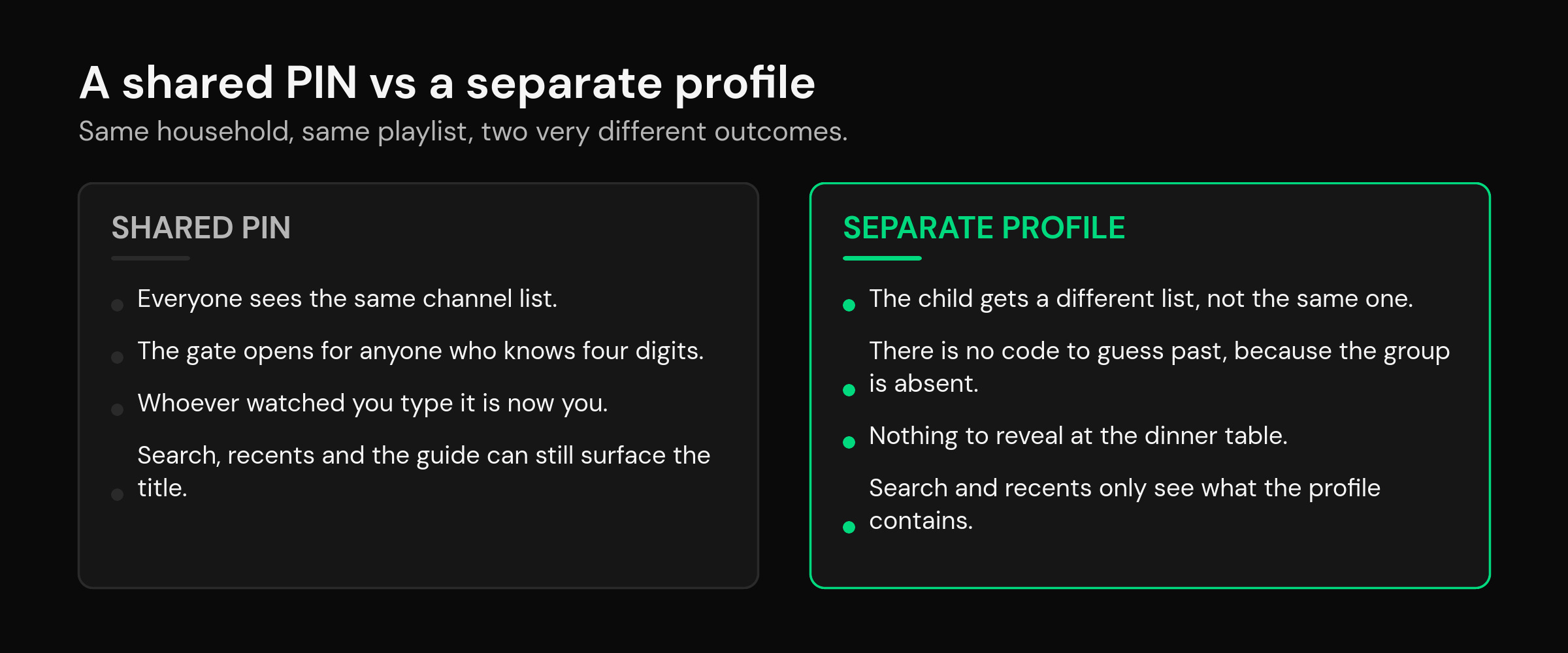
Everything so far describes the same model: one list, one code, one gate. Every person in the house looks at identical rows, and a few digits decide whether a row opens. The failure modes all follow from that shared list — the guide still shows titles, search still finds matches, and the child only needs to see you type once.
A profile changes the object rather than guarding it. The child’s profile carries its own set of groups, its own favorites, its own recents, its own continue-watching shelf. There is no gate to get past because the group is not there. Nothing leaks through search, because search only searches what the profile contains. And you never type the code in front of them, because switching to their profile does not require it — only switching back to yours does.
That is the difference between “you may not open this” and “this is not on the menu”. The second one does not depend on how long the child has been watching your thumbs.
How mtivi handles it
mtivi is built around the second model. Profiles come in three kinds — Public, Kids and Private — and they are separate spaces rather than one space with a lock on part of it. The Kids space gets its own channel groups, its own library and its own history, so a child opening the app lands somewhere that was assembled for them instead of somewhere with doors they can rattle. A parental PIN still guards the way back into an adult profile, which is the one place a code genuinely belongs: protecting a switch you make deliberately, not a channel row sitting in a list they are already browsing.
Practical notes, so nobody is surprised. Kids and Private spaces are part of the Pro plan, alongside cloud sync; the Free tier is a complete player with live TV, a full guide, movies and series, local media, favorites and instant recording, but the extra profiles are not in it. Cloud sync is the piece that changes the reset ladder above: because playlists, favorites, settings, watch history and playback position sync to your account, reinstalling to clear a forgotten code stops being the catastrophe it is elsewhere — you sign in and your setup comes back. That is covered in more depth in IPTV player cloud sync and compared across players in the best IPTV player with cloud sync.
mtivi is on Google Play and also available as a direct download — both routes, plus the Fire TV Downloader code 1706057, are on the download page so you can pick whichever suits the device. It runs on Android phones and tablets, Android TV, Google TV, Fire TV and Firestick, Chromecast with Google TV, Nvidia Shield and Android boxes; there are device-specific write-ups for Android TV and Google TV and for Firestick. If you are weighing free options generally, what “free” actually gets you is the honest version.
What a parental password still cannot do
Worth being clear about, because a lock you overestimate is worse than one you understand.
- It does not travel. The code protects that app on that device. A phone in a bedroom running a different player with the same playlist is untouched by it.
- It does not change what your source carries. Hiding a group hides it from view; the channels still exist on the subscription. Only the provider’s own list decides that, which is worth remembering when you choose one.
- It is not a content filter. As the format section explained, there is no reliable rating in the files to filter on. A group name is a label somebody typed, and it can be wrong.
- It does not cover the browser. Device-level controls handle general web access; a media player has no view of it at all.
- It does not survive a determined teenager with a factory reset. At that point you are in a conversation, not a settings menu.
If the legal framing of any of this is on your mind, is using an IPTV player legal covers the distinction between the player and the source, and what an IPTV player is is the plain-language starting point.
A five-minute test that proves the lock works
Do not assume. Sit down with the remote and try to beat your own setup — it takes five minutes and it is the only real verification available.
- Restart the app completely, so you are testing saved settings rather than a live session.
- Open a locked group. It should ask for the code.
- Search for a word you would expect to match something locked. Note whether results appear.
- Open the guide and scroll to where the locked channels used to be. Can you read the program names?
- Check the home screen shelves — recents, continue watching, recommendations — for anything that should not be visible.
- Open the movies and series sections and confirm the equivalent categories are handled too.
- Refresh the playlist, then repeat steps two and three. This is the one people skip, and it is the one that catches the group that came back renamed.
Anything that survives that test is a genuine lock. Anything that does not was never locked; it was just further down the screen.
Related guides
- IPTV parental controls: kids-safe profiles and a PIN lock — the full family setup, of which this page is one part.
- IPTV player cloud sync — why a synced setup makes a forgotten code survivable.
- Back up your IPTV player setup — do this before any reinstall.
- Move your player to a new device — carrying profiles and settings across.
- Hide dead channels and reorder groups — a tidier list is an easier list to lock.
- Handling a very large playlist — group rules matter more the longer the list gets.
- Player keeps logging out — if your settings will not stay put at all.
Frequently asked questions
What is the IPTV parental control password?
It is a numeric code stored by your player app that must be entered before a locked channel group, category or title will open. It is set by whoever configured the app, it lives on that device, and it is unrelated to your subscription login.
What is the default parental control PIN for IPTV apps?
There is no single default, and this page deliberately does not publish the numbers commonly listed elsewhere. Many players now require you to choose a code on first use rather than shipping with one, and any list of “defaults” is both unreliable and a bypass guide for anyone else in the house. Use the reset steps above instead.
How do I reset my IPTV parental password if I forgot it?
In order: look for a reset option that does not need the old code, check whether the code is stored with your account rather than the app, clear the app’s cache (never its data), and only then reinstall. Reinstalling works because it deletes everything, so back your setup up first — or use a player that syncs it to your account.
Will clearing the app’s data remove the PIN?
Usually yes, and it removes your playlists, favorites, groups and watch history at the same time. Clear Cache and Clear Data sit next to each other in Android’s app settings and only one of them is safe. Treat Clear Data as equivalent to reinstalling.
Can my IPTV provider reset the parental password for me?
Almost never. The parental code is set inside the app on your device, so the provider has no record of it. They can help with subscription credentials; the PIN is yours.
Is a four-digit PIN long enough?
Use six digits if your player allows it. ISO 9564-1 permits four to twelve digits and recommends not exceeding six for usability, so six is the practical maximum that people still remember — and it is a hundred times harder to guess than four.
How do I block adult channels on an IPTV player?
By group, not by channel, because a playlist refresh adds channels your per-channel rule will not cover. Then check the side doors: search, recents, continue watching, the guide grid, catch-up, and the movies and series categories, which are usually organized separately from live TV groups.
Why can my player not just filter by age rating?
Because the files carry no dependable rating to filter on. The M3U attribute set used by IPTV playlists has no rating field, and while the XMLTV guide format defines a rating element it is optional, unlimited in count, and lets each file name its own rating system. Everything a player offers is therefore a decision about which groups are visible.
Is a separate Android user better than the player’s own PIN?
It is a stronger data boundary — Android documents that no user can access another user’s app data — but it is often unavailable. Multi-user is disabled by default and only the device manufacturer can enable it, which is why many streaming sticks have no Users menu. Where it does exist, note that any user can still affect the apps installed for everyone.
Does a kids profile need a password of its own?
No, and that is the point. A child should be able to enter their own space freely; the code protects the way back out into an adult profile. That way you are never typing the PIN in front of them just to start their program.
Does mtivi provide the channels I would be locking?
No. mtivi is a media player. We don’t provide, sell, or include any channels, movies, series, or playlists — you add your own source, and the parental features apply to whatever that source contains.
Are kids profiles available on the free plan?
The Free tier is a complete player — live TV with a full guide, movies and series, local media, favorites and instant recording — but Kids and Private spaces are part of Pro, along with cloud sync.
My locked group came back after a playlist refresh. Why?
Because the lock points at a group name in a file you do not control. When the source is refreshed, groups are rebuilt, and a slightly renamed group falls outside your rule. Re-check locks after any refresh, and prefer players that let you tidy and pin groups so the names stay stable.
Can someone bypass the lock by installing a second player?
Yes, and no in-app setting can prevent it. That is what device and store level controls are for: requiring a password before new apps can be installed. It is the third layer, and it is the only one that covers this.