Skip to content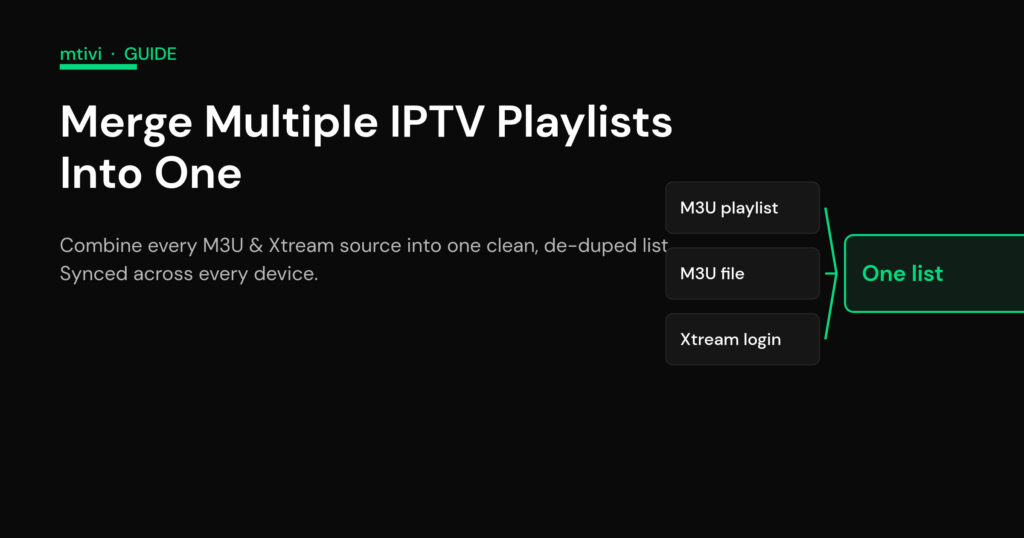
How to Merge Multiple IPTV Playlists Into One Clean List
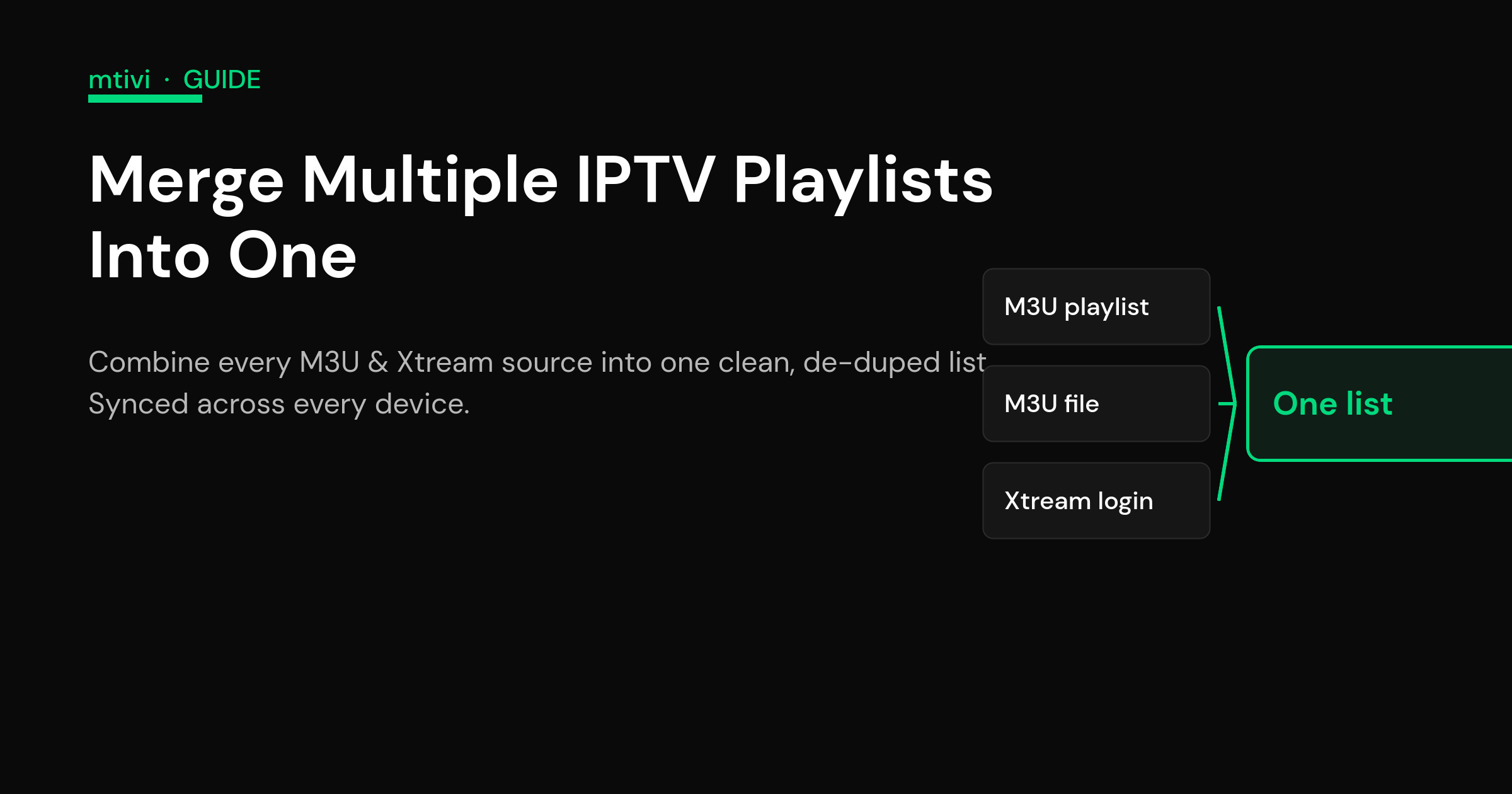
If you pay for two or three sources, flipping between separate playlists all evening gets old fast. The good news: you can merge multiple IPTV playlists into a single, unified list so every channel, movie and series sits in one place with one guide. There are two honest ways to do it — stitch the files together with an outside tool, or use a player that combines your sources for you — and this guide walks through both, plus the de-duplication and cross-device sync that decide whether the merged list stays clean.
The reason people want this is simple. Two providers means two of nearly every popular channel, two half-built favorites lists, and two separate guides that never line up. One tidy list fixes all of that.
What “merging playlists” actually means
An M3U playlist is just a plain-text file: a header line, then one block per channel with its name, group and stream address. Because it is plain text, the crudest merge is literally pasting the channel blocks from one file into another — keep the #EXTM3U header only once at the very top, save it as a new file, and you have a working combined playlist. Xtream Codes logins work a little differently: instead of a file you hold a server address, username and password, and the player turns that into the same channels and electronic program guide structure behind the scenes.
So “merging” can mean two different things depending on your sources. If you only have M3U files or links, you can concatenate them. If you mix an M3U link with an Xtream Codes login, you cannot paste one into the other — you need something that can hold several source types at once and present them as one list. That difference is exactly where most free tools fall short and where an in-player approach pulls ahead. If the M3U-versus-Xtream distinction is new to you, our explainer on M3U vs Xtream Codes lays out which format does what.
Method 1: merge with an external tool
The most common route online is a third-party merger. You upload or paste in your M3U links (some also accept Xtream logins), the tool concatenates them, optionally removes duplicates, and hands back a single output link or downloaded file that you load into any player. It works, and for a one-off tidy-up it is fine.
The catch is upkeep. That merged link lives on someone else’s service, so you are trusting a middleman with your source details, and every time a provider rotates a server or you add a new subscription you have to go back, rebuild, and re-import. It is a separate chore that sits outside your player, and if the tool goes down or changes its terms, your unified list goes with it. Treat external mergers as a quick fix rather than a permanent home for your setup.
Method 2: let the player combine your sources
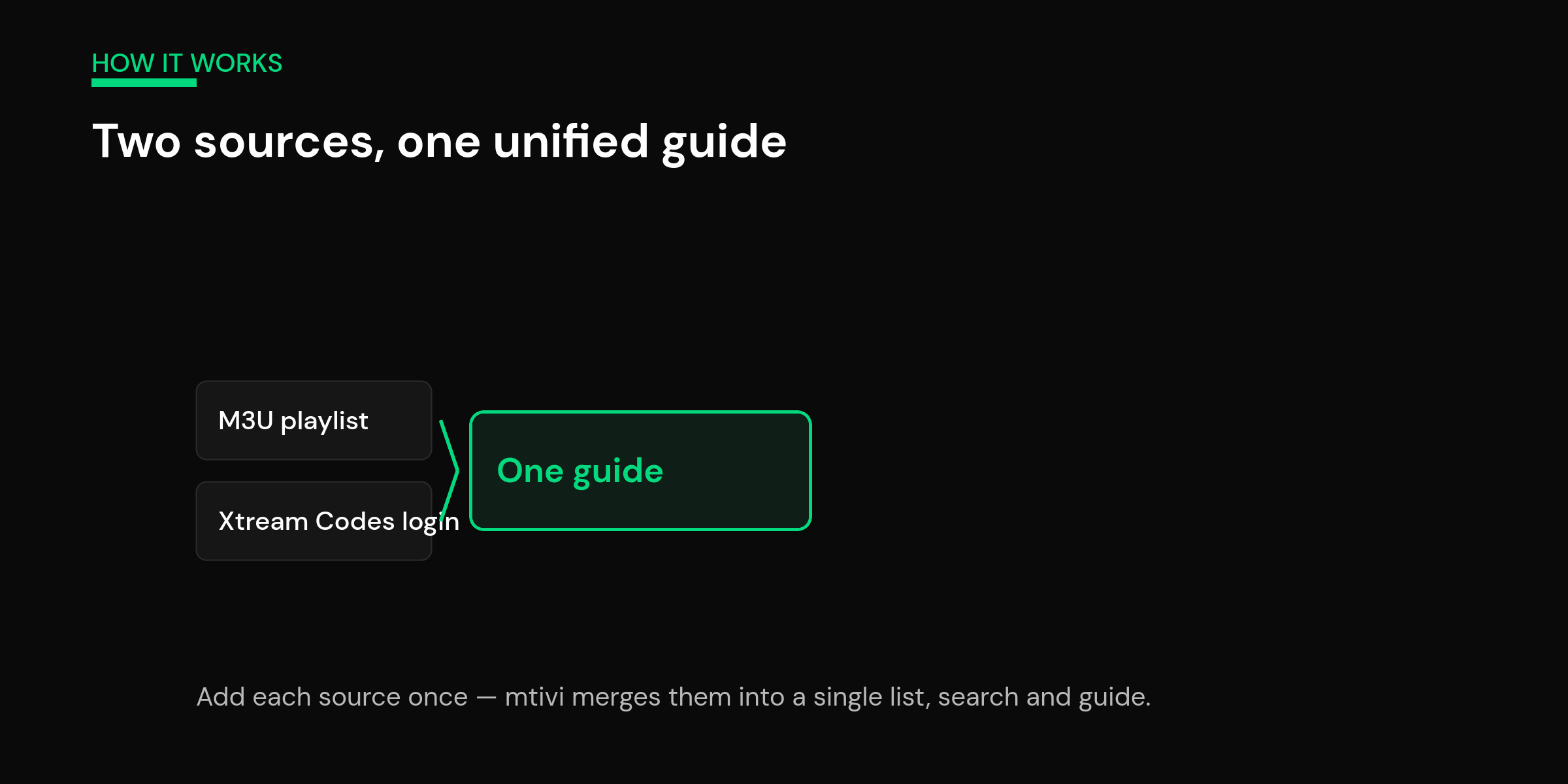
The cleaner path is a player that adds several sources natively and shows them as one list — no outside website, no rebuild dance. You add each playlist or Xtream login once, and the app stitches them into a single guide you scroll through as if it were one provider. When you add a fourth source later, you add it in the same screen and it folds straight into the combined view.
In mtivi this is Combined Playlists (a Pro feature). You add each M3U link, M3U file or Xtream Codes login as a source, and mtivi presents them as one unified list with a single guide, one search box and one favorites system across all of them. Because it is built into the player, there is no separate merger to maintain: add a source, and it is part of the list; remove one, and its channels leave cleanly. Adding sources is easier than typing long URLs with a remote, too — a web manager and QR flow let you paste addresses from your phone or computer and have them appear on the TV.
The honest limit worth stating up front: combining playlists changes how your channels are organized, not how many connections your providers allow. Merging three sources into one list does not give you extra simultaneous streams — each provider still enforces its own connection count. What you gain is one place to watch, not more capacity.
The part everyone forgets: de-duplication
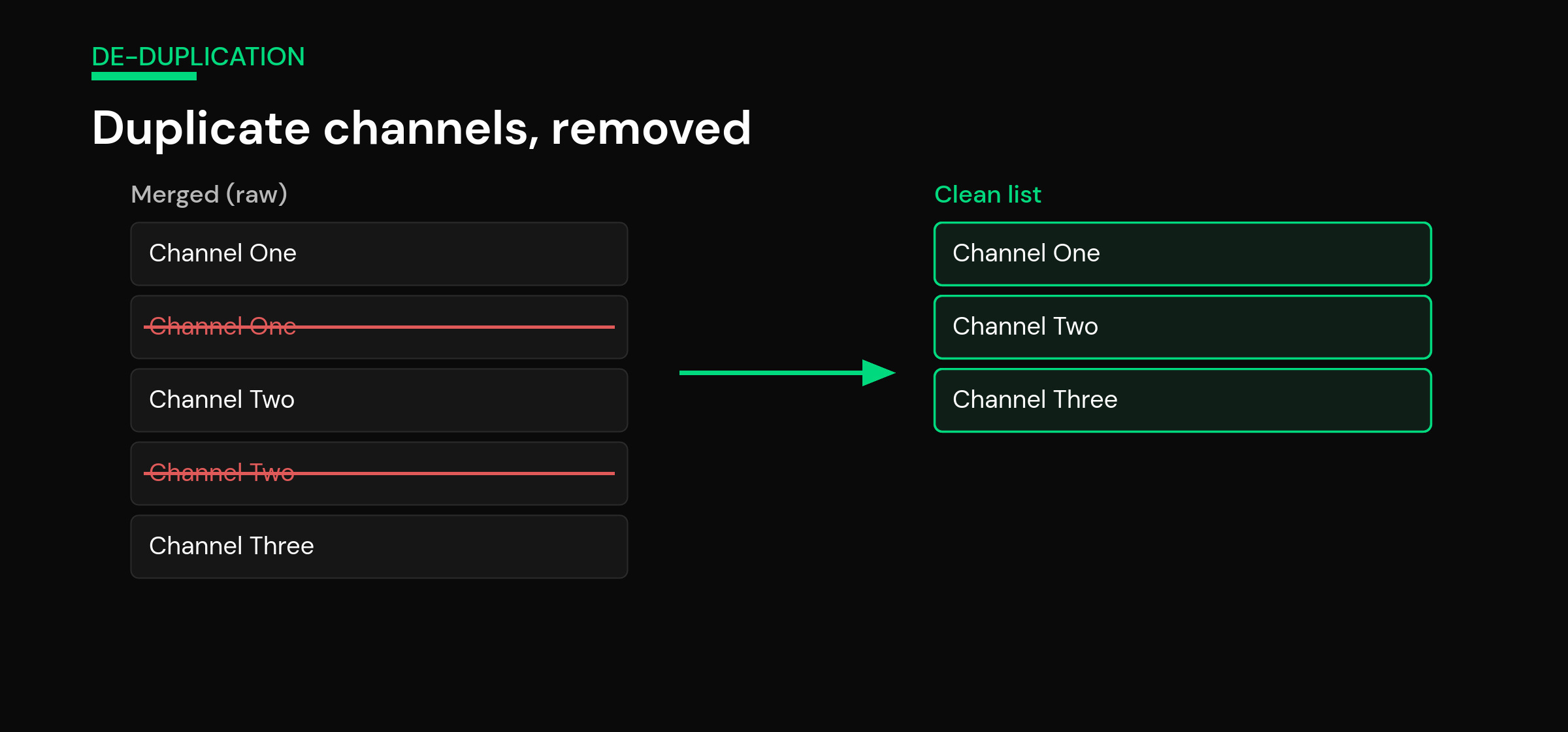
Here is where a lazy merge falls apart. Add two sources that both carry the same popular channels and your combined list now shows each of them twice — sometimes three or four times once you add a third provider. A raw concatenation keeps every copy, so you end up scrolling past duplicate after duplicate to find anything.
Good de-duplication is what separates a genuinely clean merged list from a messy pile. That can mean hiding the dead or duplicate copies, keeping the highest-quality version of a channel and dropping the rest, or grouping the same channel from different sources together so you can pick whichever one is working right now. mtivi lets you cull duplicates and tidy the combined list rather than forcing you to live with every copy, which matters far more once you are past a couple of hundred channels. If your merged list is also just large, the mechanics of keeping it fast are covered in our guide to loading a big playlist without lag.
Keep the merged list in sync across devices
Merging your sources on the living-room box is only half the job if you also watch on a phone, a tablet or a second TV. Rebuild the same combined list by hand on every device and you are back to the fragmented setup you were trying to escape. This is why sync matters: do the merge once, and have it follow you.
With mtivi, your sources, combined layout and favorites live in your profile, so cloud sync carries the same unified list to every device you sign in on. Add a fourth provider on the TV tonight and it is already merged into the list on your phone tomorrow — no re-import, no second setup. That single-source-of-truth approach is the difference between a merge you do once and a merge you keep redoing.
Which method should you pick?
If you have one or two static M3U files and rarely change them, an external merger is a perfectly reasonable quick fix. If you juggle several sources, mix M3U and Xtream logins, add or drop providers through the year, or watch on more than one screen, an in-player combine will save you far more hassle over time. The table below sums up the trade-offs.
| Approach | Handles M3U + Xtream | De-dupe & tidy | Upkeep when sources change | Syncs across devices |
|---|---|---|---|---|
| Manual paste (M3U only) | No | By hand | Rebuild every time | No |
| External merger tool | Sometimes | Often | Re-run & re-import | No |
| In-player combine (mtivi) | Yes | Built in | Add/remove a source once | Yes, via cloud sync |
Getting a clean merge every time
Whichever route you take, a few habits keep the result tidy. Add your sources one at a time and check each loads before adding the next, so you know which provider a problem came from. Merge, then de-dupe — don’t try to judge duplicates until everything is in one list. Keep one combined guide rather than letting each source bring its own, so now-and-next lines up; our walkthrough on setting up a full TV guide covers that side. And remember what the merge does and doesn’t do: it organizes many sources into one list, but it can’t add connections or invent channels your providers don’t carry. If you are still deciding what a player is responsible for versus what your provider supplies, start with what an IPTV player actually is.
Frequently asked questions
Can I merge multiple IPTV playlists into one list?
Yes. You can merge multiple IPTV playlists either by combining the files with an external tool or by using a player that adds several sources and shows them as one unified list. The in-player route avoids rebuilding the merge every time a source changes and keeps a single guide, search and favorites across all of them.
How do I combine two M3U playlists manually?
Because an M3U file is plain text, you can open both, copy the channel blocks from the second file below the first, and keep only one #EXTM3U header at the very top. Save it as a new file and load that into your player. It works for M3U files, but it can’t merge an Xtream Codes login this way.
Can I merge an M3U playlist and an Xtream Codes login together?
Not by pasting, because they are different formats — one is a file, the other is a server login. You need a player or tool that can hold both source types at once and present them as one list. mtivi’s Combined Playlists does this: add an M3U link, an M3U file and an Xtream login as separate sources and they appear together.
Does merging playlists give me more connections?
No. Merging changes how your channels are organized, not how many simultaneous streams your providers allow. Each source still enforces its own connection limit, so combining three playlists into one list gives you one place to watch, not extra capacity.
How do I remove duplicate channels after merging?
Good players let you hide or cull duplicate copies, keep the best-quality version of a channel, or group the same channel from different sources so you can pick whichever is working. mtivi lets you de-dupe and tidy the combined list rather than forcing you to scroll past every copy.
Will my merged list stay the same on my phone and my TV?
Only if your player syncs it. With mtivi, your sources, combined layout and favorites live in your profile, so cloud sync carries the same merged list to every device you sign in on — no rebuilding it by hand on each screen.
Is it better to merge with a website or inside the player?
A website merger is a fine quick fix for one or two static M3U files. If you juggle several sources, mix M3U and Xtream, change providers through the year, or watch on more than one device, combining inside the player saves far more upkeep because you add or remove a source once and it is done.
Do I need to rebuild the merge when a provider changes servers?
With an external tool, usually yes — you re-run it and re-import the output. With an in-player combine, you just update that one source and the rest of your list is untouched, which is the main reason people move the merge into the player.
How many playlists can I combine in mtivi?
You can add multiple sources — M3U links, M3U files and Xtream Codes logins — and mtivi merges them into one unified guide with a single search and favorites system. Keeping the list tidy with de-dupe matters more than the raw count once you pass a few hundred channels.
Why do I see the same channel several times in my merged list?
Because two or more of your sources each carry that channel, and a raw merge keeps every copy. That is normal — the fix is de-duplication: hide or remove the extra copies and keep one clean entry, or group them so you can switch between sources if one is down.
Is a combined playlist safe to set up on a shared or family TV?
Yes, and you can keep it organized for a household by pairing the merged list with profiles and favorites so everyone finds their channels quickly. Keeping one tidy combined guide is far friendlier on a family TV than flipping between separate provider lists.
Does mtivi provide the channels in a combined playlist?
No. mtivi is a media player. We don’t provide, sell, or include any channels, movies, series, or playlists — you add your own source. Combined Playlists simply merges the sources you already have into one clean list.