Skip to content
TiviMate 5-Device Limit: How to Free a Slot and When to Switch
You added the app to one more screen, and it stopped you cold: the TiviMate 5 device limit means a single Premium account can be active on only five devices at once. Add a phone, a tablet, the living-room box, a bedroom stick and one spare, and you are already full — so the sixth install refuses to activate until you free a slot.
The good news is that this is normal, expected behavior, not a bug or a ban, and it takes about a minute to fix from the right app. Below is exactly how to remove an old device, why the cap exists, the one thing people constantly confuse it with, and — if you have simply outgrown a five-slot license — how to move to a player that does not make you juggle devices at all.
What the TiviMate 5-device limit actually means
TiviMate Premium is tied to your account, and that account can hold five active device registrations. Every time you install TiviMate and unlock Premium on a new box, phone or TV, it claims one of those five slots. The app does not quietly retire an old device for you, so a Firestick you factory-reset months ago can still be sitting in your list, holding a slot hostage.
When all five are taken, activating a sixth device throws a “device limit reached” or “too many devices” message. Nothing is wrong with your subscription and nothing is lost — you just need to hand a slot back before the new device can take it. Importantly, this ceiling is set by TiviMate itself and applies whether you are on the yearly plan or a lifetime purchase; buying Premium a second time does not add extra slots to the same account.
It is worth knowing where this sits in the bigger picture of how IPTV works: the player is the software that reads your playlist, while the five-device rule is purely an account policy layered on top of the Premium unlock. If you are new to all of this, our primer on what an IPTV player is explains the pieces in plain terms.
How to free a slot in the TiviMate Companion app
Device management does not happen inside TiviMate on your TV — it happens in the separate TiviMate Companion app on an Android phone or tablet, signed in with the same Premium credentials. That companion app is where your five slots are listed, named and released. Here is the clean sequence:
- Install TiviMate Companion on an Android phone or tablet from the official store, if you do not already have it.
- Open it and sign in with the same account you use for TiviMate Premium.
- Go to the account or devices section, where all of your activated devices are listed.
- Rename the devices first if the list is a wall of identical model names — it makes it obvious which entry is the old box you no longer use.
- Select the device you want to retire and choose deactivate or remove. That instantly frees one of the five slots.
- Go back to the new device, reopen TiviMate, and activate Premium again. It now claims the slot you just released.
Two things trip people up here. First, deactivating a device in Companion does not delete anything you care about — your playlists live on your provider and your favorites can be restored — it simply revokes that device’s Premium activation. Second, if a device is broken, sold or wiped, you can still remove it remotely from Companion; you never need physical access to the old hardware to reclaim its slot.
The 5-device limit vs your provider’s connection limit
This is the single biggest source of confusion, so it is worth being precise. There are two completely different limits at play, and freeing a TiviMate slot only touches one of them.
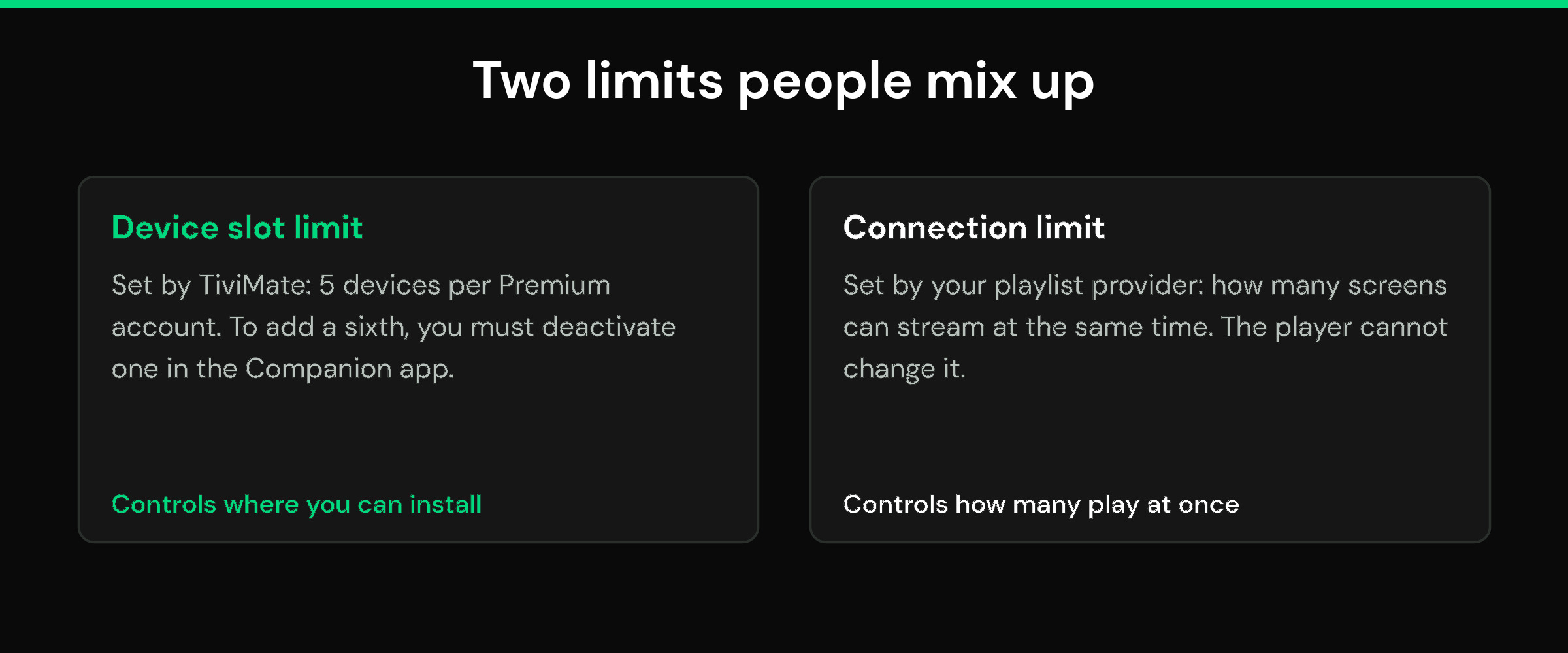
| TiviMate device limit | Provider connection limit | |
|---|---|---|
| Who sets it | TiviMate (the player’s account policy) | Your playlist provider / source |
| What it caps | How many devices can have Premium active (5) | How many screens can stream at the same time |
| Typical error | “Device limit reached / too many devices” | “Max connections reached” or a stream that will not start |
| How to fix | Deactivate a device in Companion | Stop another stream, or ask your provider for more connections |
In other words, you could free all five TiviMate slots and still only be able to watch on one or two screens at once, because the number of simultaneous streams is decided by your playlist’s connections, not by the player. No IPTV player — TiviMate, its rivals, or mtivi — can raise that connection number for you. Keeping the two limits straight saves a lot of pointless troubleshooting, and it is closely related to why a stream sometimes refuses to play at all, which we cover in the guide to fixing buffering after an update.
When managing slots stops being worth it
For a single household with one or two screens, the five-slot ceiling is invisible — you set it and forget it. The friction starts when your setup grows. A family that watches on several TVs, a couple of phones and a tablet burns through five slots fast, and every new device or every hardware upgrade turns into a trip through the Companion app to retire something old. Add a rising renewal cost after the well-publicised Premium price changes, and a lot of people reach the same question: is manually rationing device slots really how they want to spend their evenings?
There is nothing wrong with staying on a five-slot license if it fits. But if you are constantly bumping into the cap, deactivating and re-activating, or paying more each year to keep doing so, it is a reasonable moment to look at players that simply do not work this way. If you want a broader view of the options, our roundup of choosing a TiviMate alternative and the head-to-head on how the big players compare are good next reads.
Alternatives without a hard five-device cap
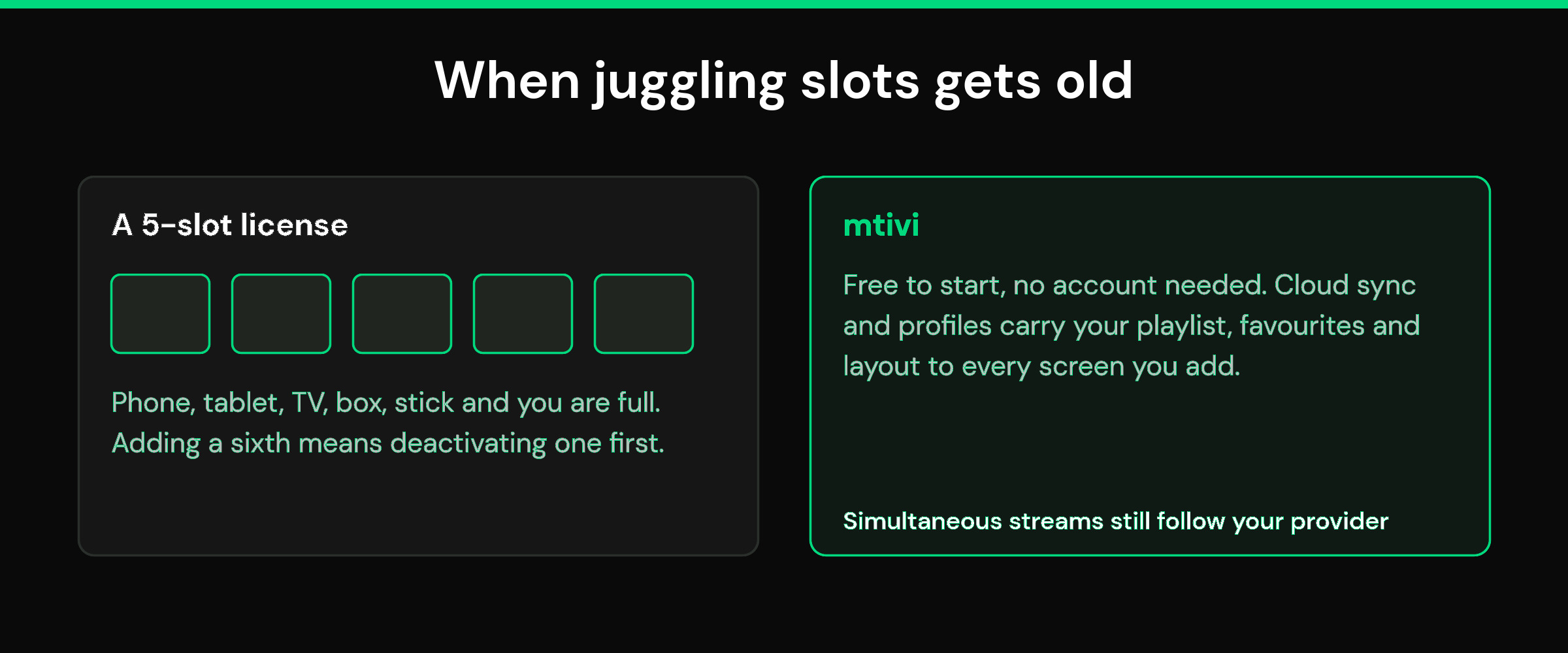
Not every player gates you behind a per-account device license. Some are one-time purchases per device, some are free with optional upgrades, and some — like mtivi — are free to start with no account required, so there is no five-slot register to manage in the first place. The trade you are weighing is convenience: a license model keeps everything under one login but caps your devices; a no-account model lets you install freely but relies on features like cloud sync to keep those installs feeling like one setup.
| Question | A 5-slot license player | mtivi |
|---|---|---|
| Per-account device cap? | Yes — five active devices | No login-gated five-slot register; free to start, no account |
| Add a new screen | Deactivate an old device first | Just install and add your source |
| Carry setup across devices | Companion account | Cloud sync for playlist, favorites and layout |
| Simultaneous streams | Set by your provider | Set by your provider |
Notice the last row is identical: switching players does not raise how many screens can stream at once, because that number always belongs to your provider. What switching can remove is the chore of the device register itself.
How mtivi eases the multi-device pain
mtivi runs today on Android phones and tablets, Android TV, Google TV, Fire TV, Nvidia Shield and Android boxes, with iPhone, iPad, Mac, Apple TV, Windows and smart-TV apps on the way. Because it is free to start and needs no account to begin, adding another screen is just another install — there is no five-slot license to top up or ration.
Where a license model uses a companion login to keep devices in sync, mtivi leans on cloud sync that carries your playlist and favorites across devices, so a box you set up in the living room and a tablet in the kitchen show the same channels, the same favorites and the same tidy layout. Profiles — Public, Kids and Private — keep each screen appropriate for whoever is using it, which is handy when the same setup spans a whole household; if that matters to you, see kids-safe profiles and a PIN lock. And on the living-room screens most people care about, our pick for the best IPTV player for Android TV walks through the same experience on a proper TV.
None of this changes the honest reality of simultaneous streaming: how many screens can play at the same moment still depends on the connections your provider gives you. What it does change is that you spend your time watching, not deactivating devices to make room.
Frequently asked questions
What is the TiviMate 5 device limit?
The TiviMate 5 device limit is an account rule: a single TiviMate Premium account can be active on a maximum of five devices at the same time. Installing Premium on a sixth device fails until you deactivate one of the existing five in the TiviMate Companion app.
How do I remove a device when I hit TiviMate’s 5-device limit?
Open the TiviMate Companion app on an Android phone or tablet, sign in with your Premium account, go to the devices list, select the old device and choose deactivate or remove. That frees a slot immediately, and you can then activate Premium on the new device.
Can I use TiviMate on more than 5 devices?
Not simultaneously on one account. Five is the hard ceiling per Premium account. You can rotate devices in and out by deactivating one to make room for another, but you cannot have six or more active at the same time under a single account.
Does buying Premium again add device slots?
No. Purchasing Premium a second time does not stack extra slots onto the same account — you still get five. The only way to have more active devices under separate licenses would be entirely separate accounts, which most people find more hassle than it is worth.
How do I use the Companion app to deactivate devices?
Sign in to TiviMate Companion with your Premium credentials, open the account or devices section, and you will see every activated device. Rename them if they look identical, pick the one you want gone, and select remove. The slot is released the moment you confirm.
Why does TiviMate say “too many devices” or “device limit reached”?
It means all five Premium slots on your account are already claimed, often by devices you have reset or replaced but never removed. TiviMate does not auto-retire old devices, so the fix is to deactivate one in Companion and try activating again.
Is the 5-device limit the same as my provider’s connection limit?
No, and this is the most common mix-up. The five-device limit is TiviMate’s account policy for how many devices can run Premium. Your provider’s connection limit controls how many screens can stream at once. Freeing TiviMate slots does not increase your simultaneous streams.
Does the TiviMate price increase change the device limit?
The reported Premium price changes affect what you pay, not how many devices you get — the account still tops out at five active devices. For some people the higher cost, combined with the slot juggling, is what prompts a look at players without a per-account device cap.
Which IPTV players don’t have a hard device cap?
Models vary: some players charge once per device, some are free with optional upgrades, and some are free to start with no account at all, so there is no five-slot register to manage. mtivi is in the last group. Whichever you choose, simultaneous streaming still depends on your provider’s connections.
Does mtivi limit how many devices I can use?
mtivi is free to start and needs no account to begin, so it does not tie you to a five-slot license — you can install it on your phone, tablet, TV and boxes and add another screen without deactivating an old one. How many screens can play at the same time still depends on the connections your playlist provider allows, which is true of every player.
Will I lose my playlist and favorites if I switch players?
Your playlist lives with your provider as an M3U or Xtream Codes source, so switching players does not delete it — you simply add the same source to the new app. Favorites and layout are rebuilt in the new player, and with a player that has cloud sync they then follow you across every device automatically.
Does deactivating a device in Companion delete my content?
No. Deactivating only revokes that device’s Premium activation. It does not touch your provider’s playlist, and it does not remove anything from your other active devices. You can even remove a broken or sold device remotely without touching the hardware.
Do I need a new IPTV subscription to switch to mtivi?
No. mtivi is a media player — we don’t provide, sell, or include any channels, movies, series, or playlists; you add your own source. If you already have an M3U or Xtream Codes login, you can point mtivi at that same source and start free, with no account needed.