Skip to content
IPTV Native vs ExoPlayer vs VLC: Which Player Engine Should You Use?
Open the settings on almost any IPTV player and you will find a little menu called decoder, player or engine with three choices: Native (sometimes called Hardware or HW), ExoPlayer, and VLC. Nobody explains what they do, so most people either leave it alone or flip it at random when a channel misbehaves. Here is the short version: the engine decides how your device turns a stream into picture and sound, and picking the wrong one is behind a huge share of green screens, silent channels and stuttering playback.
This guide breaks down IPTV Native vs ExoPlayer vs VLC in plain terms, maps each engine to the exact problem it fixes, and shows you when to switch and when to leave it on automatic. No jargon dumps, no “just try another player” hand-waving.
The 30-second answer
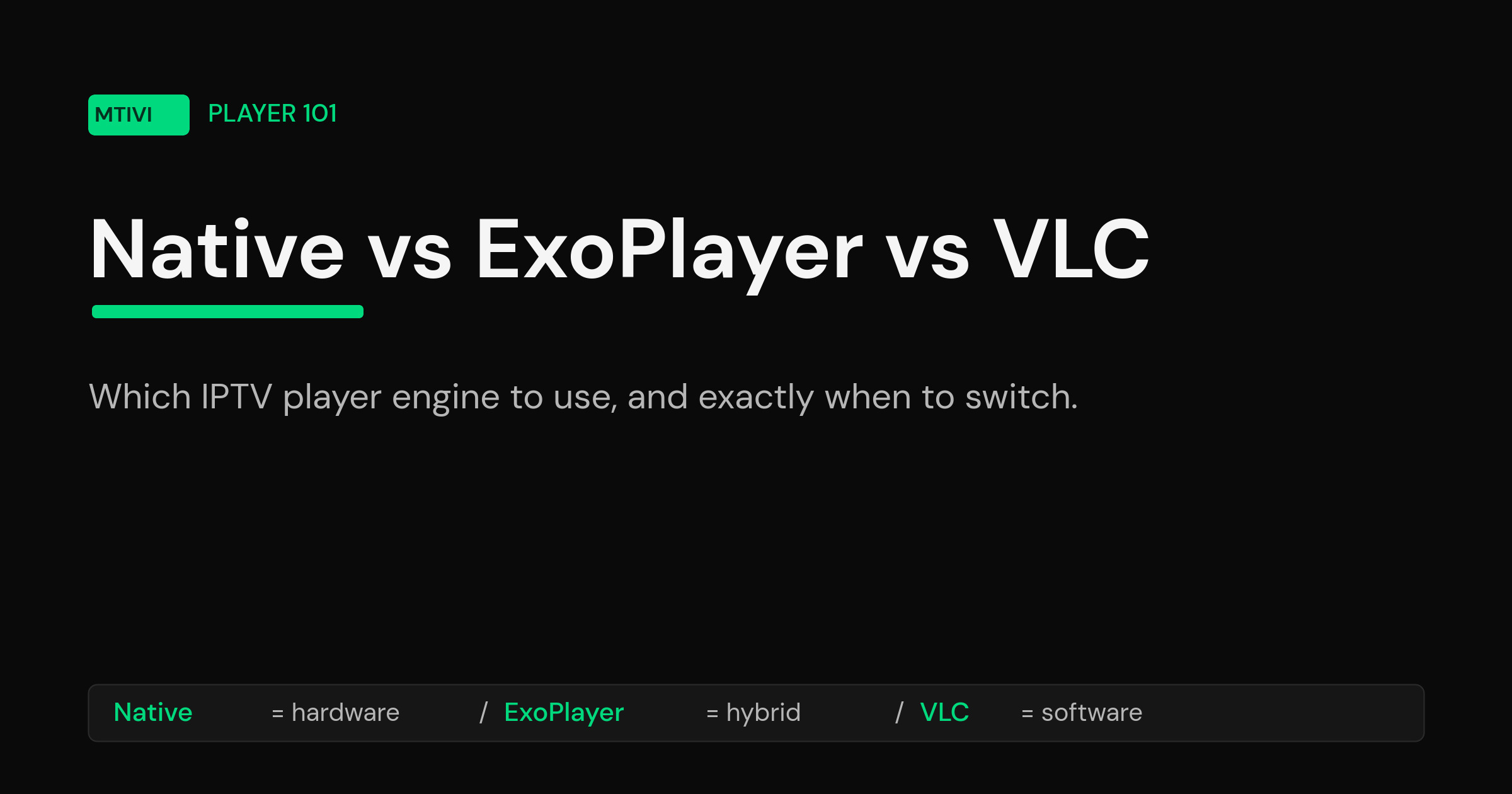
If you want one rule to remember: leave it on the automatic/Native setting until a specific channel breaks, then step down to a software engine for that channel. Native uses your device’s built-in decoding chip, so it is the smoothest and coolest-running option when it works. ExoPlayer and VLC lean more on software, which is slower but far more forgiving of odd streams and unusual audio.
| Engine | What it leans on | Best for | Weak spot |
|---|---|---|---|
| Native / Hardware | Your device’s decoding chip | Smooth 4K, low heat, most channels | Fails on codecs the chip lacks |
| ExoPlayer | Hardware first, software fallback | Modern streams, catch-up, wide format support | Some legacy and multicast sources |
| VLC | Software decoding (its own libraries) | Awkward channels, rare audio, odd containers | Heavier on the CPU, more heat |
What “Native,” “ExoPlayer” and “VLC” actually mean
Every one of these engines has the same job: take the compressed video and audio arriving from your playlist and decode it into frames and sound your screen can play. The difference is who does the decoding and how flexible they are about weird input.
Native (the hardware decoder)
Native means the player hands the stream straight to the dedicated video-decoding block built into your box, stick or TV. This is the same silicon your device uses for its own apps. Because it is purpose-built, it is fast, sips power and barely warms up even on 4K. The catch is that a hardware chip only knows the specific formats it shipped with. Feed it a codec it does not recognize, an unusual audio track like Dolby Digital Plus, or a slightly non-standard stream, and it either throws a green or black screen, drops the audio, or refuses to start. For a deeper primer on how the whole chain fits together, see our guide to what an IPTV player actually is.
ExoPlayer
ExoPlayer is Google’s open-source media engine for Android, now maintained as part of the Media3 libraries. It is the engine most modern IPTV apps are built on, and for good reason. It tries the hardware decoder first for speed, but it can be told to fall back to software when hardware initialisation fails, so a channel that would have shown a green screen on pure Native quietly keeps playing. It also handles today’s adaptive streaming formats and catch-up cleanly. Its blind spots are older delivery methods like some multicast and legacy RTSP sources, which often need a workaround. You can read the technical background in the official Android ExoPlayer documentation.
VLC (the software workhorse)
VLC brings its own decoding libraries instead of relying on your device’s chip, which is why the beloved traffic-cone app plays almost anything you throw at it. On an IPTV player, choosing the VLC engine means “decode this in software, whatever it takes.” That flexibility is priceless for the one stubborn channel that green-screens on everything else, for rare audio codecs, and for messy containers. The trade-off is real: software decoding works the CPU harder, so a weak stick can stutter on 4K and run hot. See the VLC media player overview for its full format support.
Hardware vs software decoding, in plain terms
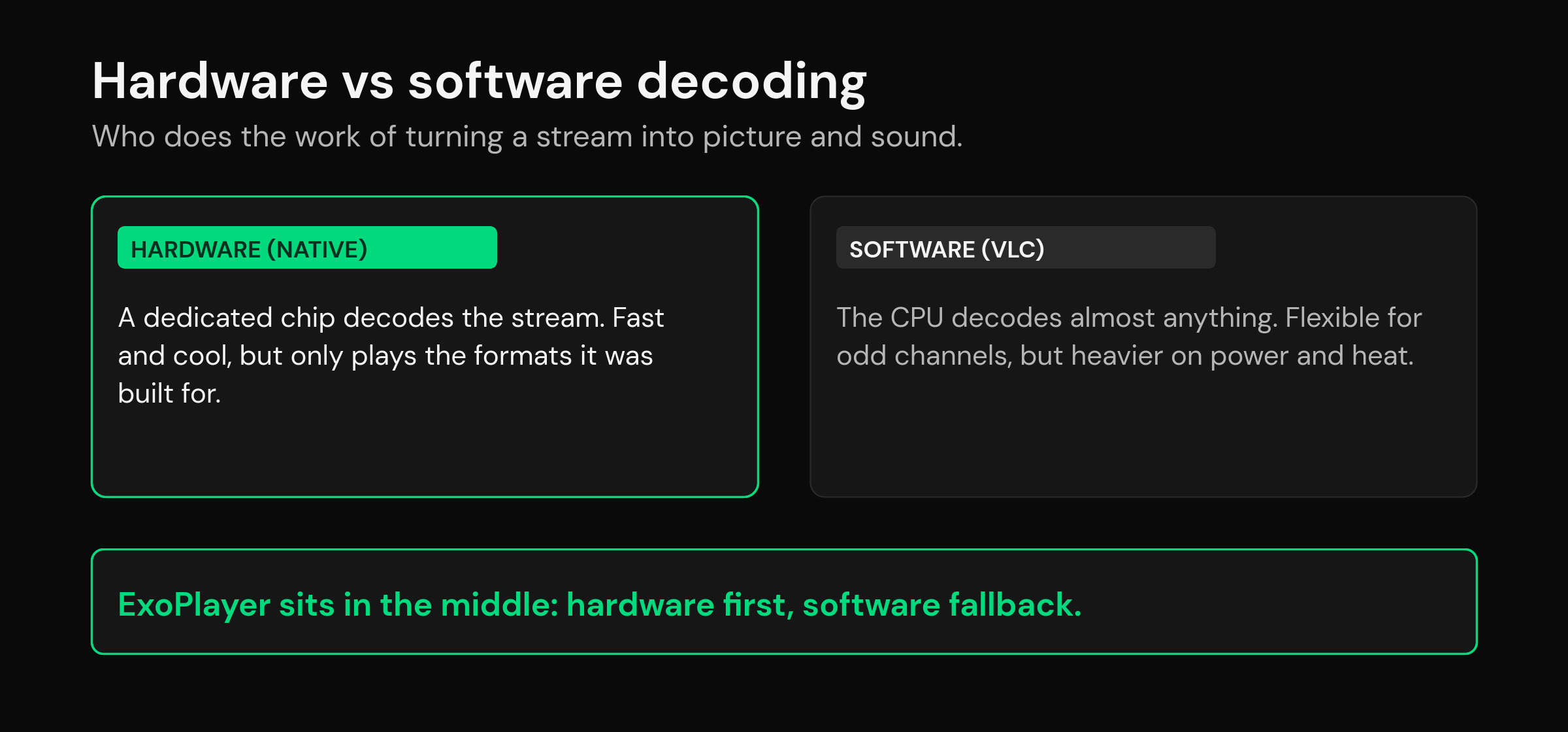
This is the single idea that makes the whole menu make sense. Decoding is the work of turning a compressed stream back into pictures. Your device can do it two ways. Hardware decoding uses a dedicated chip designed only for that job. It is efficient and cool, but rigid: it plays the formats it was built for and nothing else. Software decoding uses the general-purpose CPU running decoder code, so it is flexible enough to handle almost any format, at the cost of more processing effort, more heat and, on weak devices, more risk of stutter. If you want the textbook version, the codec explainer on Wikipedia covers how encoding and decoding work.
Native is pure hardware. VLC is essentially software. ExoPlayer sits in the middle: hardware for speed, with software as a safety net. That is why the sensible default is Native or ExoPlayer for everything, dropping to VLC only for the handful of channels that need brute-force flexibility.
Match the engine to the symptom
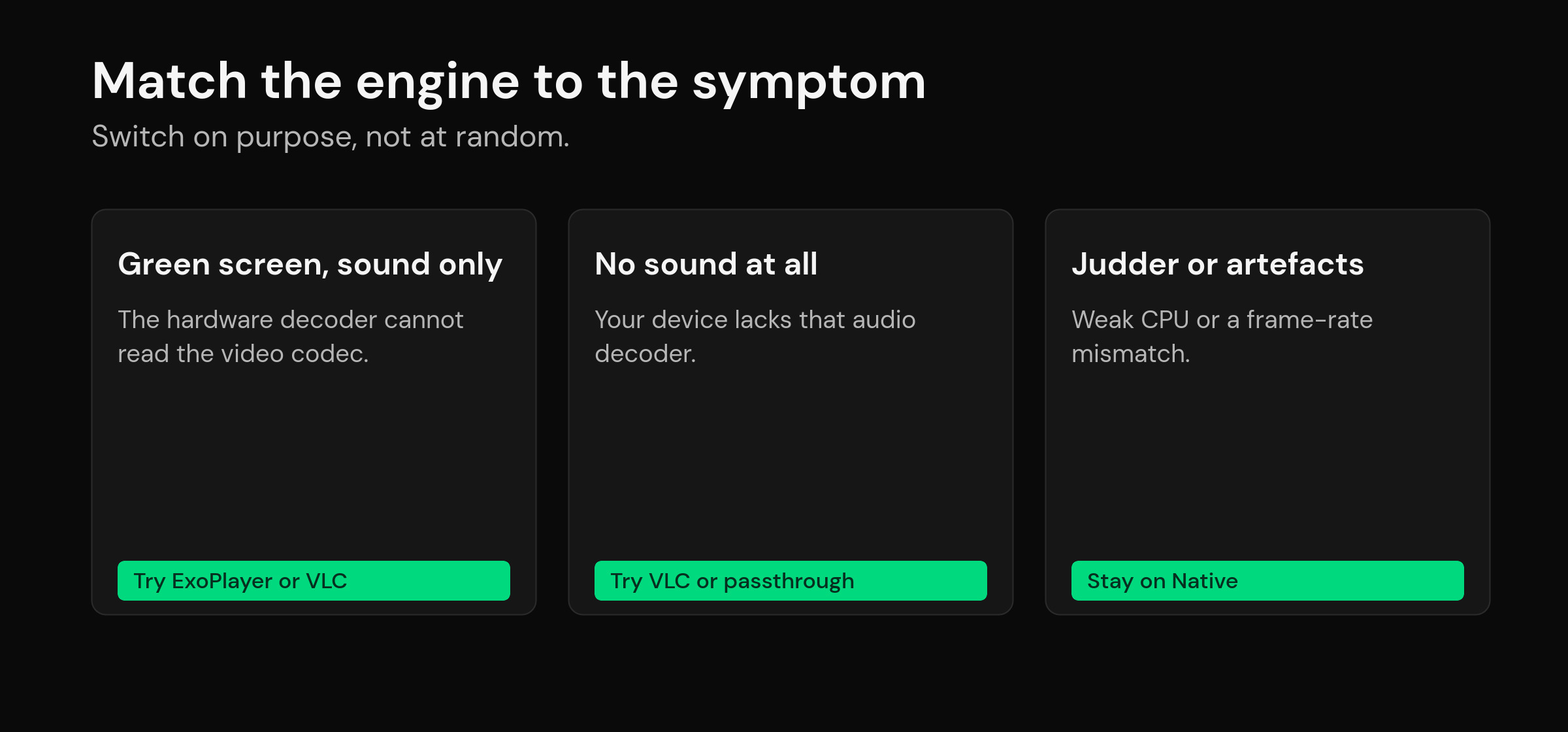
Instead of switching engines blindly, match the fix to what you are actually seeing. These are the patterns that come up again and again.
| Symptom | Likely cause | Try this engine |
|---|---|---|
| Green or black screen, sound only | Hardware decoder cannot handle the video codec | ExoPlayer with software fallback, or VLC |
| Picture plays but no sound | Device lacks that audio decoder (e.g. Dolby Digital Plus) | VLC, or enable audio passthrough |
| Juddery or stuttering motion | Frame-rate mismatch or overloaded software decode | Native for smoothness; match display refresh |
| Blocky artefacts under load | Weak CPU struggling with software decode | Native / Hardware to offload the chip |
| Channel will not start at all | Unusual container or delivery method | VLC for maximum compatibility |
Two quick honesty notes. A gray, faded picture is usually not a decoder problem at all but an HDR setting, which we cover in the guide to washed out colors in HDR. And if audio drifts out of time with the picture, the engine is rarely the root cause; the fixes live in IPTV audio out of sync.
How to switch the engine on most players
The wording differs, but the path is almost always the same. Open the channel or the app’s playback settings, find Decoder, Player or Engine, and choose Native, ExoPlayer or VLC. Many apps let you set a global default and then override it per channel, which is exactly what you want: keep the smooth default everywhere, and pin the one troublesome channel to VLC so you never think about it again. If a channel still refuses to play after cycling all three engines, the problem is more likely the source than the decoder, and the checklist in how to fix an unplayable stream will narrow it down faster.
A word of caution: do not force VLC or software decoding globally on a low-powered stick just because it fixed one channel. You will trade one fixed channel for stutter and heat across everything else. Change the default only if most of your list needs it, which is rare.
Where mtivi fits
The reason this menu exists at all is that no single engine wins every time, and constantly babysitting it is tedious. mtivi’s approach is to pick the right engine for each stream automatically and fall back to software decoding when a channel needs it, so the green-screen-and-guess routine mostly disappears. You keep the smoothness of hardware where it works and the flexibility of software where it does not, without living in the settings. You can still override the choice per channel when you want to, but for most people the answer to “which engine should I use” becomes “whichever one the player already picked.” mtivi also carries features that ride on top of clean playback, like subtitle translation into 50+ languages, so the picture, sound and captions all just work together.
Related guides
- What Is an IPTV Player? A Clear Guide
- IPTV Audio Out of Sync? How to Fix Lip-Sync Delay
- IPTV Washed Out Colors in HDR? How to Get Proper Color Back
- IPTV Smarters Unable to Play Stream? How to Find the Cause
Frequently asked questions
What is the difference between Native, ExoPlayer and VLC in IPTV apps?
They are three ways to decode your stream. Native hands the video to your device’s dedicated hardware chip, so it is fast and cool but only plays formats the chip supports. ExoPlayer is Google’s Android engine that uses hardware first and can fall back to software. VLC decodes in software using its own libraries, so it plays almost anything at the cost of more CPU effort.
Should I use a hardware or software decoder for IPTV?
Start with the hardware (Native) or the automatic setting, because it is the smoothest and runs coolest. Only switch to a software engine like VLC for a specific channel that green-screens, loses sound or refuses to play. Forcing software globally on a weak device causes stutter and heat.
Which engine fixes no sound on an IPTV channel?
No sound with a normal picture usually means your device lacks the audio decoder the channel uses, such as Dolby Digital Plus. Switching that channel to VLC often restores audio because VLC decodes it in software. Enabling audio passthrough to your TV or receiver can also help when the hardware supports it downstream.
Why do I get a green or black screen with sound only?
That is the classic sign that the hardware video decoder cannot handle the stream’s video codec, so the audio plays but the picture never decodes. Switch the channel to ExoPlayer with software fallback, or to VLC, and the picture usually comes back.
Is ExoPlayer better than VLC for IPTV?
Neither is universally better. ExoPlayer is the best all-round default for modern streams, catch-up and 4K because it blends hardware speed with a software safety net. VLC wins on the awkward channels, rare audio codecs and odd containers that ExoPlayer or Native choke on. Most setups want ExoPlayer as the default and VLC as the rescue option.
Does the player engine cause buffering?
Not directly. Buffering is almost always about your connection or the source, not the decoder. The engine affects whether a stream decodes cleanly and how much CPU it uses, so a mismatched engine can add stutter, but it will not fix a genuinely slow or overloaded source.
Why does one channel work on VLC but not Native?
Because that channel uses a codec, audio track or container your device’s hardware chip does not recognize. VLC decodes it in software, sidestepping the chip’s limits. Pin just that channel to VLC and leave the rest on the faster hardware engine.
Does switching engines improve picture quality?
The engine mainly decides whether a stream plays correctly, not how sharp it looks. Quality comes from the source stream, your resolution and HDR settings. A faded or gray picture is usually an HDR configuration issue rather than a decoder choice, so change display settings before blaming the engine.
Will software decoding drain my device or make it hot?
It can. Software decoding runs on the general-purpose CPU, which uses more power and generates more heat than a dedicated hardware decoder. On low-powered sticks that can mean stutter on 4K. Use software decoding selectively for problem channels rather than as your default.
Do I have to choose an engine myself in mtivi?
Usually not. mtivi picks the right engine for each stream automatically and falls back to software decoding when a channel needs it, so most people never open the decoder menu. You can still override the choice per channel if you prefer to set it manually.
Does mtivi provide the channels I watch?
No. mtivi is a media player. We don’t provide, sell, or include any channels, movies, series, or playlists. You add your own source, and mtivi plays it with whichever engine suits each stream.